

Membery User Guide
Membership management for sport clubs and wellness centres: sign-ups, package sales, check-in, class and court booking, payments, and an app for members.

MEMBERY app for members
Sign in with an OTP, join a club in the app, book classes and courts, pay, and get notifications.
QR PromptPay payments
Money goes straight to the club's account. Slips are checked automatically by Slip2Go, or approved by staff.
Pausing packages
Pause a member's package for a while. The expiry date moves out by the number of days paused.
Holidays & make-up days
Close a whole branch or only some services, then give members make-up days automatically or by hand.
For club staff and admins
Using the back office, chapters 1–17
1 Signing in
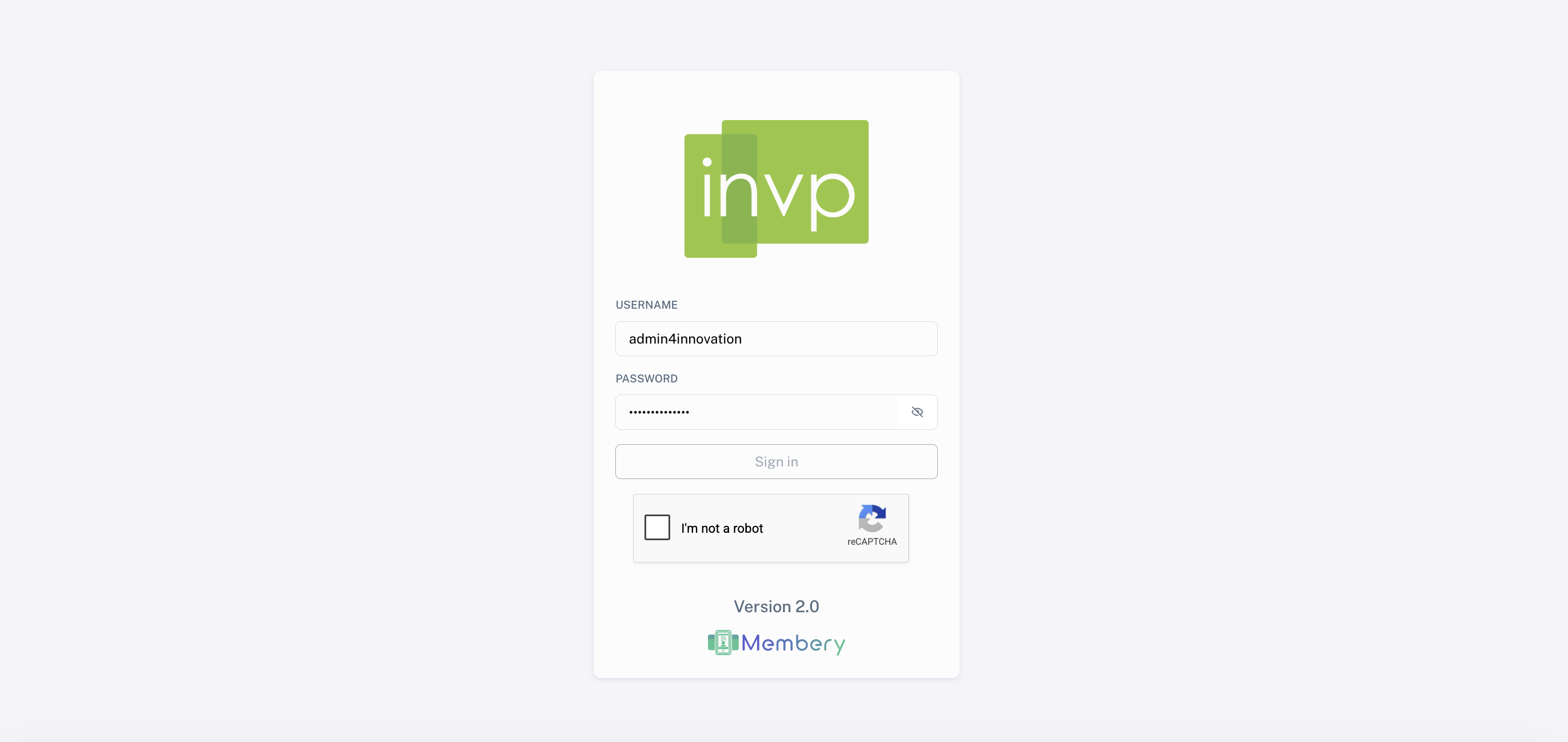
- Go to your system URL:
https://app.mymembery.com/[YOURNAME]/login - Enter your Username and Password to open the dashboard
- The menus you see depend on your user level. A user without access to a page is taken to the first menu they can use.
- When you finish, click Logout to keep the data safe
2 Dashboard & KPIs Updated v2.2
The dashboard sums up the club's key numbers and loads quickly.
- Monthly revenue now includes revenue from "Other" services
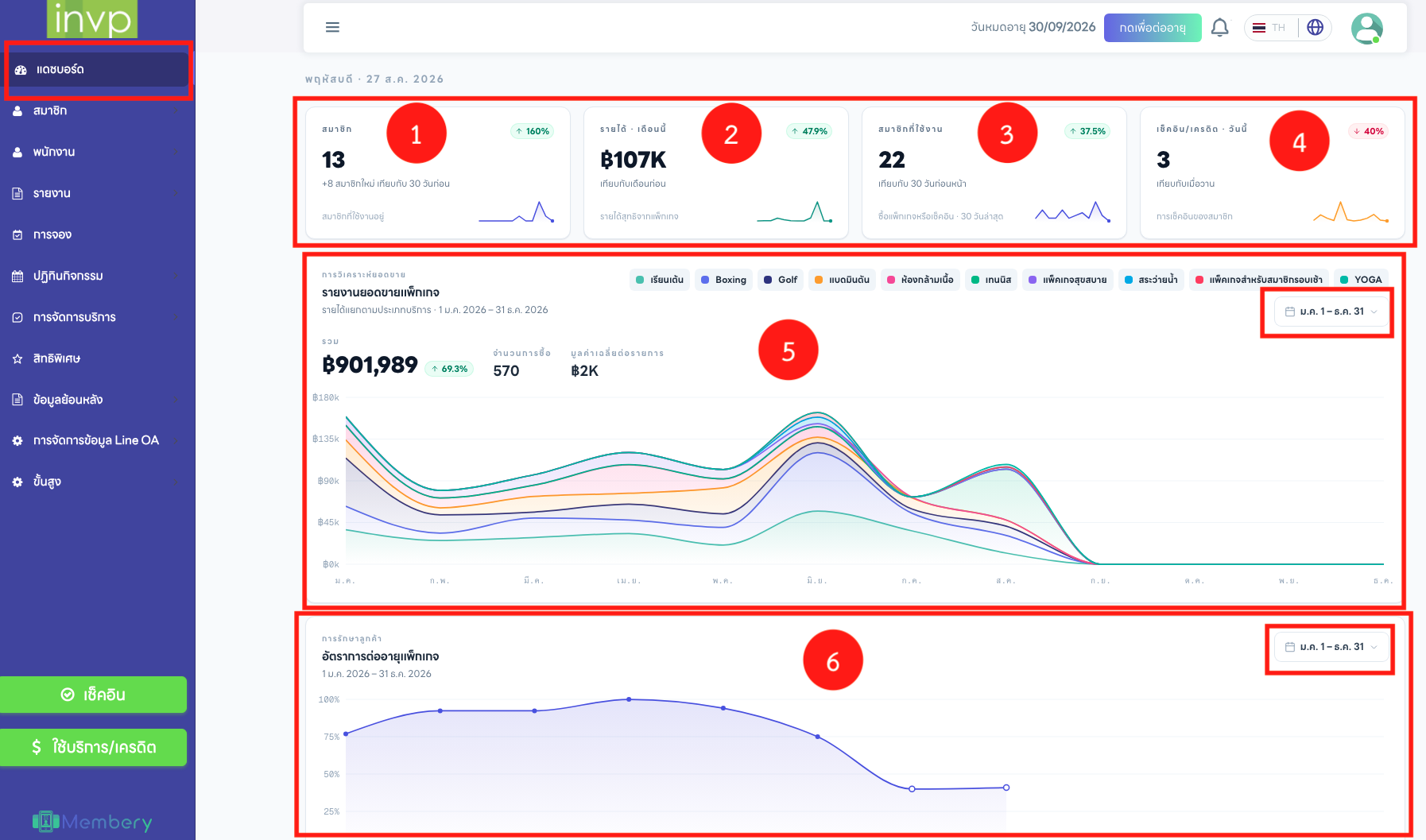
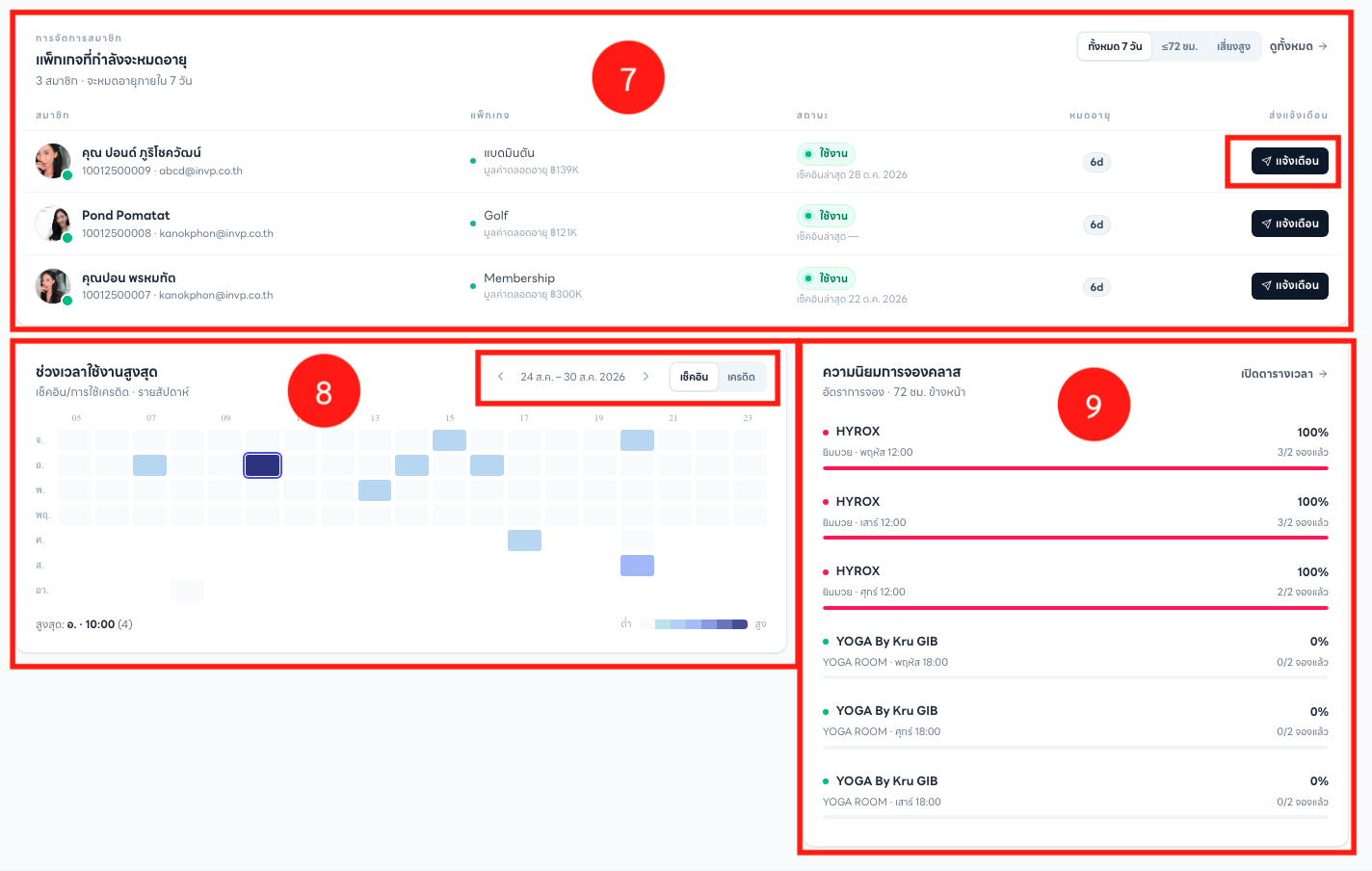
| KPI / report | Details |
|---|---|
| Member numbers | Total members, growth percentage and new members in the last 30 days, with a sparkline |
| Monthly revenue | Total sales this month compared with last month, across all channels |
| Active members | Members who bought a package or used credits in the last 30 days |
| Daily check-ins / credits | Today's check-ins compared with yesterday, with a chart of visit times |
| Package sales | Chart by service (fitness, boxing, golf and so on), with a date range |
| Renewal rate | Share of existing customers who renewed a monthly or yearly package |
| Packages about to expire | Members whose packages expire soon, with a "Notify" button (chapter 4) |
| Peak hours | Heat map by day (Mon–Sun) and time (05:00–23:00) |
| Class booking popularity | Class booking rate for the next 72 hours, with a shortcut to the calendar |
3 Managing members Updated v2.2
- The member list has a Sign-up channels menu showing the club code and QR for joining through the MEMBERY app (section 3.3)
- Inactive members can be shown in the list, and a member's status no longer changes by itself when their details are edited
- Credits taken by a credit check-in can be returned from the member's page
- Members who deleted their account in the app show the status Deleted in app (section 20.5)
3.1 Adding and registering a member
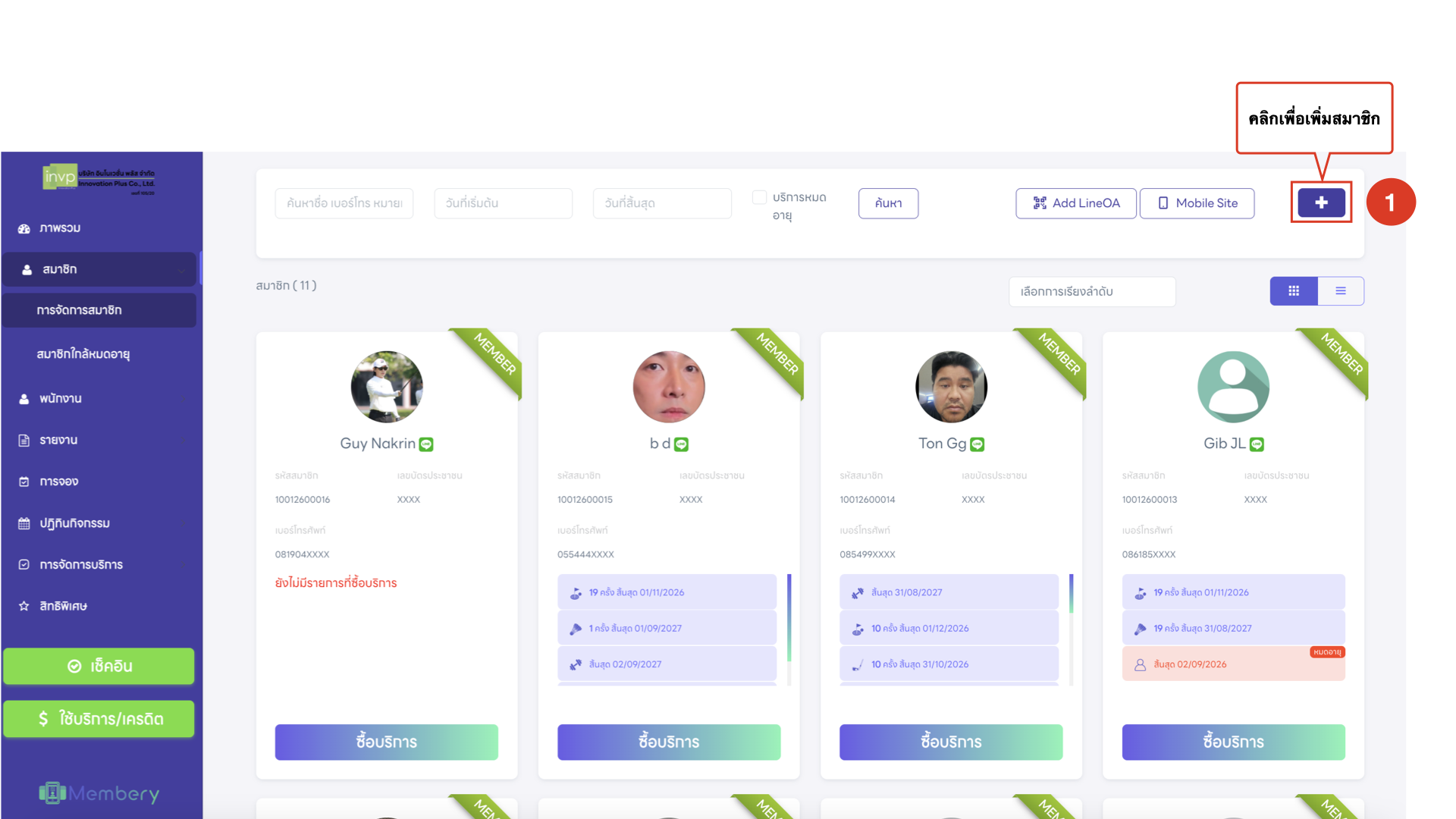
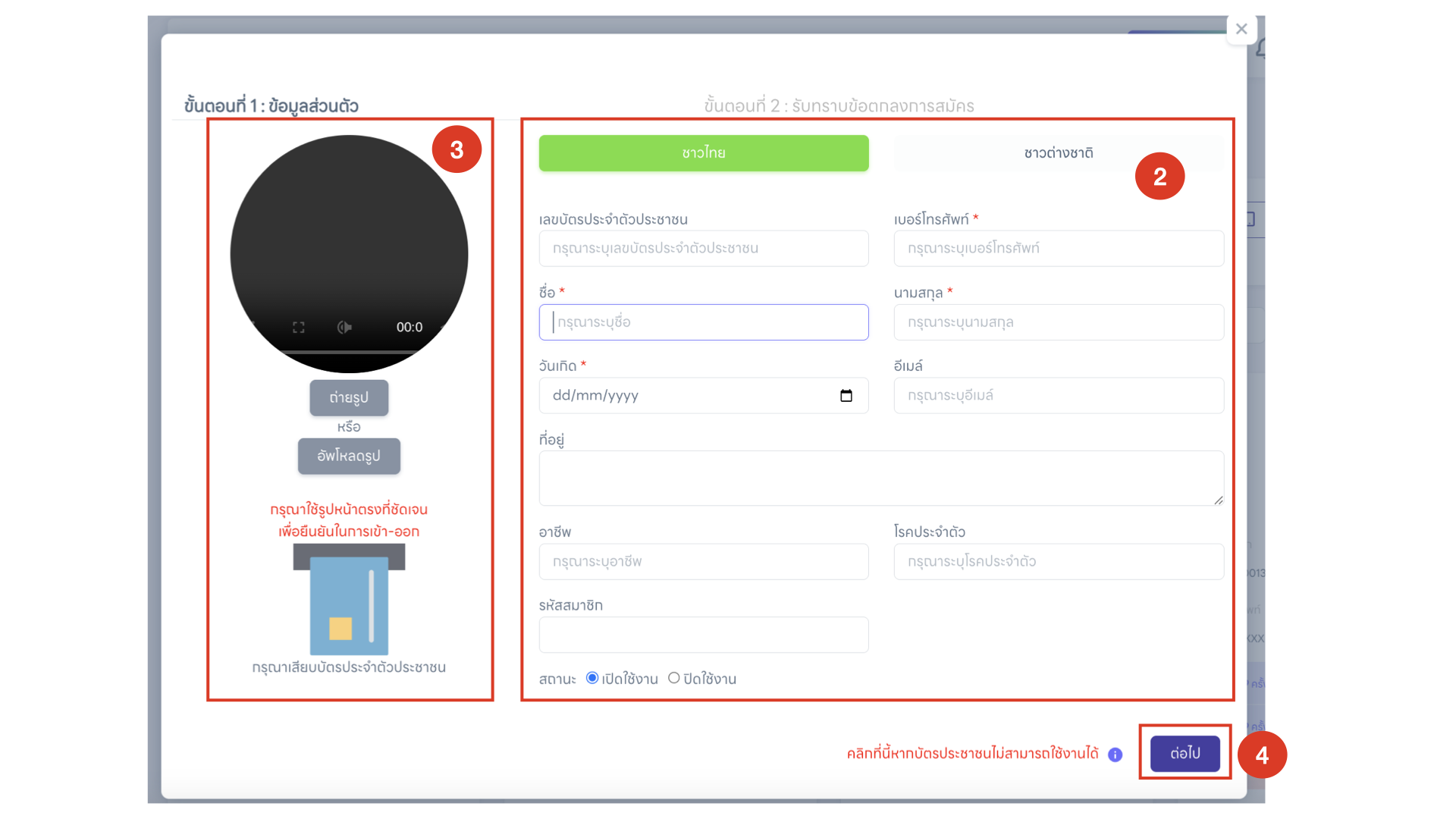
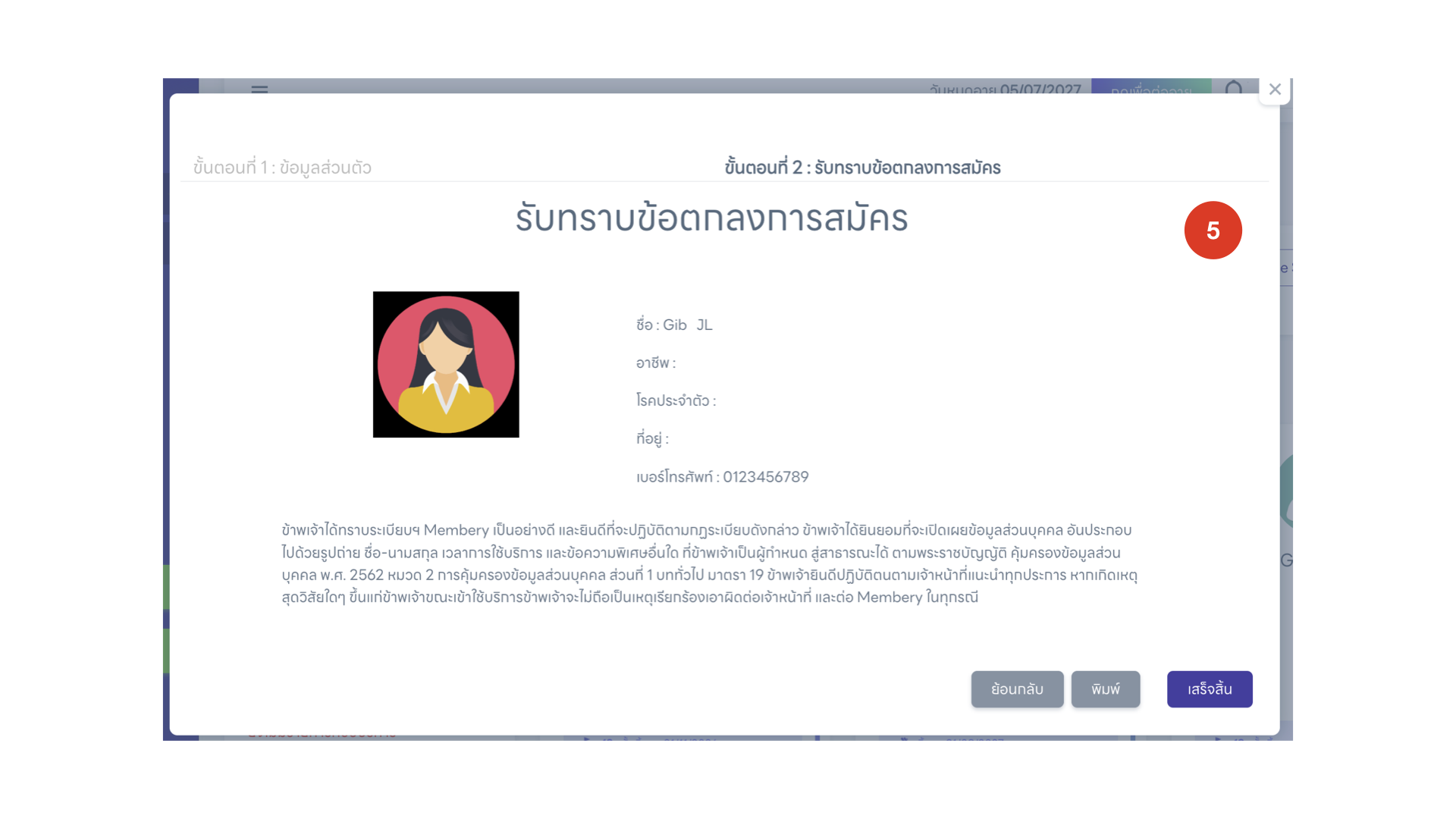
- Open Member Management and click + Add member
- Fill in the required fields (*): first name, last name, email, phone, birthdate, national ID, address, occupation, medical conditions and so on
- Upload a profile photo, or insert the member's ID card into the card reader
- Click Save
- Have the member read and accept the membership agreement
3.2 Managing and editing member details
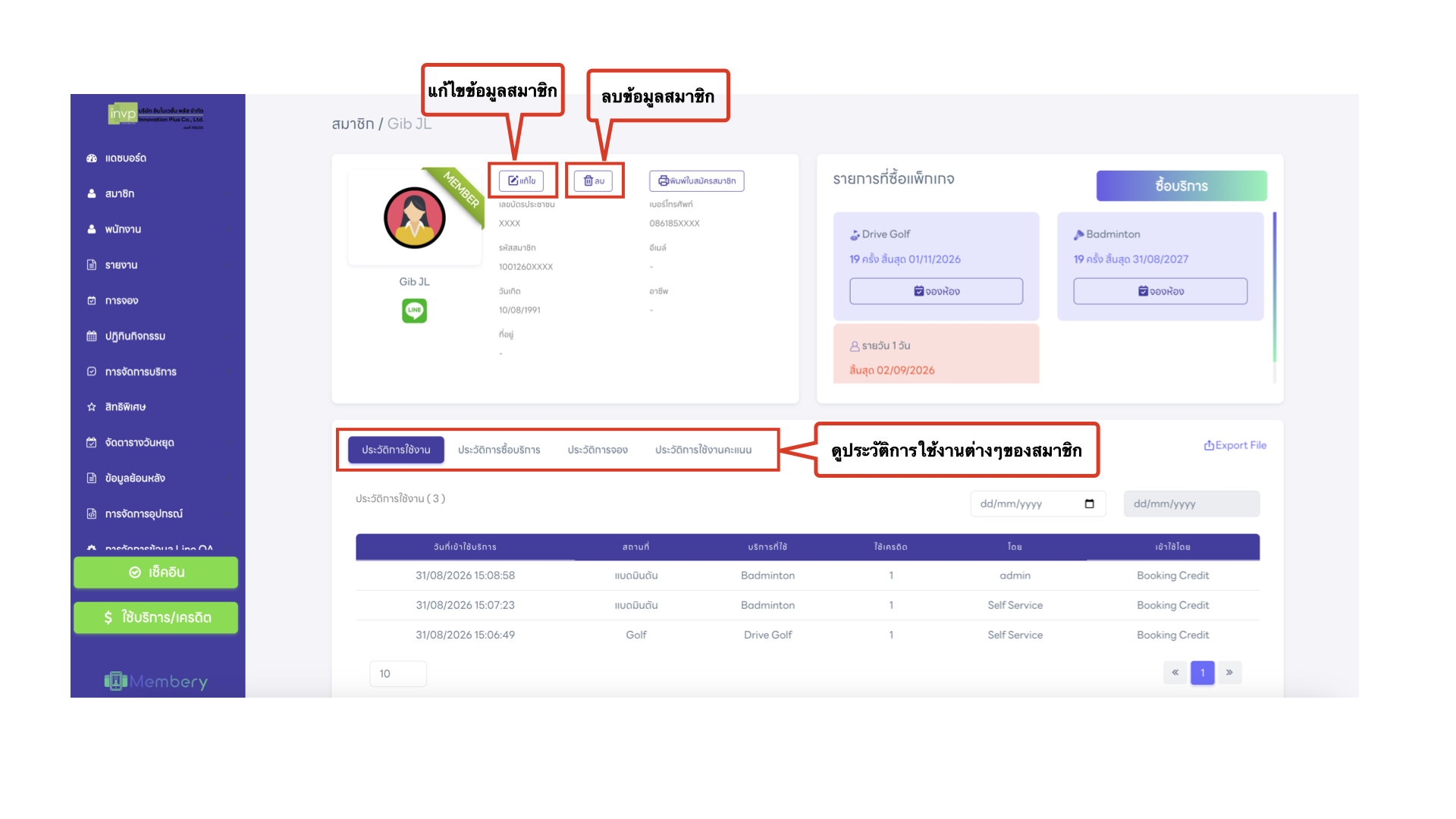
- Edit / delete: update personal details, or remove a member from the system
- History: usage, bookings and package purchases
- Pause a package: from the Purchased packages box (chapter 5)
- Show inactive members: choose to include members who are not active in the list
3.3 Sign-up channels v2.2
Go to Member › Member Management › Sign-up channels and choose Sign up through the app. You will see the club code and a QR that members use to join in the MEMBERY app. You can print the QR and put it at the counter.
4 Expiring members & reminders Updated v2.2
- The Notify button is turned off once that package has been notified, so members don't get the same reminder twice
The Expiring members page lists members whose packages have expired or are about to. Filter by 7 days, ≤ 72 hours or high risk, with remaining credits shown.
- Buy service: renew the member's package on the spot
- Notify: send a reminder by Email or LINE OA, using a ready-made template (name and expiry date filled in) or your own message
- Members who use the MEMBERY app also get an in-app reminder before their package expires
5 Pausing packages New v2.2
Pause a package for a member who can't come for a while, for example while travelling abroad or injured. During the pause the member can't use that package, and the expiry date moves out by the number of days paused.
Example: a package expires 31/12/2026 and is paused 1–15 Nov (15 days) → new expiry date 15/01/2027
- Pause / cancel a pause / resume from the member's page: users with edit permission on the Member menu
- See all pauses: users with access to Member › Package Pause. With edit permission they can also resume from that list.
5.1 Pausing a package
- Open the member's page and find the Purchased packages box (top right)
- Choose one
- Click Pause package under a package to pause only that one
- Click Pause all under the box title to pause several packages at once
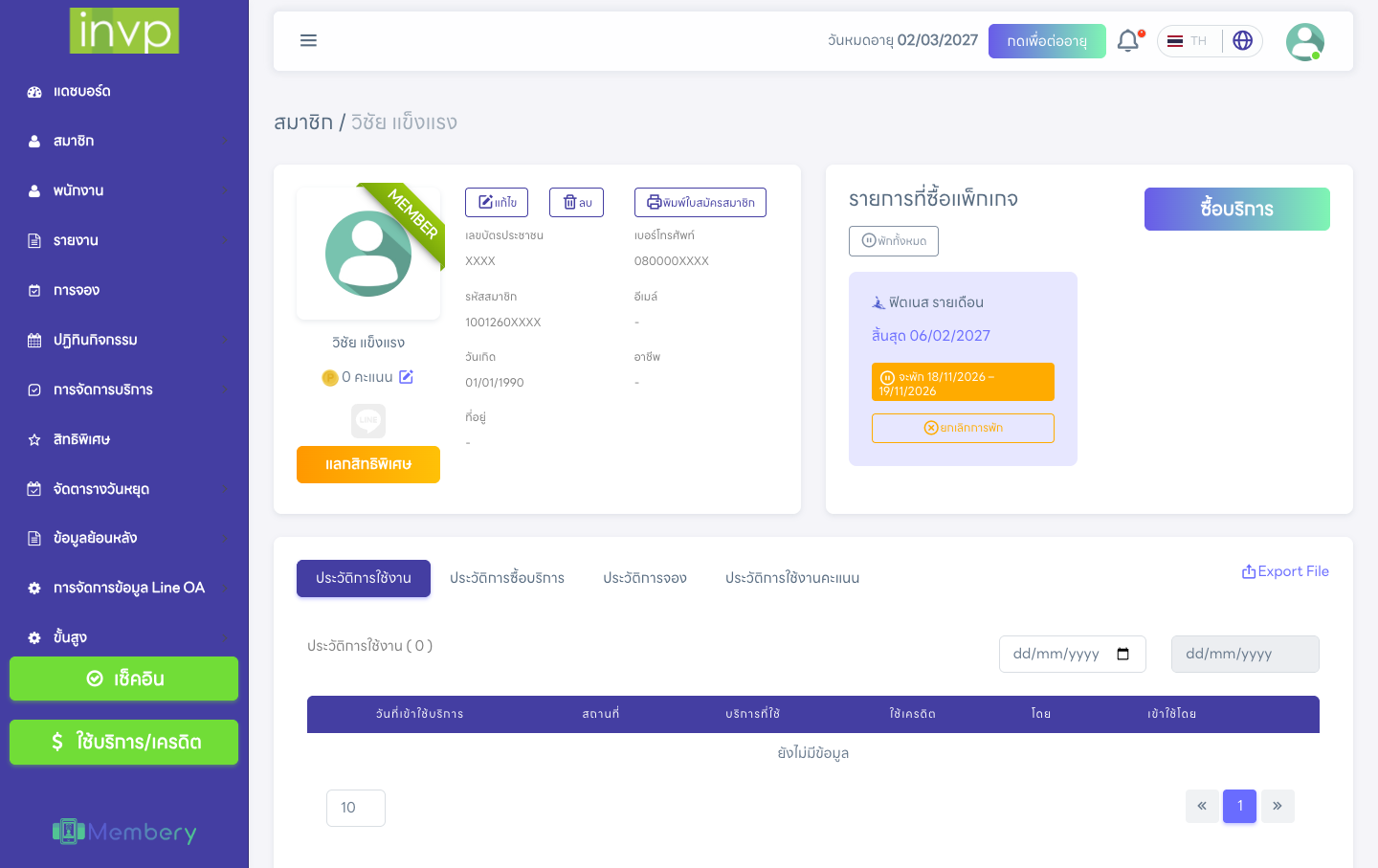
Figure 5-1 · The Purchased packages box. A package with a pause set shows a "Will pause" bar and a Cancel pause button - In the Pause package window, fill in
- Pause start and pause end (both days included). The number of days paused is shown automatically
- Packages to pause: tick them. Each shows its current end date and its new expiry date
- Reason: optional, for example travelling abroad
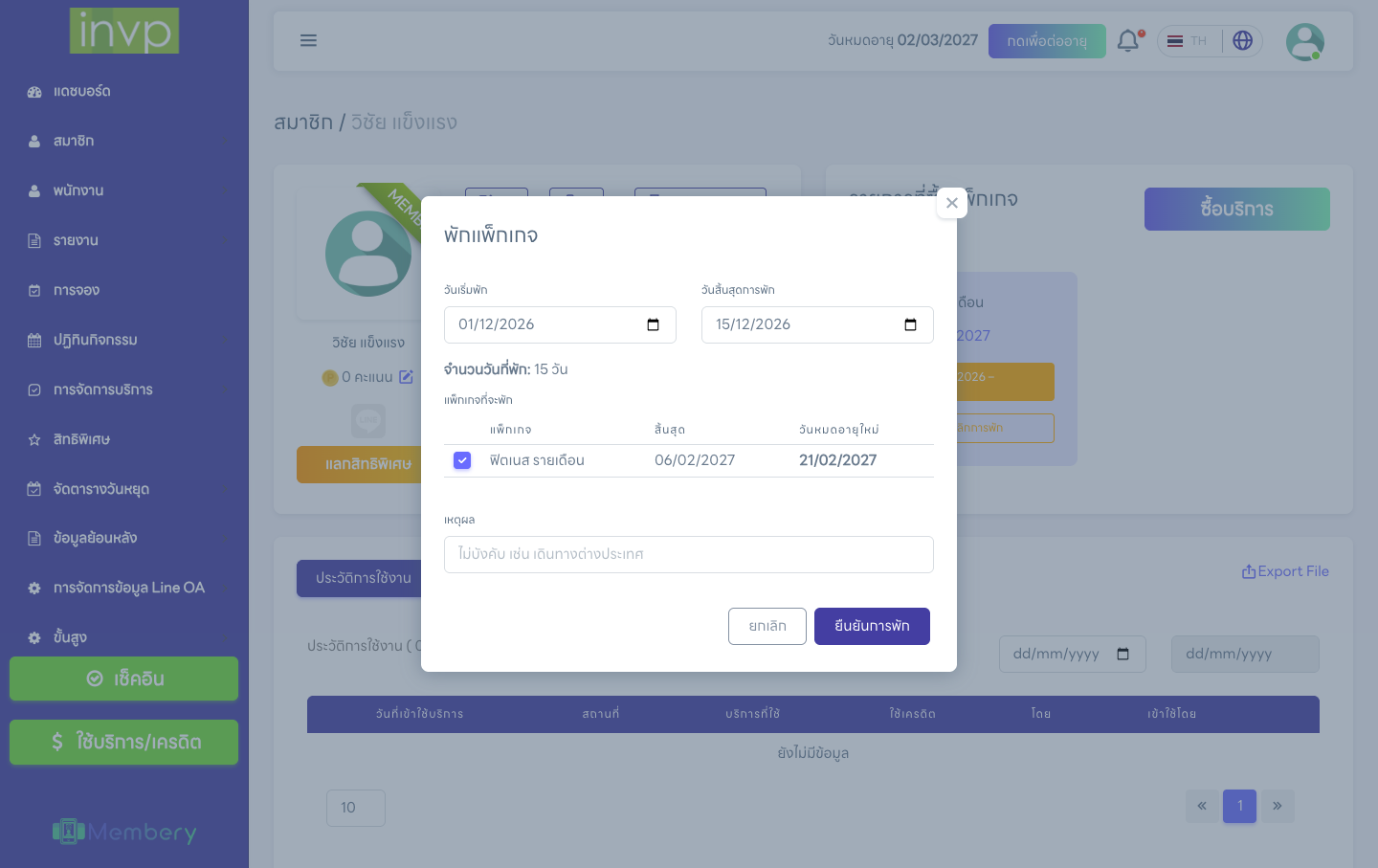
Figure 5-2 · Pause package window. A 15-day pause moves the expiry from 06/02/2027 to 21/02/2027 - Click Confirm pause. You will see "Package paused"
After saving, the package shows Will pause (start – end) before the pause begins, or Paused until (date) during it.
- The pause must start today or later. It can't be backdated.
- Only packages with an expiry date that hasn't passed before the pause start can be paused
- The pause must not overlap an existing pause of the same package
- If the member has a room or class booking during the pause, cancel that booking first. The system lists the bookings in the way (date, location and booking code).
- If you pick several packages and some can't be paused, only the ones that pass are paused, and the rest are listed under Packages not paused with the reason
5.2 What the member sees during a pause
- They can't check in or book classes/rooms with the paused package, at the counter, on LINE OA or in the MEMBERY app. The message reads "Package (name) is paused until (date)".
- They can still book ahead for dates after the pause ends
- Other packages that aren't paused work as usual
- In the MEMBERY app, the member's package shows that it is paused
5.3 Resuming early / cancelling a pause
The button under the package changes with its status
| Status | Button | Result |
|---|---|---|
| Pause not started yet | Cancel pause | Cancels the whole pause. The expiry date goes back to the original. |
| Paused | Resume | The package can be used from today. The unused pause days (today to the end date) are taken back off the expiry date. |
Before you confirm, the system shows "The expiry date will move back X days". The same buttons are on the Package Pause page (section 5.4).
Example: paused 1–15 Nov, but the member returns on 11 Nov → actually paused 10 days, expiry moves back 5 days
5.4 Package Pause list
Member › Package Pause shows every member's pauses
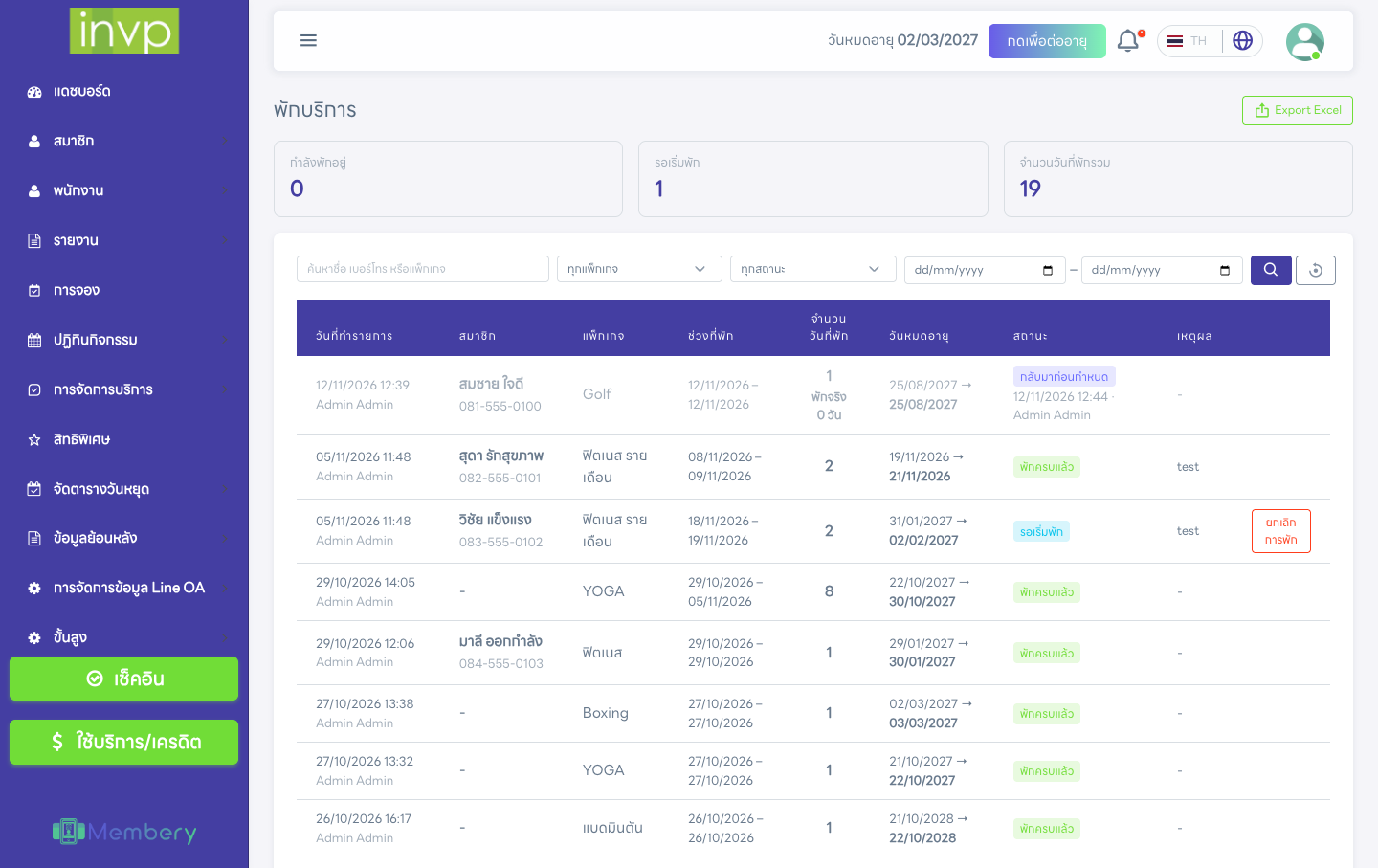
- Top: how many are paused now, waiting to start, and the total days paused
- Filters: search by name, phone or package · package · status · pause period
- Columns: date created (and by whom), member, package, pause period, days paused, expiry (old → new), status, reason
- The Cancel pause / Resume button is at the end of each row
- Export Excel: download the list with your filters
| Status | Meaning |
|---|---|
| Waiting to start | Saved, the pause hasn't started yet |
| Paused | Within the pause period |
| Completed | The pause end date has passed |
| Resumed early | Resume was clicked during the pause (shows "Actually paused X days") |
| Cancelled | Cancelled before the pause started |
5.5 Troubleshooting
| Message | Cause / fix |
|---|---|
| The pause start can't be before today | Pick today or a later date |
| The pause end can't be before the pause start | Check the dates |
| The package expires before the pause starts | It can't be paused. Renew the package first. |
| The package has no expiry date | This kind of package doesn't need pausing |
| There is already a pause in this period | Cancel the existing pause first, or choose another period |
| There are bookings during the pause. Please cancel them first. | Cancel the listed bookings, then pause again |
| You don't have permission to edit member details | Ask an admin for edit permission on the Member menu |
| The Pause all button isn't shown | The member has no unexpired package, or the user has no edit permission |
6 Selling packages & combined receipts
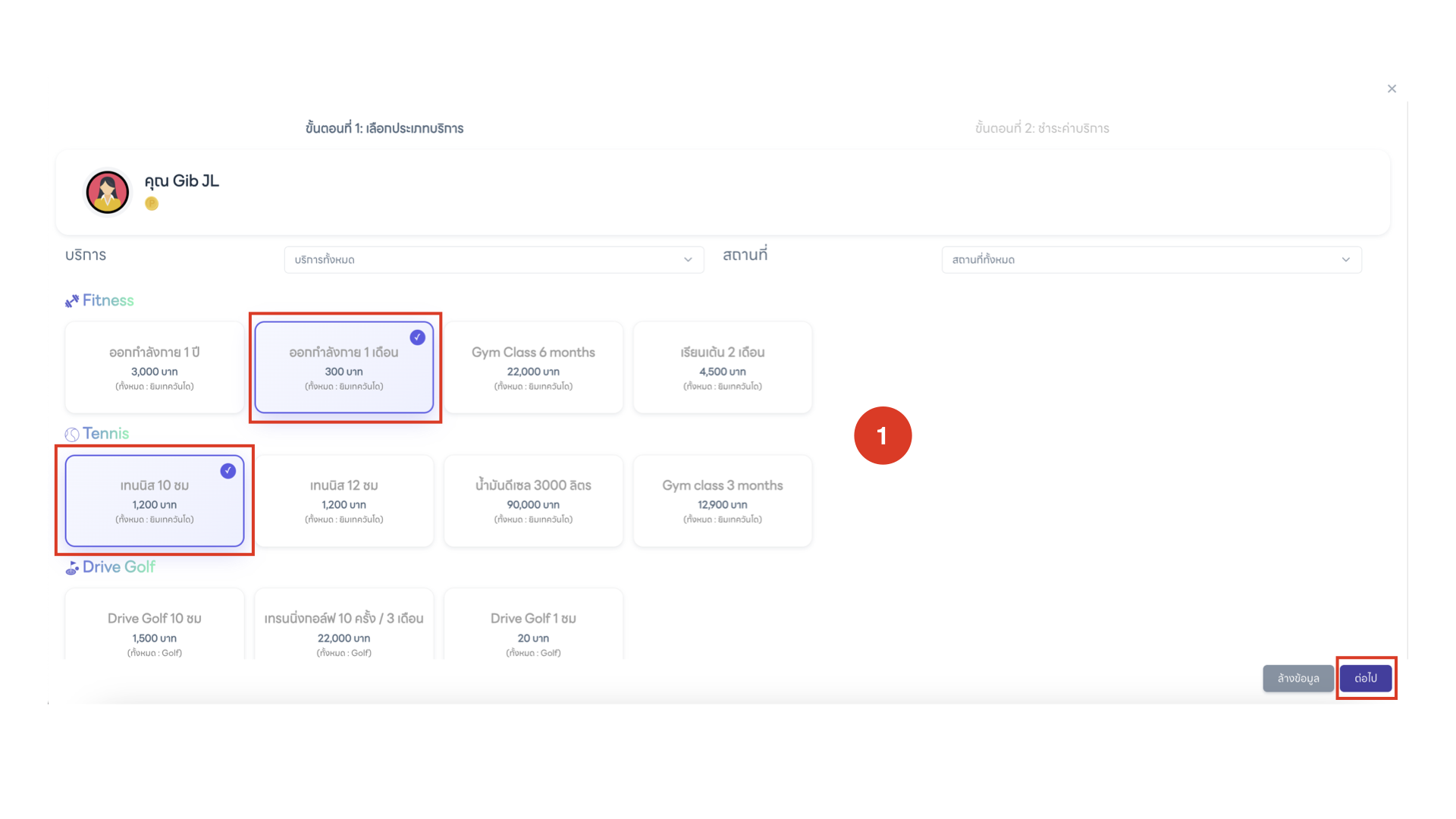
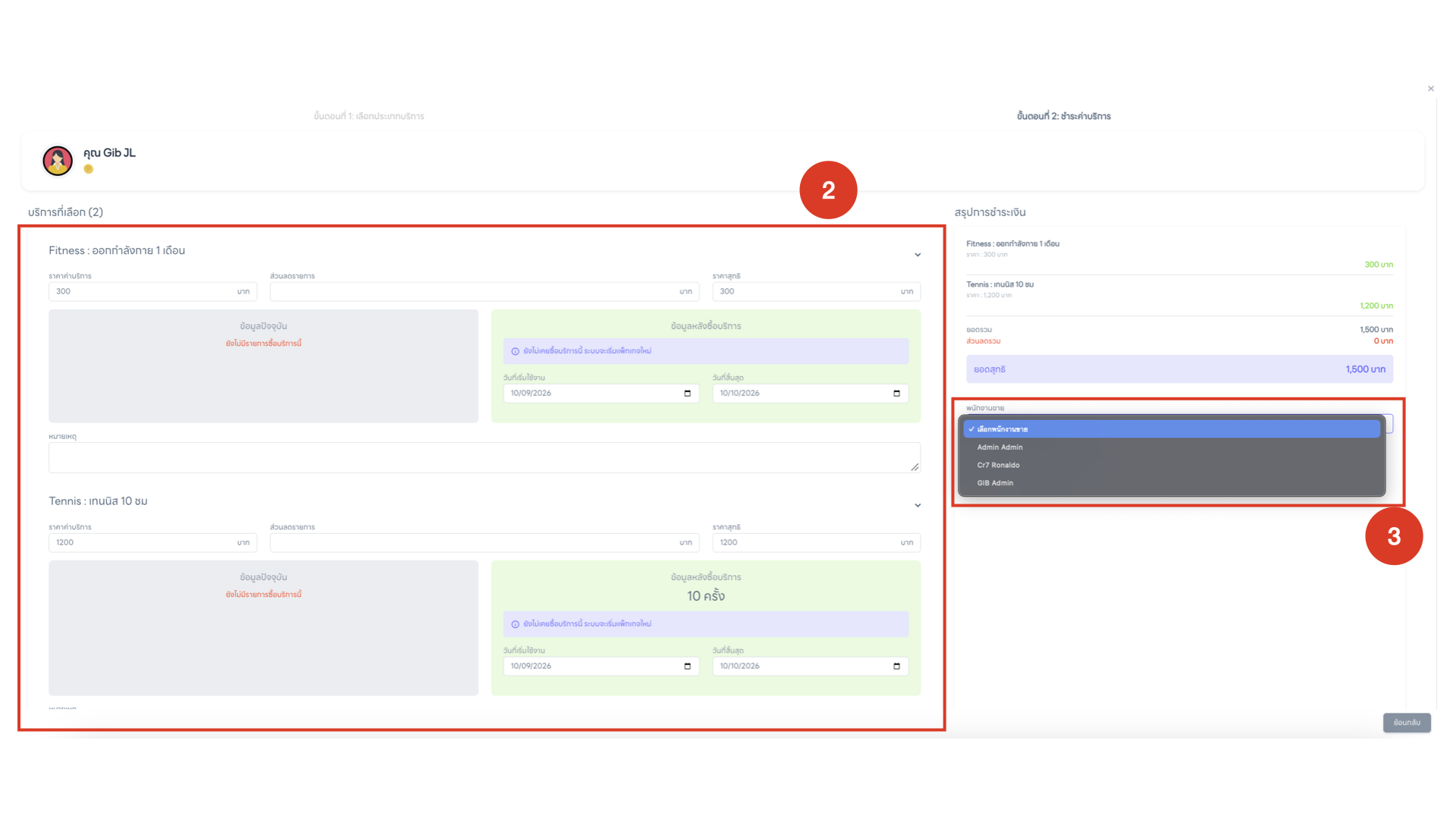
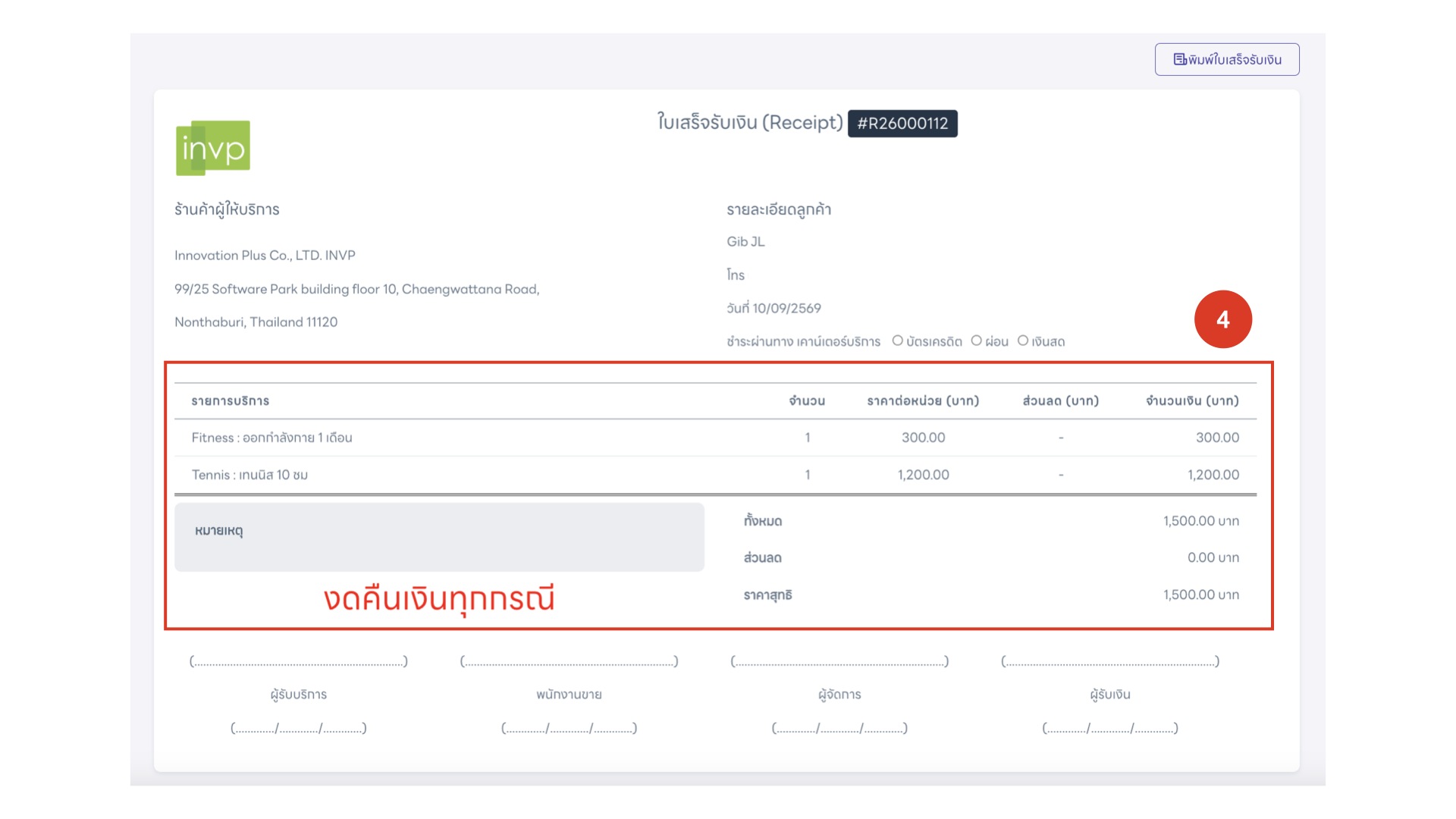
- Choose packages: pick more than one, across categories (for example fitness + trainer sessions)
- Details & discounts: redeem points for a discount, and set each service's start and end dates separately
- Salesperson: name the staff member who made the sale, to record sales and commission
- Combined receipt: one receipt number with the items, total, discount and payment channel
7 QR PromptPay payments & slip checks New v2.2
Members buy a package or book a court on LINE OA or in the MEMBERY app, then pay by scanning a PromptPay QR. The money goes straight into the club's PromptPay account. They then attach the slip, which the system checks automatically, or staff check it by hand.
- No identity verification (KYC) is needed, and it can run alongside ChillPay
- QR PromptPay works on both LINE OA (section 7.4) and the MEMBERY app (chapter 19)
- Once paid, the system issues a receipt and adds the package or confirms the booking at once. Reports show the payment channel as PromptPay.
- Settings: users with access to Set Payment System
- Viewing payments and approving slips: users with access to Report › PromptPay Payment Transactions. Read-only users can view but not approve.
7.1 Turning on QR PromptPay
- Go to Set Payment System and choose the QR PromptPay tab
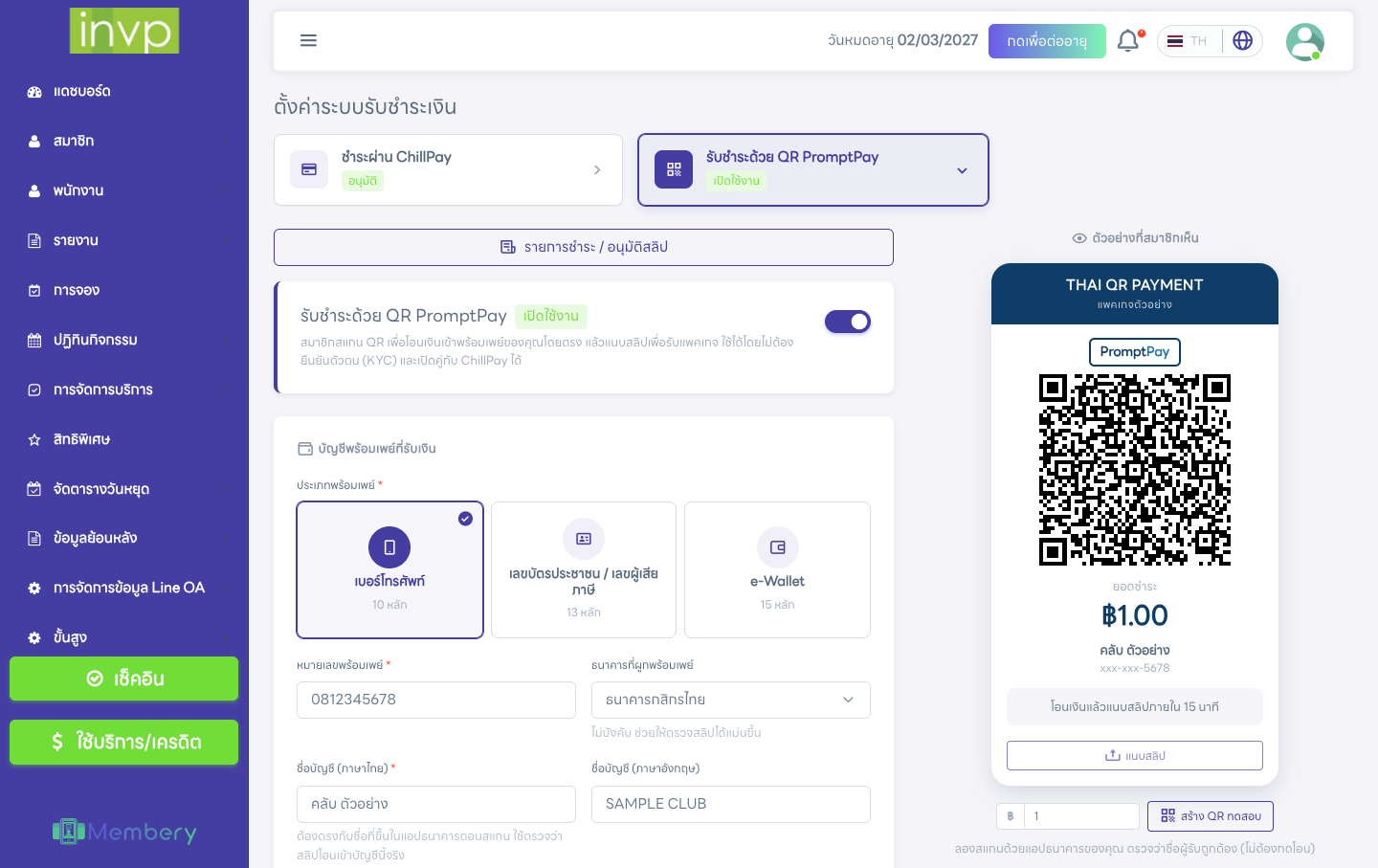
Figure 7-1 · The QR PromptPay tab - Turn on Accept QR PromptPay
- Fill in Receiving PromptPay account
Field What to enter PromptPay type Phone number (10 digits), national ID / tax ID (13 digits) or e-Wallet (15 digits) PromptPay number The number for the type you chose Account name (Thai) Must match the name shown in a banking app when the QR is scanned. The system uses it to check that a slip was paid to the club's account. Account name (English) Optional. Used for slips from banks that show the name in English. Bank linked to PromptPay Optional. Makes slip checks more accurate. - Member payment page
- Message to members: for example "After transferring, please attach the slip within 15 minutes. Contact the counter if anything goes wrong."
- QR expires in (minutes): default 15, from 5 to 1440. When it runs out, the member must start a new payment.
- Slip checking: choose one method (section 7.2)
- Check the QR in the Member preview box on the right: click Create test QR and scan it with a banking app to see that the receiver name is right. Don't transfer.
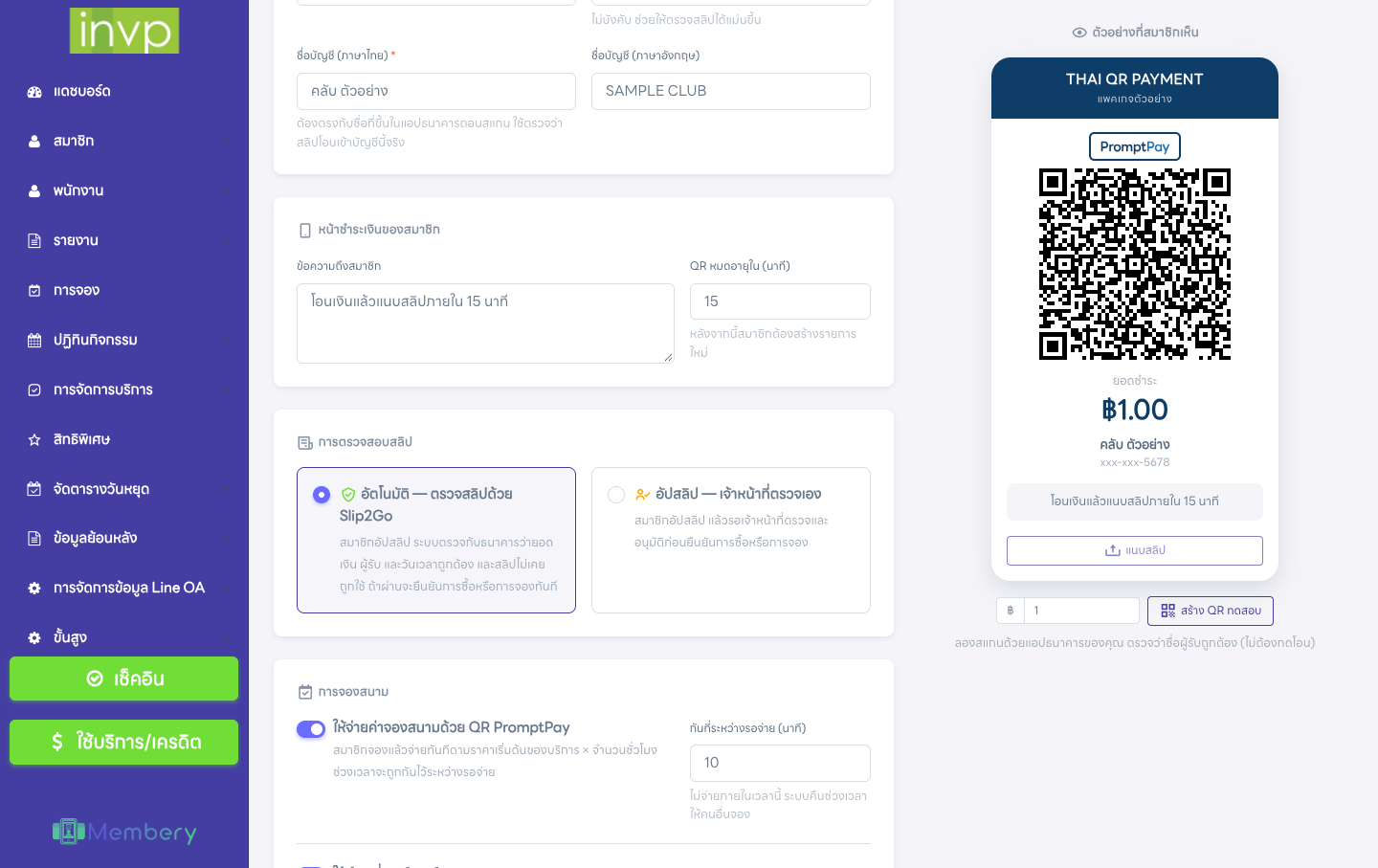
Figure 7-2 · Member payment page, slip checking and QR preview - Click Save. You will see "PromptPay settings saved"
7.2 Choosing how slips are checked
| Method | How it works | Best for |
|---|---|---|
| Automatic — Slip2Go | Checks with the bank that the amount, receiver and time are right and the slip hasn't been used. If it passes, the purchase or booking is confirmed at once. | Clubs with many payments that want members to get their package straight away |
| Upload slip — staff check | The member uploads the slip and waits. Staff check the money arrived and approve it (section 7.5). | Clubs with few payments, or that want to check every one |
Even with automatic checking, some slips still need a staff check, for example when the slip check service is down (section 7.6).
7.3 Court booking paid by QR (optional)
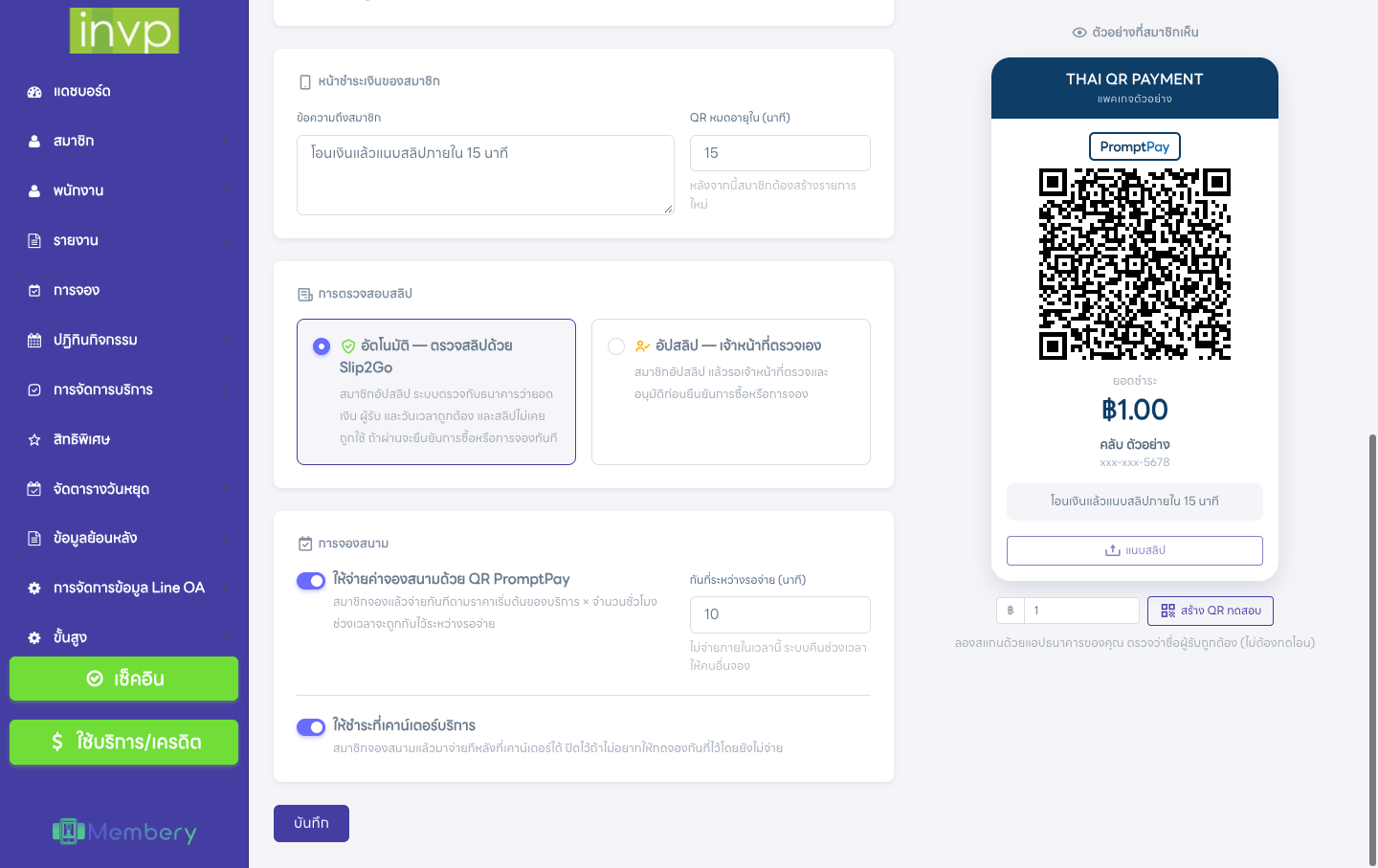
The Court booking part of the same page
- Pay for court bookings by QR PromptPay: members book and pay at once. The amount is the service's starting price × hours. (The service must have a starting price, or QR booking won't be offered.)
- Hold while waiting for payment (minutes): default 10, from 5 to 60. The slot is held for that member meanwhile. If they don't pay in time, the booking is cancelled and the slot is freed for others automatically.
- Allow payment at the counter: turn on to let members book and pay later at the counter. Turn off if you don't want slots held without payment.
7.4 What members see on LINE OA
Members open the member page from the club's LINE OA
Booking a court and paying by QR
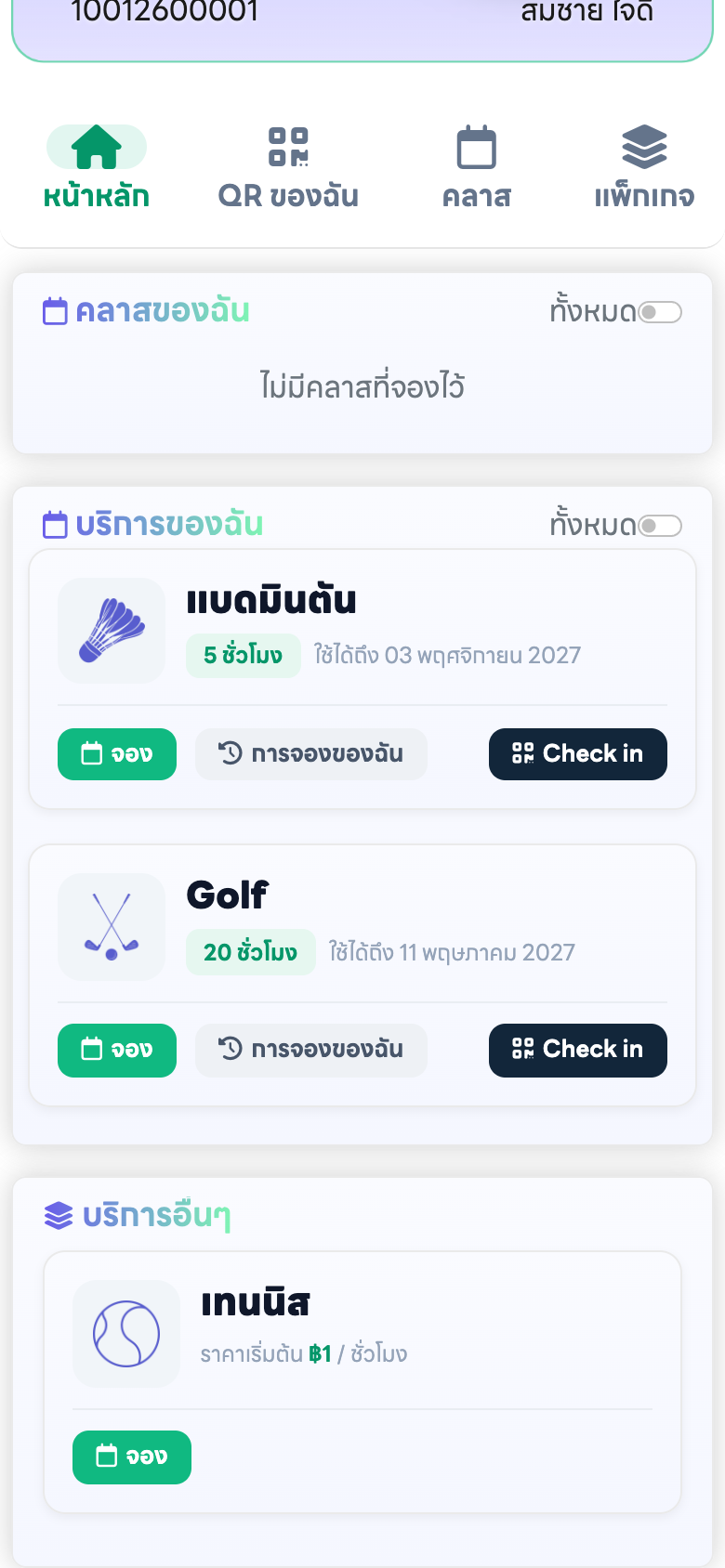
- On the Home page, tap Book on the service they want
- My Services: services the member has a package for, payable with credits
- Other Services: services without a package, showing a starting price / hour, payable by QR
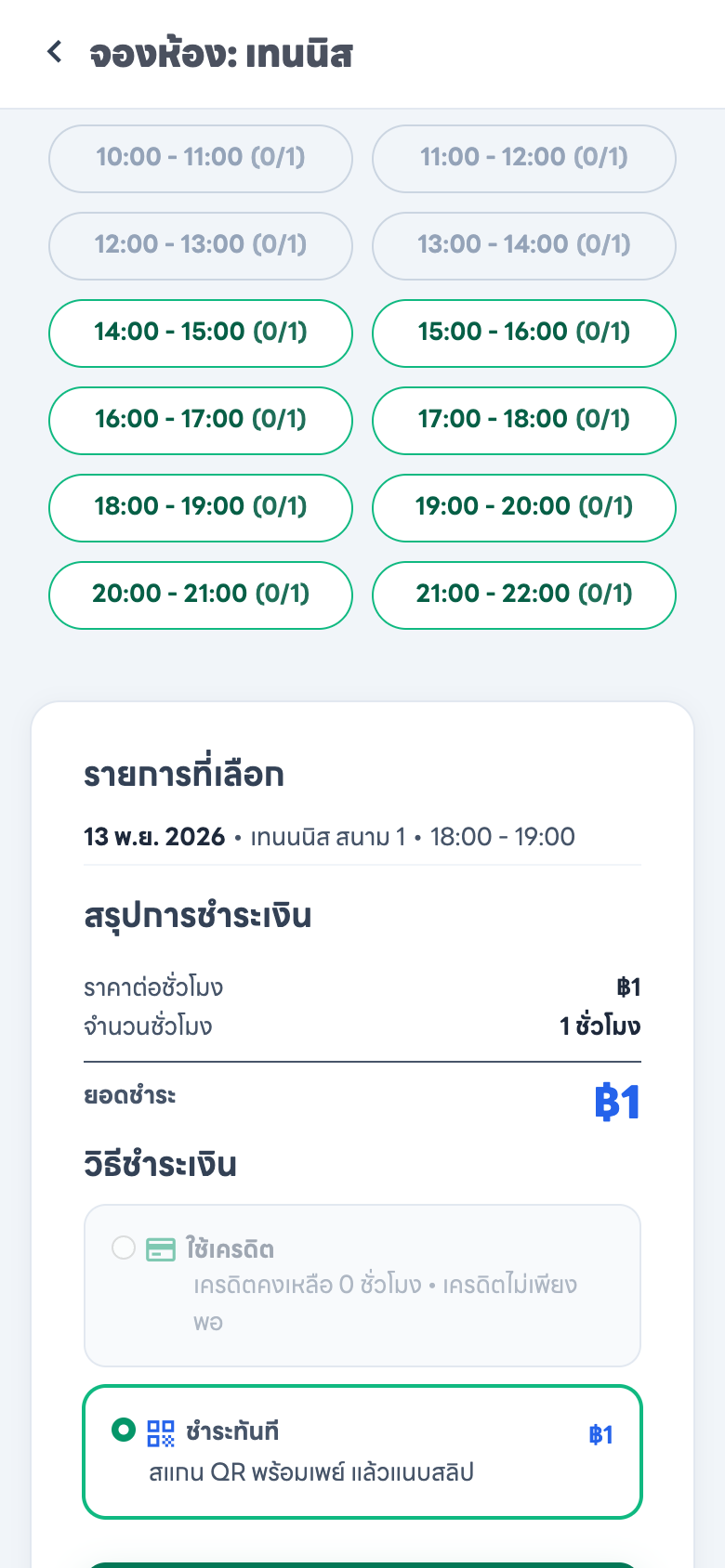
- On the Room booking page, choose the location, date and time slots
- Check the Payment summary (price per hour × hours) and pick a payment method
- Use credits: taken from the package (not available if there aren't enough credits)
- Pay now: scan the PromptPay QR, then attach the slip
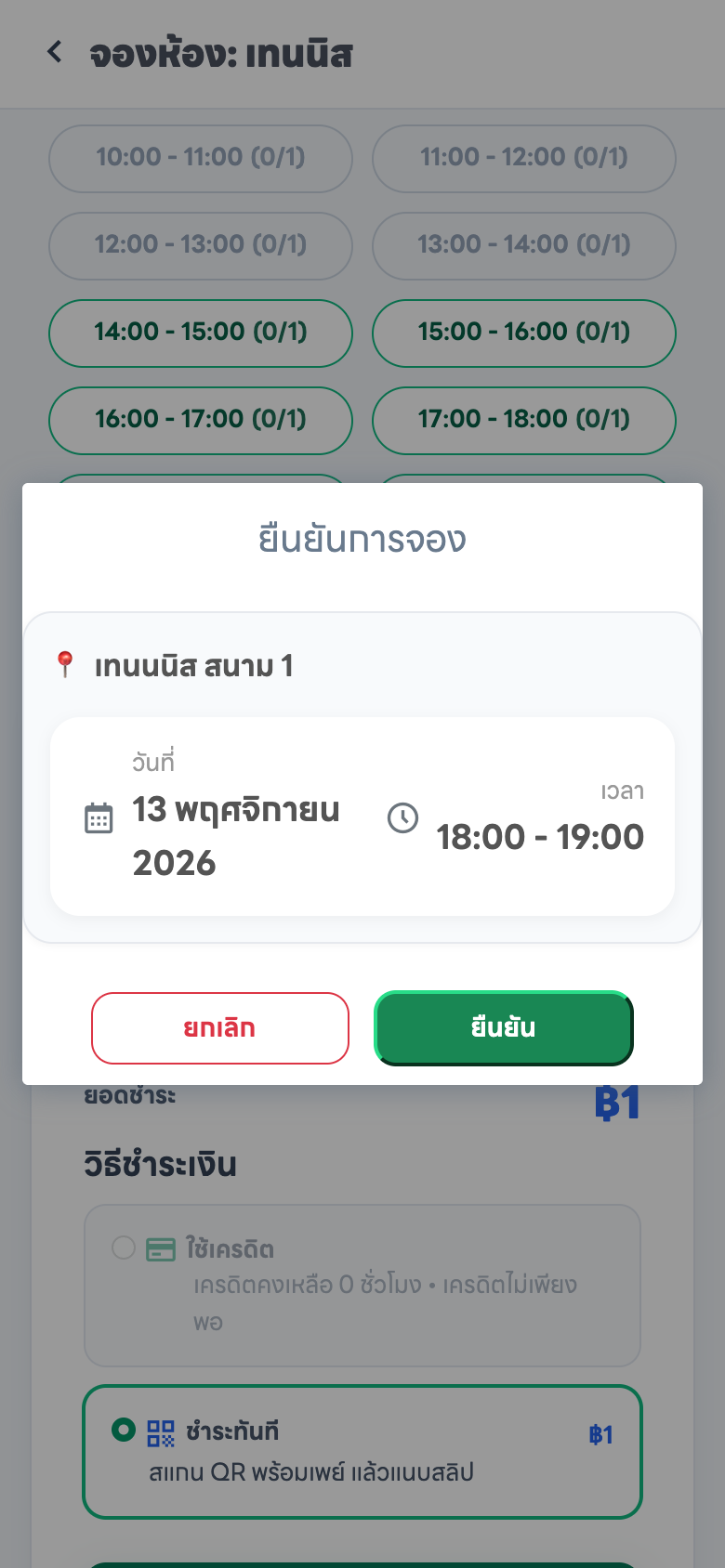
- Tap Confirm booking, check the court, date and time, then tap Confirm
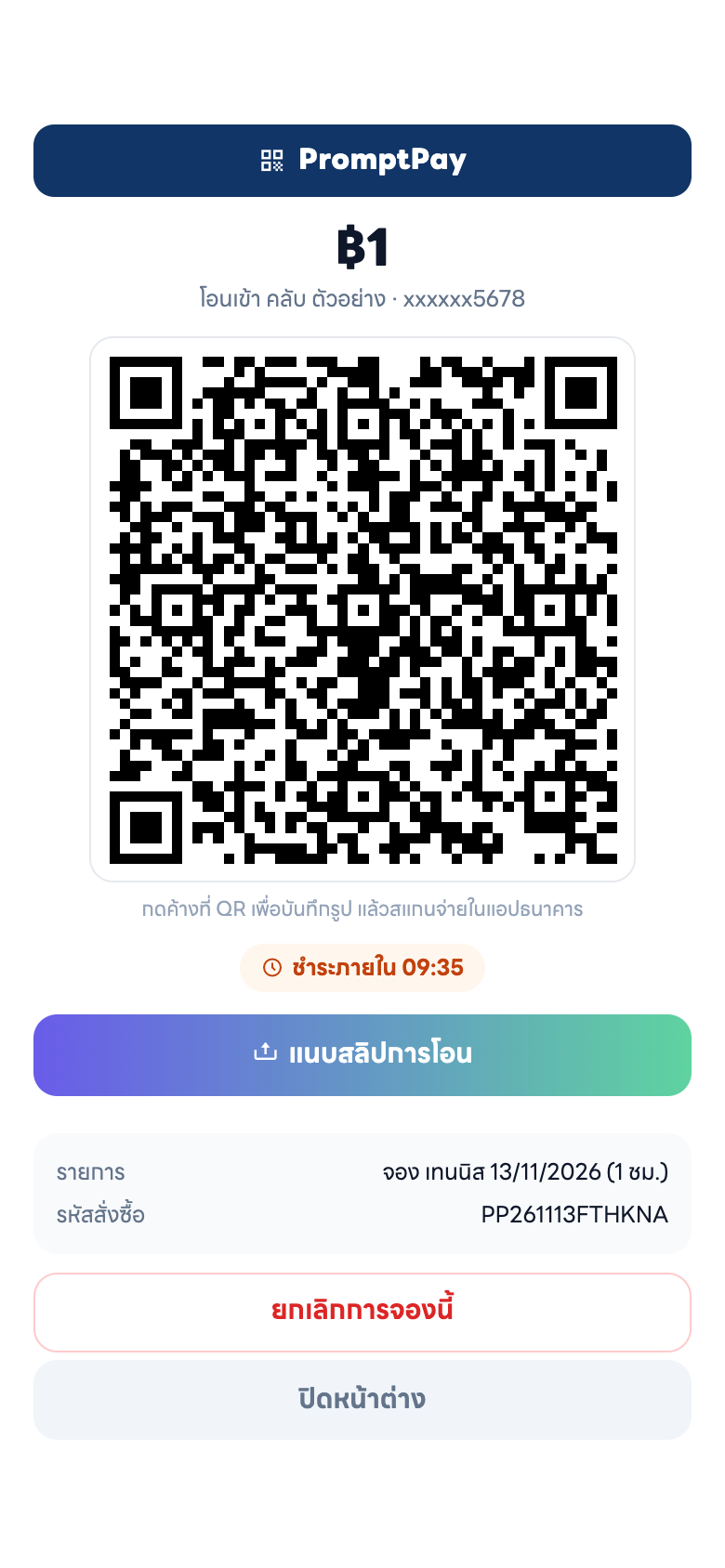
- The PromptPay page shows the amount, receiver name, QR and time left (Pay within, set by the hold time in section 7.3)
- Long-press the QR to save it, then scan it in a banking app
- After transferring, tap Attach transfer slip and pick the slip image (JPG or PNG)
- To drop the booking, tap Cancel this booking. The slot is freed at once.
Buying a package and paying by QR
- Go to the Packages tab, pick a category (All, Promotion or a service) and tap Details
- The Buy a package page shows What you get (visits, validity, points earned) and the Pay with PromptPay details (receiver, PromptPay account, how long the QR lasts, and the message to members)
- Tap Make Payment · (amount)
- Scan the QR, transfer, then tap Attach transfer slip as for a court booking. To drop the purchase, tap Cancel this payment.
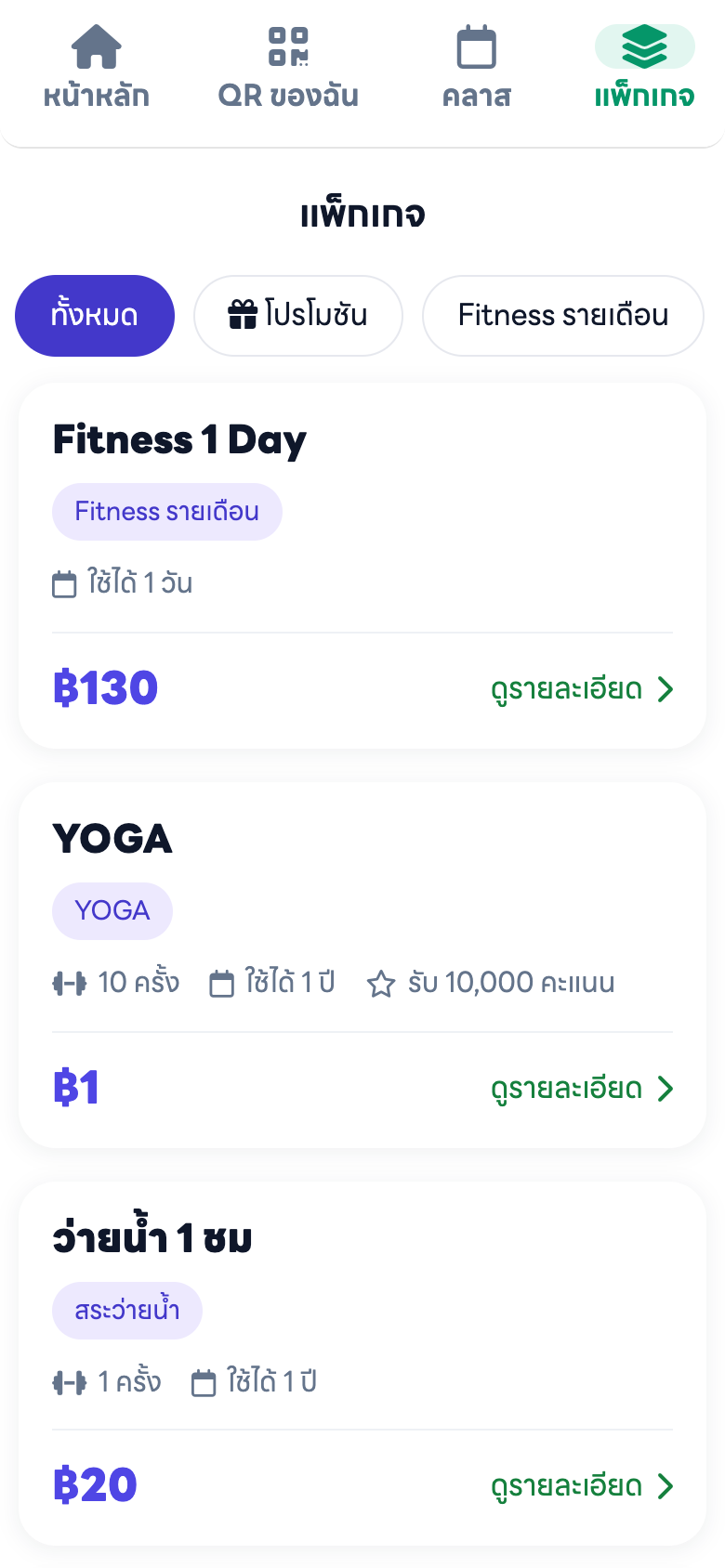
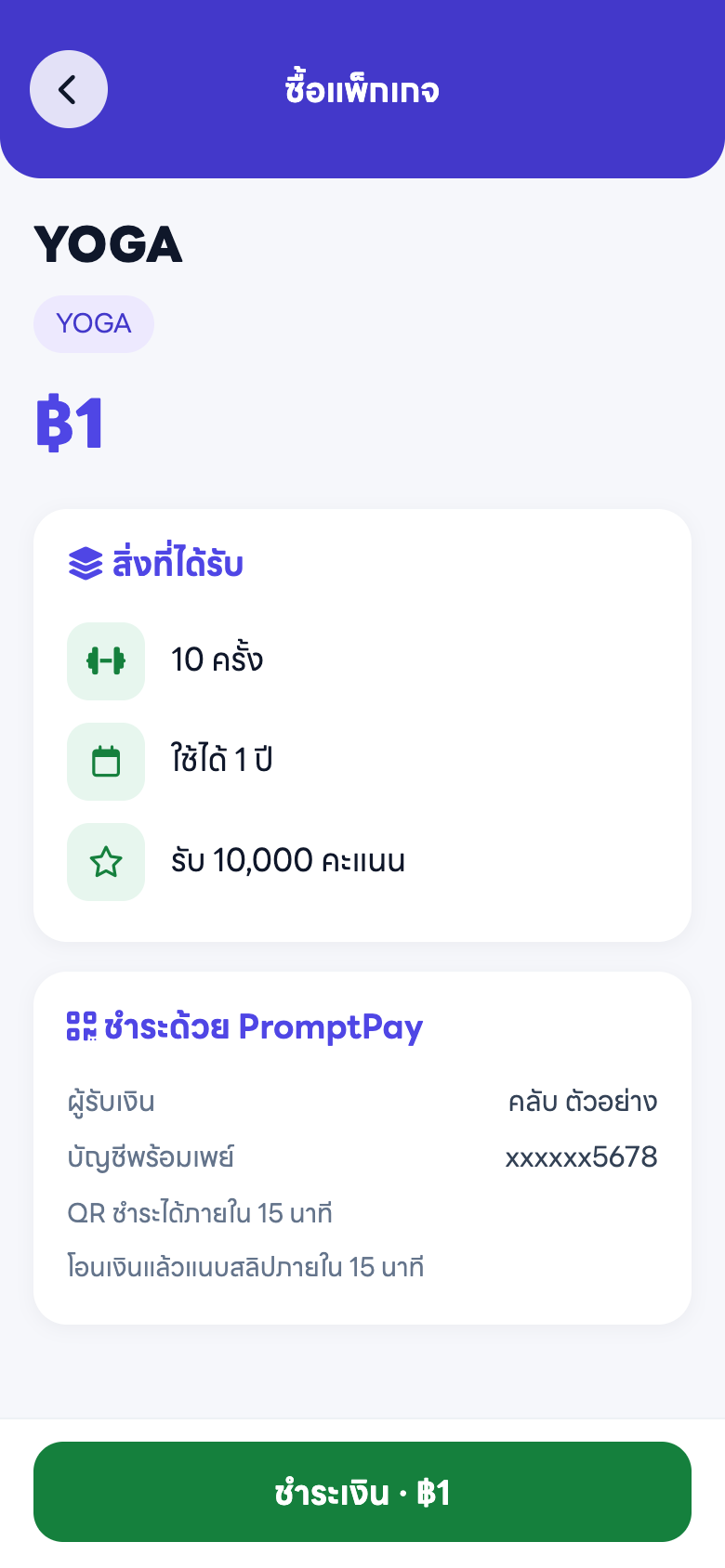
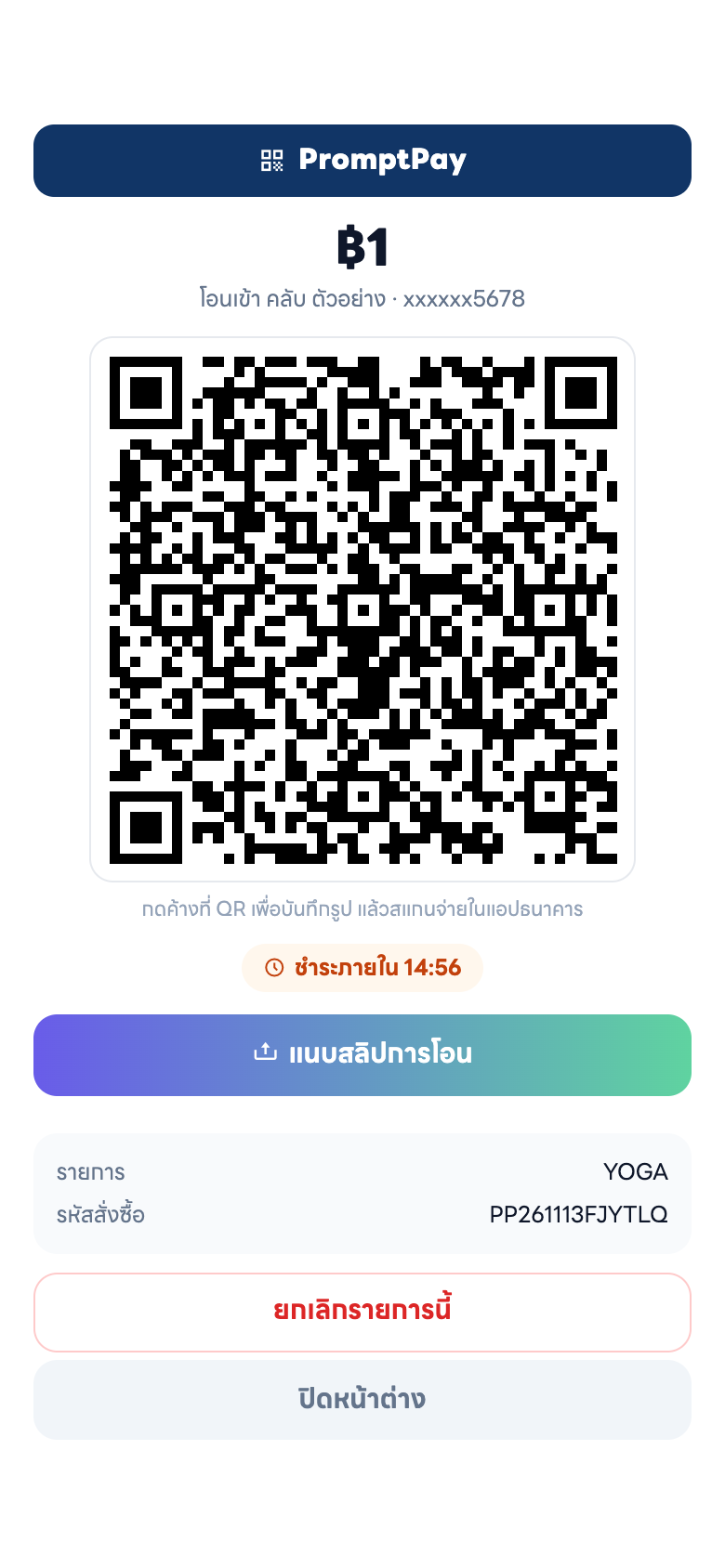
After the slip is attached
- Paid: the member gets the package or booking at once, with a receipt (E-receipt menu)
- Not accepted: the reason is shown (table in section 7.6) and a new slip can be attached
- Waiting for staff check: waiting for staff approval (section 7.5)
7.5 Viewing payments and approving slips
Go to Report › PromptPay Payment Transactions (or click the Payments / approve slips link on the settings page)
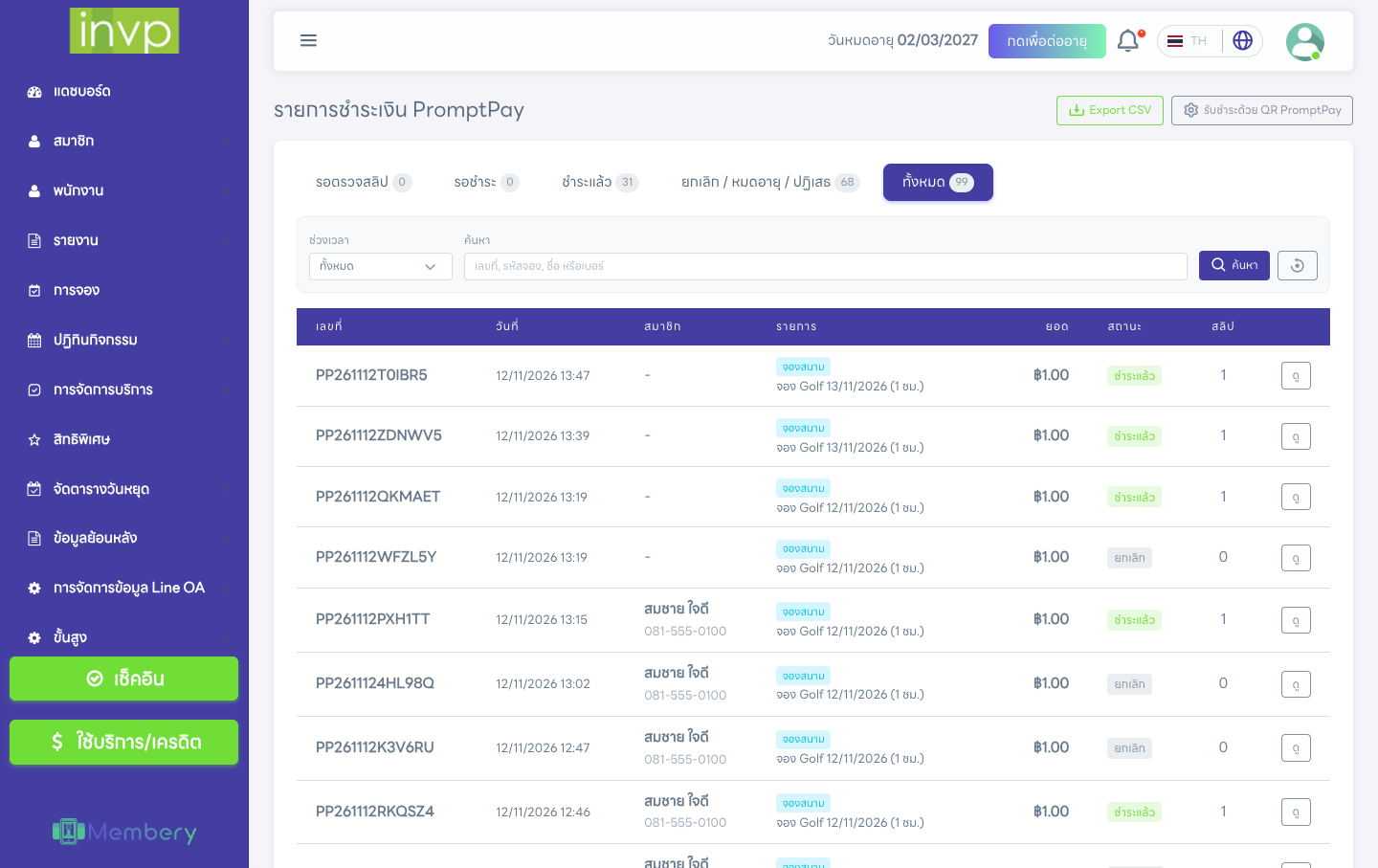
- Status filter: Slip to check · Waiting for payment · Paid · Cancelled / expired / rejected · All
- Period: All · Daily · Monthly · Yearly · Custom range
- Search: number, booking code, name or phone
| Status | Meaning |
|---|---|
| Waiting for payment | QR created, no slip attached yet |
| Slip to check | Slip attached, waiting for staff approval |
| Paid | Checked and receipted |
| Expired | The QR expired without payment |
| Cancelled | Cancelled by the member, or a booking cancelled by the system for not being paid in time |
| Rejected | Rejected by staff |
The label under the slip shows the check result: Slip2Go: passed, Slip2Go: failed, Slip2Go: couldn't check, Waiting for staff check
- Choose the Slip to check filter
- Click Check slip (or View) on the row. You will see the details, the slip image and the Slip2Go result: amount, transfer time, sender, receiver and reference number.
- Check that the money really arrived before approving (in the club's banking app)
- Click Approve and confirm "Confirm the money was received?". The system issues a receipt and adds the package or confirms the booking at once. Or click Reject and give a reason, such as "No transfer found".
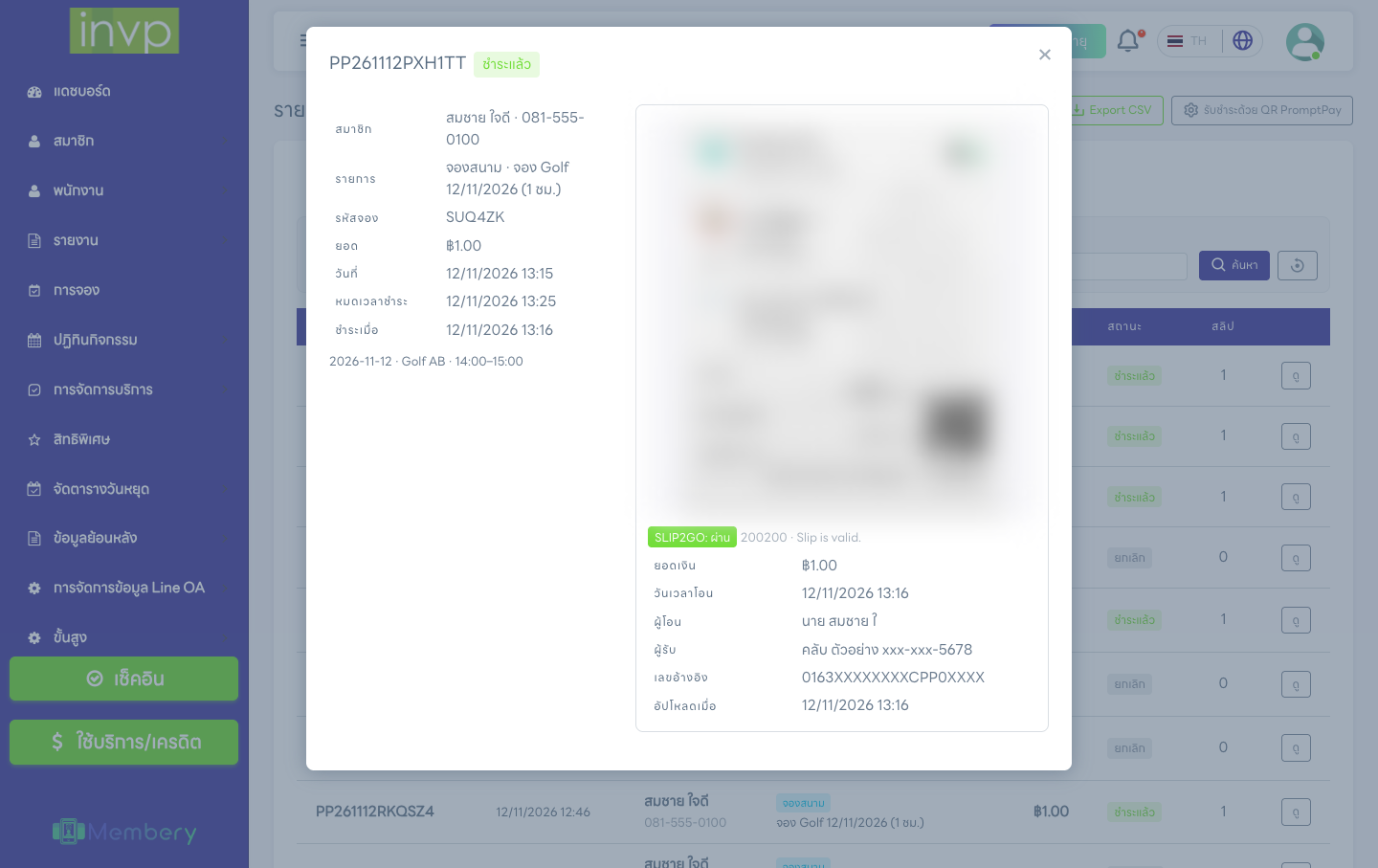
Export: click Export CSV to download the list with your filters. The file includes phone numbers, type, rejection reasons, item count and total paid.
7.6 Troubleshooting
Messages members see when a slip isn't accepted
| Message | Cause | Advice for the member |
|---|---|---|
| The slip amount does not match what is due | Paid too little or too much | Pay the full amount, or contact the counter |
| The slip was paid to another account | The PromptPay number or receiver name doesn't match the club's account | Check the right slip was attached (if it happens to everyone, check the settings in section 7.1) |
| The slip was paid before the payment was created | An old slip was used | Attach the slip for this payment |
| That slip has already been used | Duplicate slip | — |
| The transfer can't be found in the banking system | The bank found no such transfer | Wait a moment and try again, or contact the counter |
| Invalid slip | The slip is damaged or edited | — |
| Can't read the QR on the slip | Blurry image, or the QR was cropped off | Use the full slip image saved from the banking app |
| Waiting for staff check | The club checks slips by hand, or the slip check service is down | Staff approve it in section 7.5 |
Other questions
- The PromptPay option doesn't show in the app: check the switch is on and saved. For court bookings, "Pay for court bookings by QR PromptPay" must be on and the service must have a starting price.
- A 0-baht package can't be paid: free packages can't be paid by QR
- A member booked but didn't pay, and the slot disappeared from the schedule: it is held for the time in section 7.3. When that runs out, the slot becomes bookable again by itself.
8 QR & face check-in Updated v2.2
- Check-in QR codes for locations and classes are now static, so you can print and post them. They no longer expire every 5 minutes.
- The system won't take more credits than a member has left
- Check-ins with a trainer's QR count the credit use for that trainer
- A paused package can't be used to check in (chapter 5), and credits from a credit check-in can be returned from the member's page
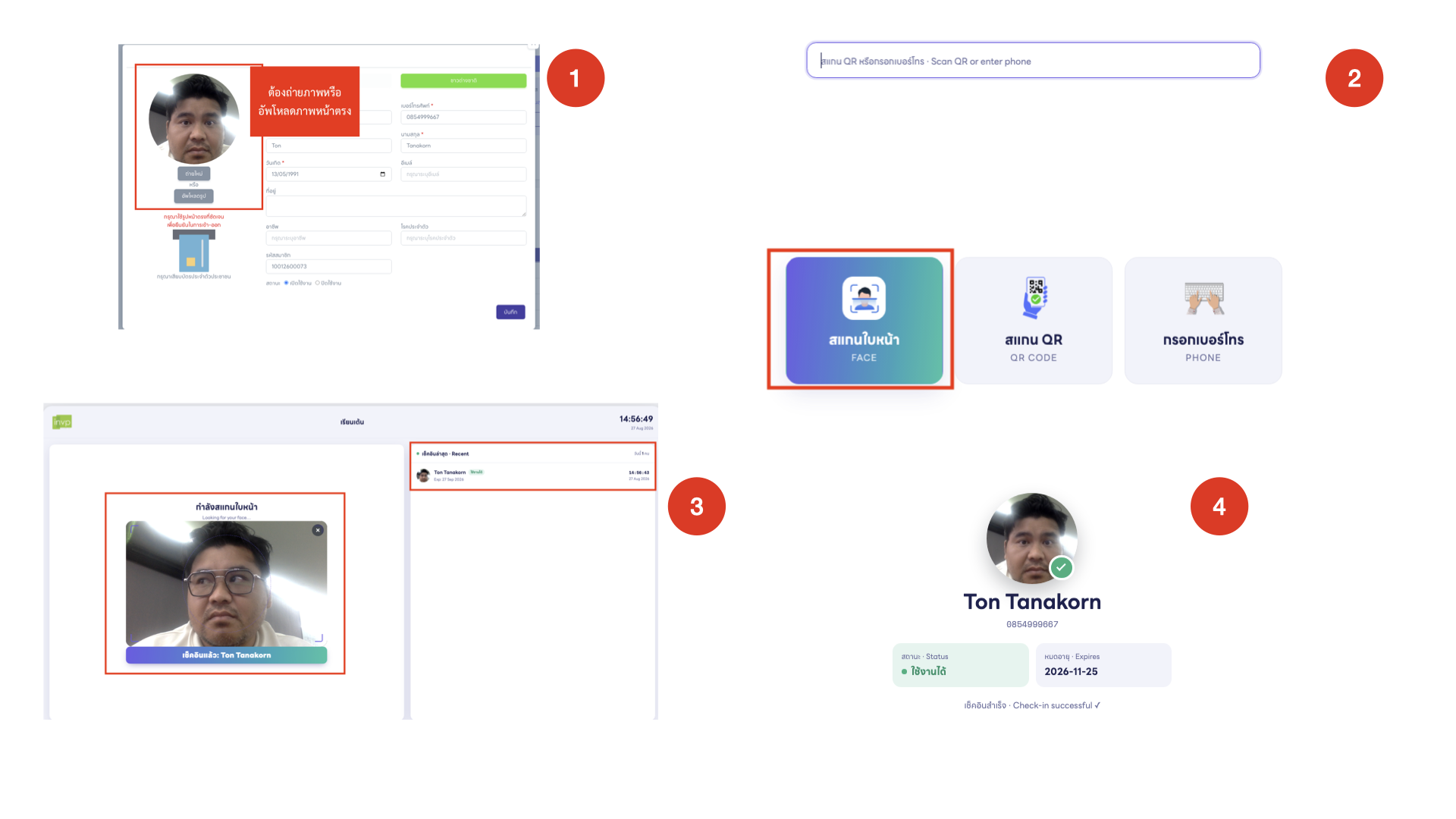
Three ways to check in: scan a QR code, enter a phone number, or face scan by webcam. Members who use the MEMBERY app can check in with the QR in the app (section 18.5).
- Set a profile photo: take a front-facing photo of the member with the webcam, or upload one
- Choose the channel: at the check-in kiosk, choose Face scan (FACE)
- Scan: the member looks at the camera. The face is matched automatically and the check-in history updates in real time.
- Result: the screen shows "Checked in ✓" with the profile photo, membership status and package expiry date
9 Activity calendar & class booking Updated v2.2
- A class can accept several services. Members with a package for any of them can book.
- Members on a waiting list can leave it at any time, regardless of the cancellation deadline
- The MEMBERY app won't book classes at a branch that is closed in the holiday calendar (chapter 11)
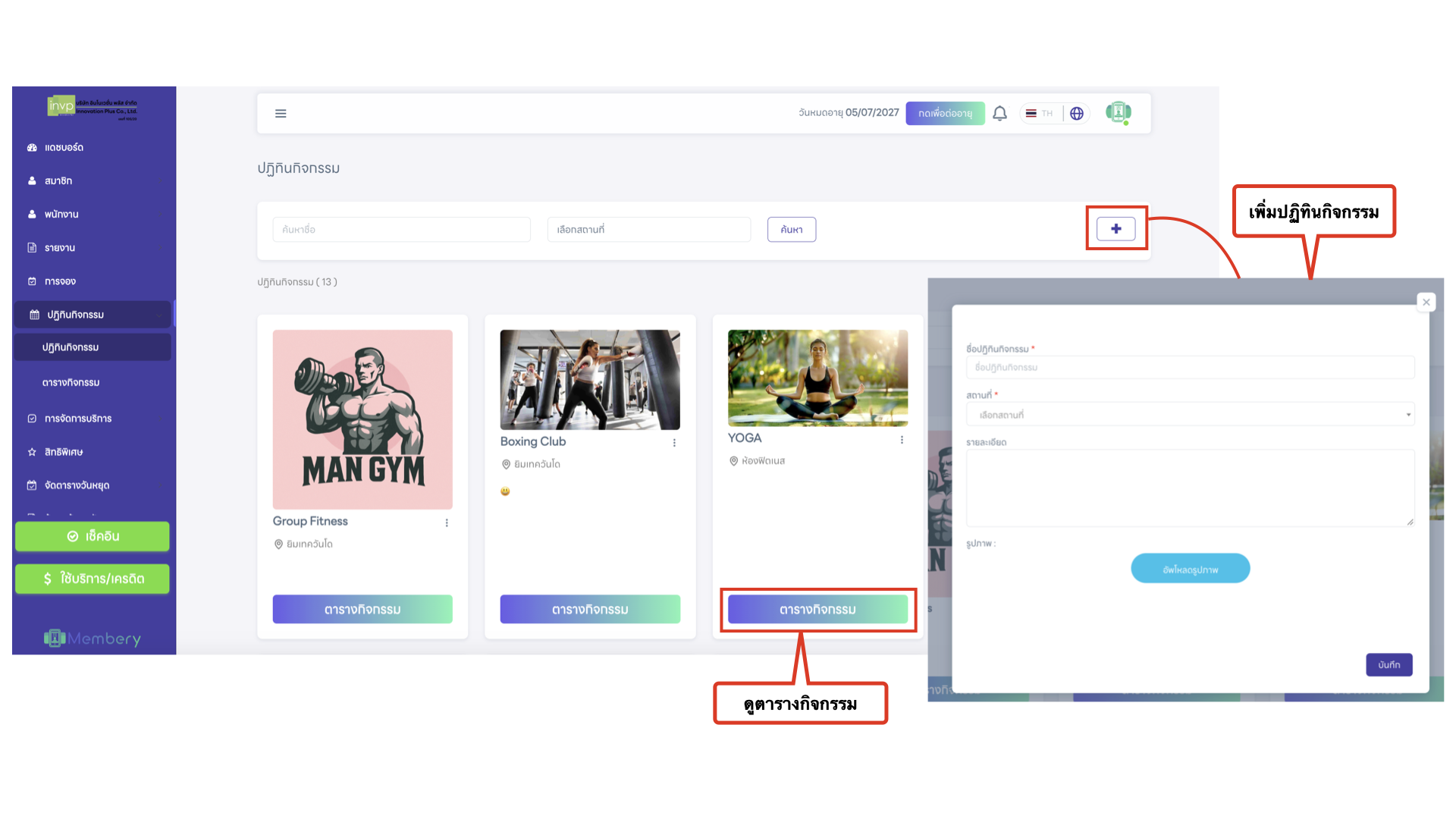
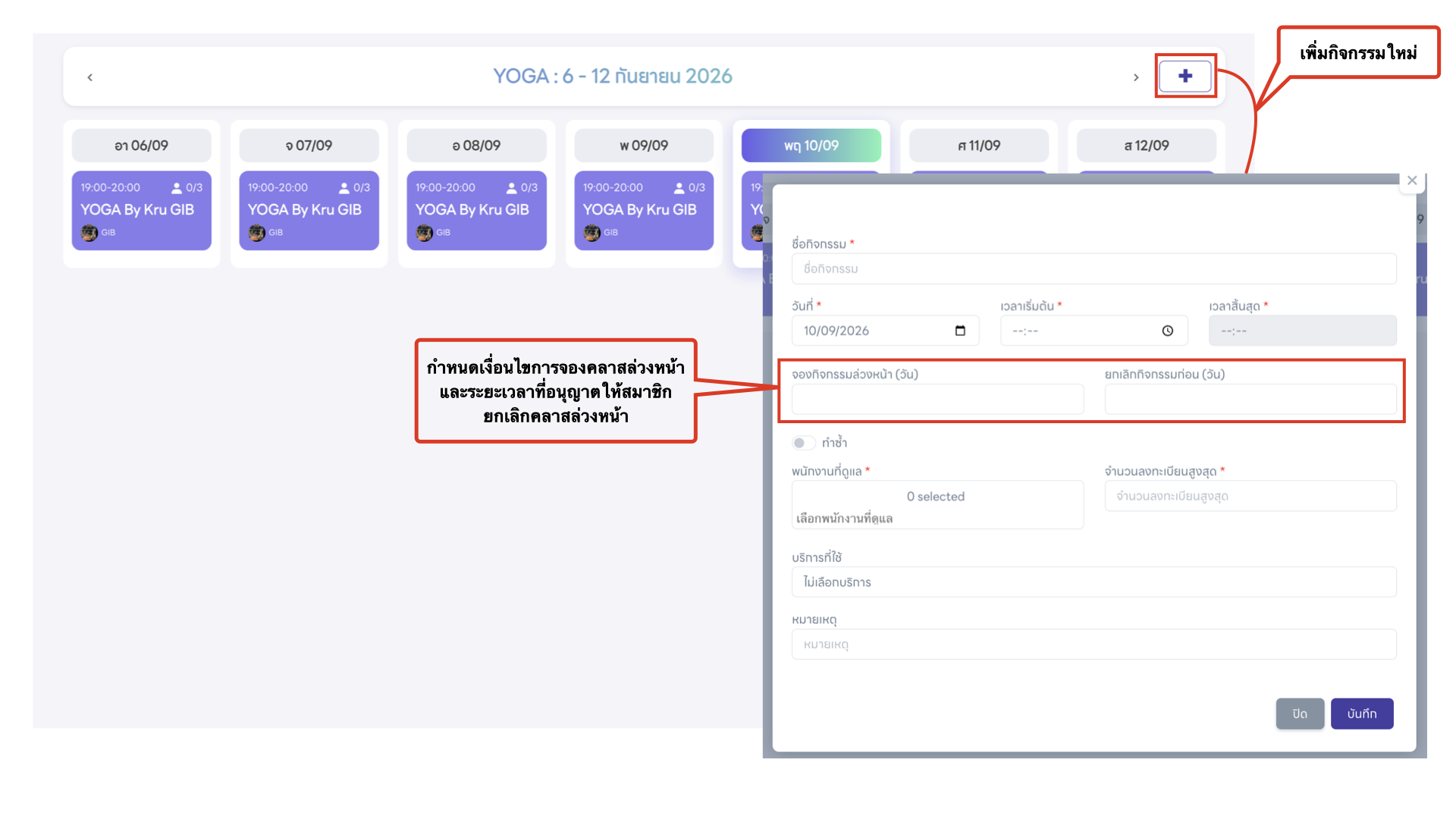
- View the schedule: Activity calendar shows a weekly or monthly schedule and the number of sign-ups
- Create an activity (+): enter a name, choose the location, choose the services it accepts (several allowed), add details, date and time, and the maximum number of places
- Assign staff: choose the staff member or coach for each activity
- Booking and cancellation rules: set how far ahead members can book and until when they can cancel
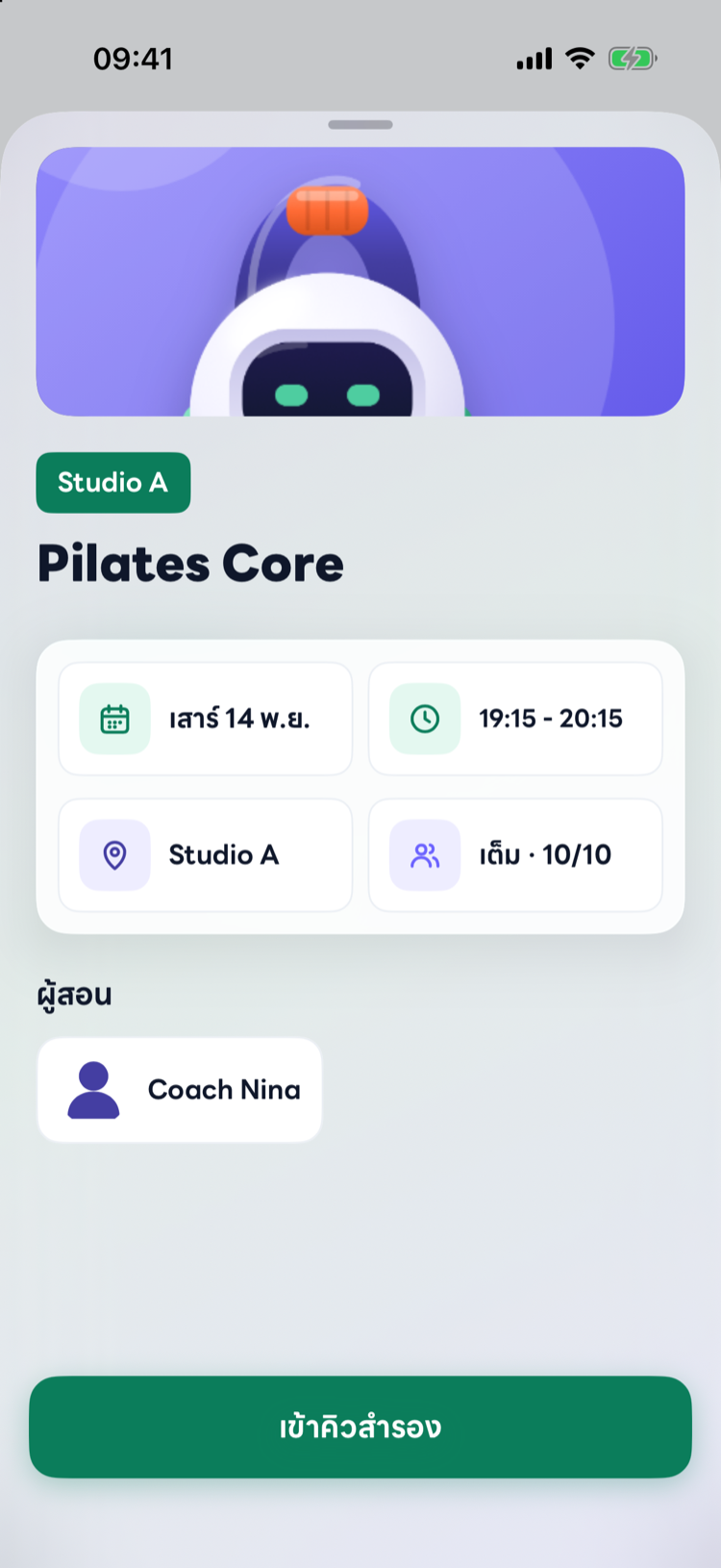
- Waiting list: when a class is full, members can join the waiting list. When a place opens up they are notified, and can check in once they have a place.
10 Room / court booking Updated v2.2
- Close a room or court for a period of time on the room settings page (moved from the holidays page; closing a room gives no make-up days)
- Clubs can turn off payment at the counter, so slots aren't held without payment (section 7.3)
- Bookings waiting for QR payment that aren't paid in time are cancelled automatically and the slot is freed for others
- Non-members can book ahead
- The app shows the price per slot, and won't book a court or branch that is closed
10.1 Room / court settings
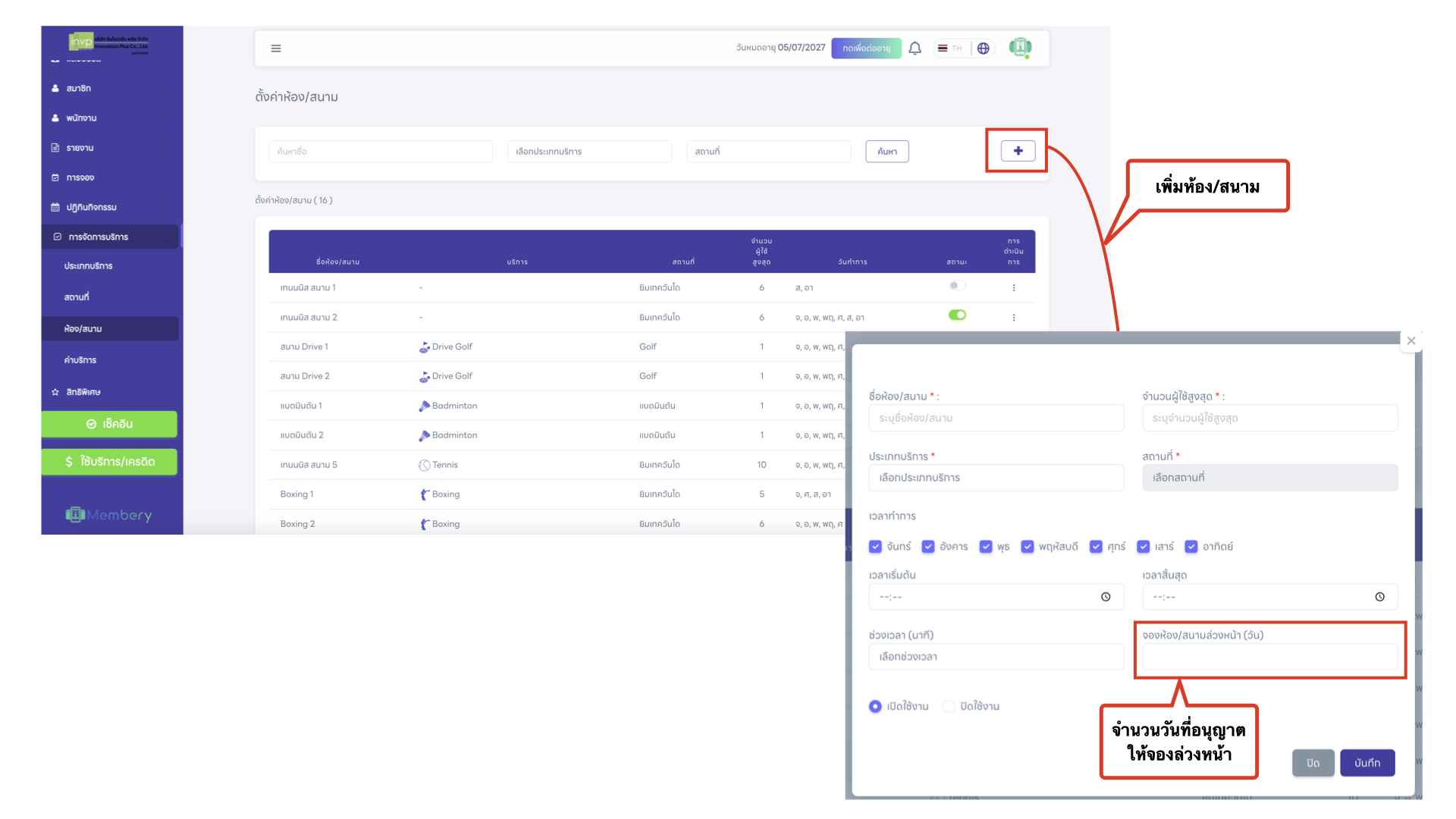
Service management › Rooms/Courts: set the room or court name (for example Badminton court 1), opening hours (for example 09:00–22:00), slot length (for example 60 minutes) and how many days ahead it can be booked. You can also set closed periods here (for example for repairs).
10.2 Booking by staff (Admin Booking)
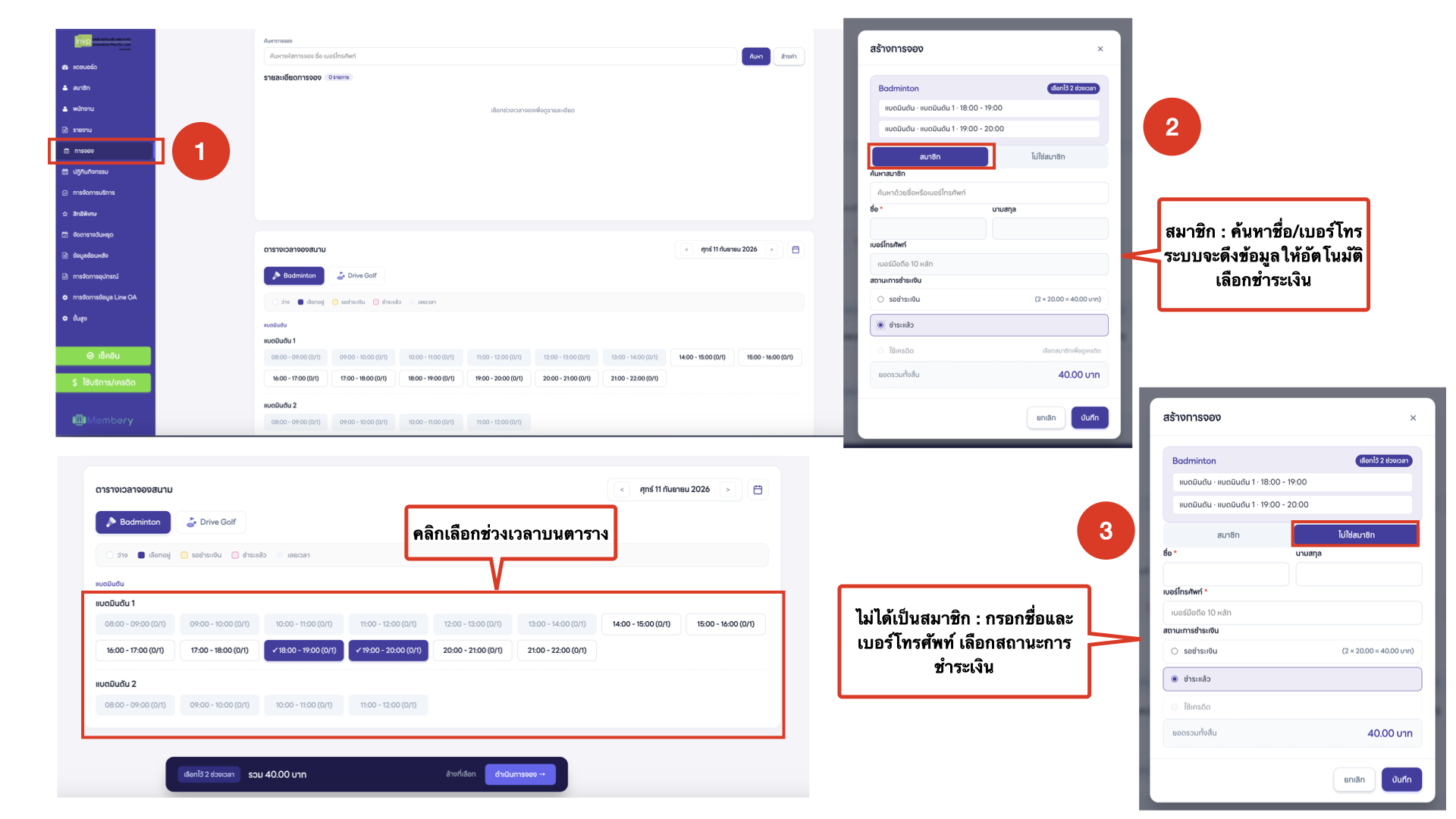
- Open Booking, choose a date, then click time slots on the schedule (several at once is fine)
- Members: search by name or phone and the details fill in. Choose the payment (pending / paid / deduct credits). The system won't deduct more credits than the member has.
- Non-members (walk-in): choose the Non-member tab, enter a name and phone, then choose the payment status. Advance booking is allowed.
10.3 Members booking on LINE OA and in the app
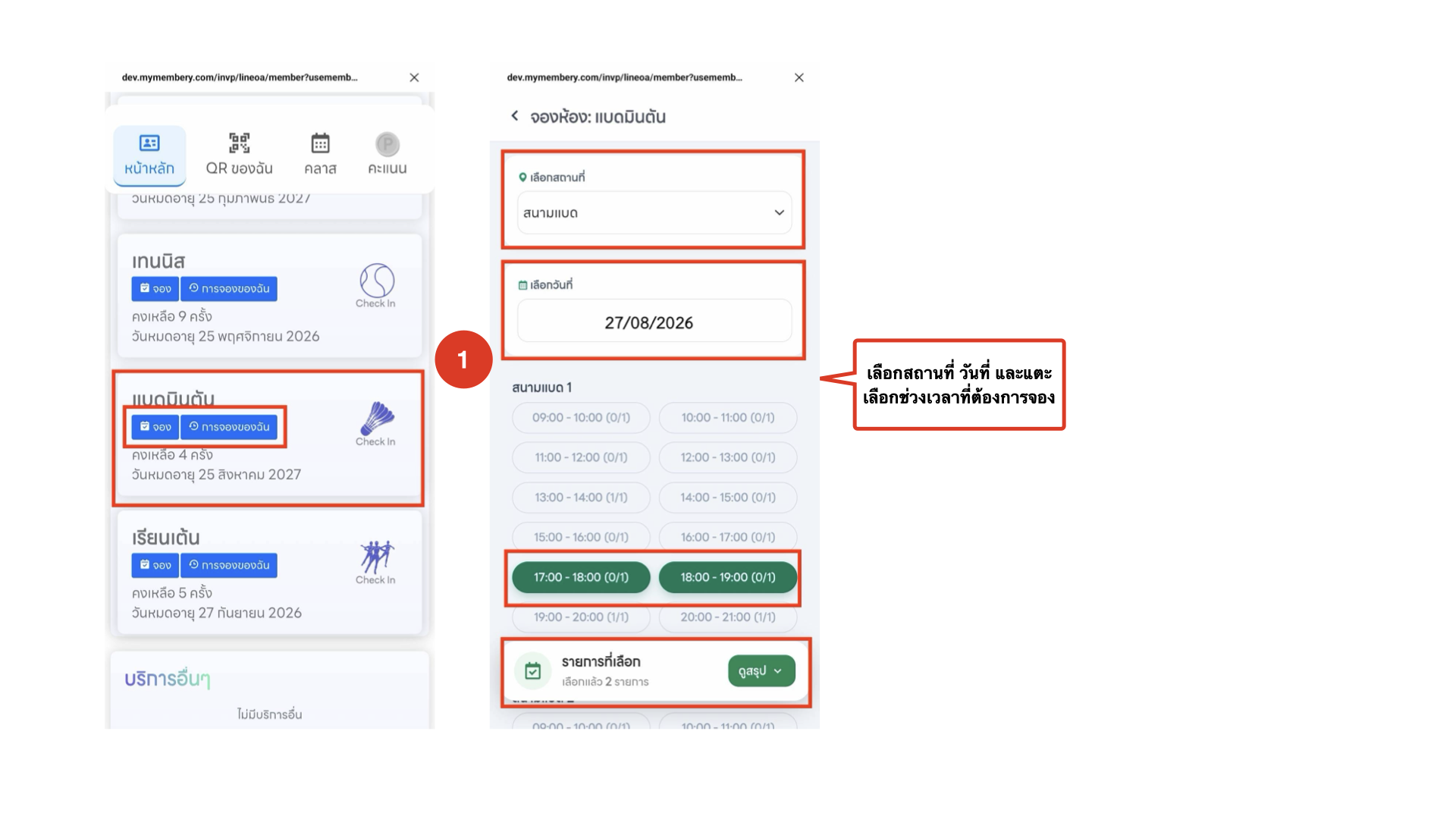
- Choose the location, date and time slots
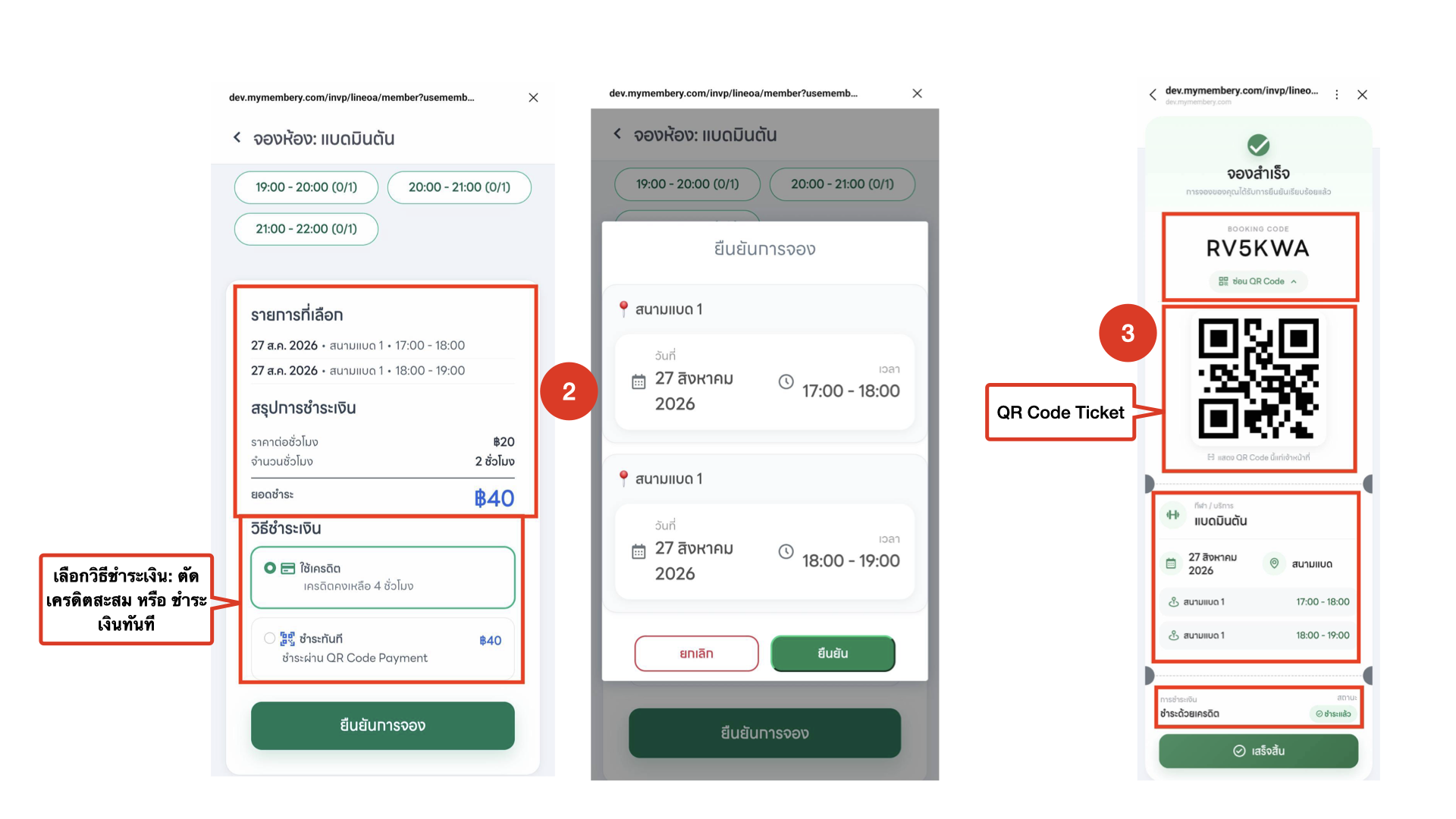
- Choose a payment method: Use credits, Pay now by QR PromptPay or Pay later at the counter (if the club allows it)
- On confirmation the system issues a booking code and QR ticket to scan on arrival
For LINE OA see section 7.4; for the MEMBERY app see section 19.2.
11 Holidays, closures & make-up days New v2.2
Set the days the club is closed, such as Songkran or a gym refit, then choose whether to give members make-up days. If you do, the package expiry of affected members moves out by the number of closed days.
- Holiday schedule › Holiday calendar settings: create calendars, add or edit closures, and give make-up days
- Holiday schedule › Make-up days: history of all make-up days, and cancelling them
11.1 Holiday calendars
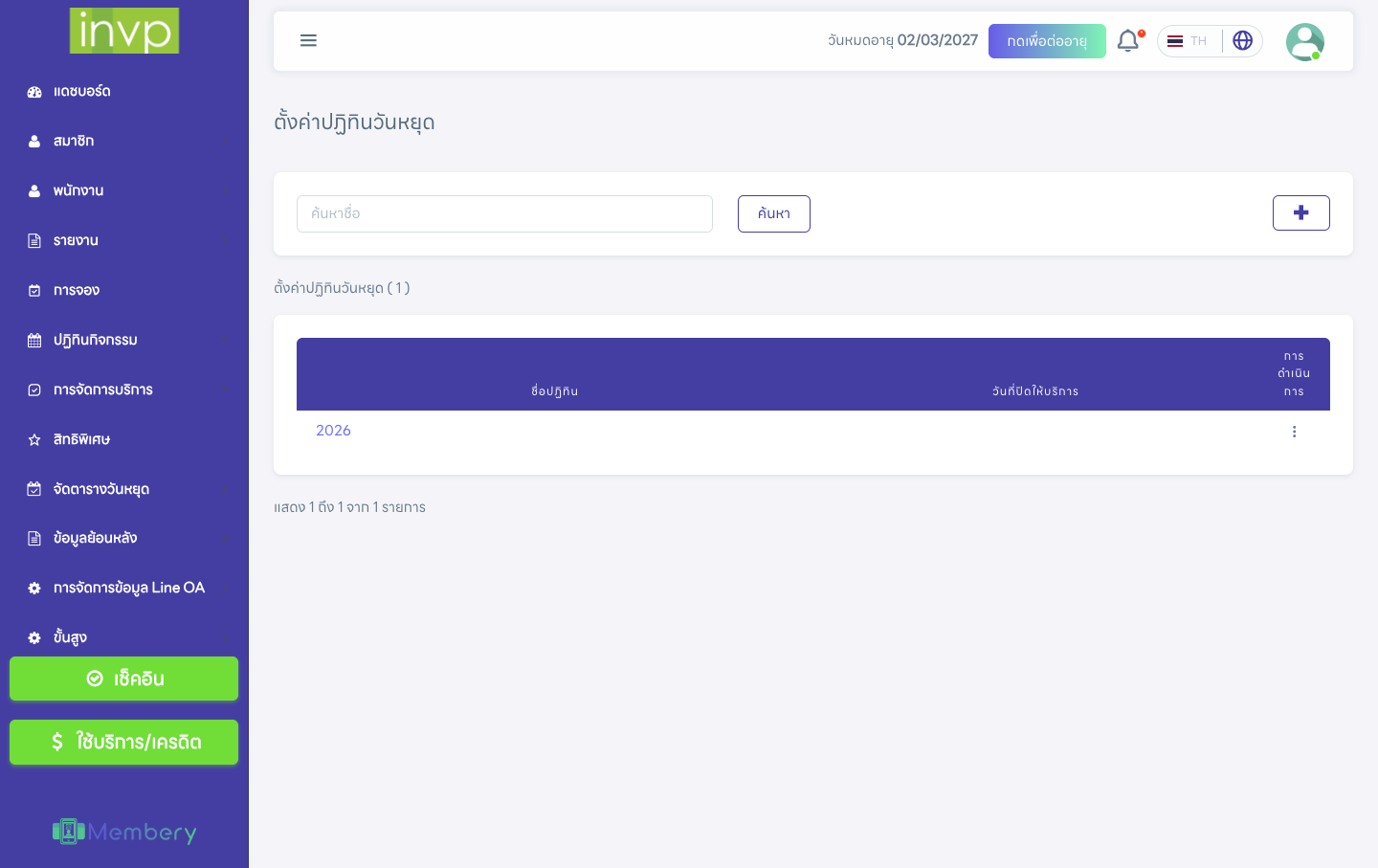
- Go to Holiday calendar settings and click the + button on the right
- Enter a calendar name (for example "Holidays 2027") and tick any weekly closed days (for example closed every Monday)
- Click Save, then click the calendar name to open it. Switch between the full year (year) and a month (month) at the top right.
11.2 Adding a closure
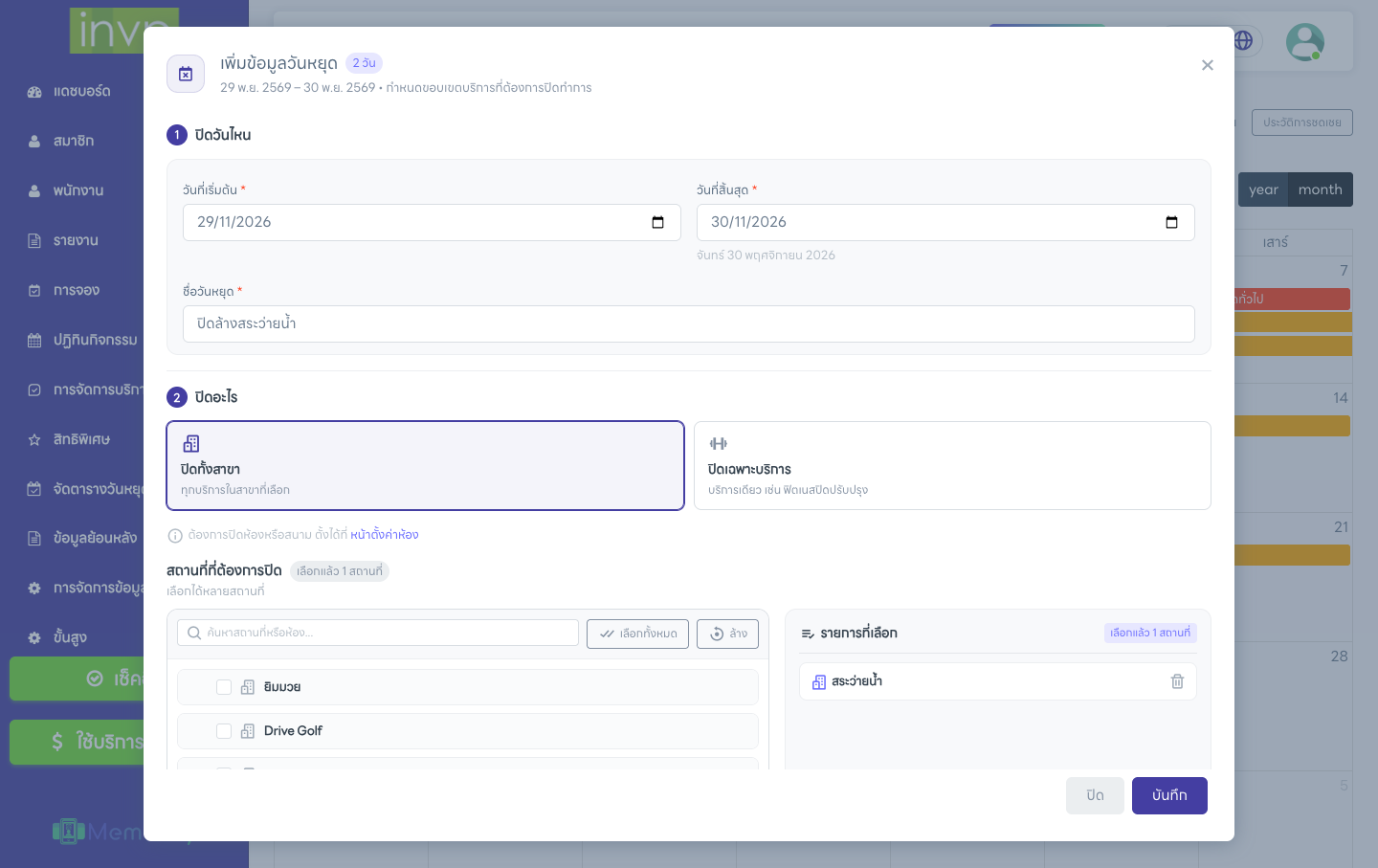
- In the calendar, click a date (or drag across several) to open Add holiday
- Which days: start date, end date (both included) and a holiday name, such as Songkran or Gym refit
- What is closed: choose one
Option What closes Who is affected (if make-up days are given) Close whole branch Every service at the chosen branches. Tick branches in the list on the left; they appear under Selected on the right. Members who bought their package at that branch. If every branch offering a service is closed, all members of that service are affected. Close specific services The chosen services at every branch that offers them (several allowed) Every member with a package for that service - Make-up days for members: choose a mode (section 11.3)
- Click Save. The closure shows on the calendar as a coloured bar.
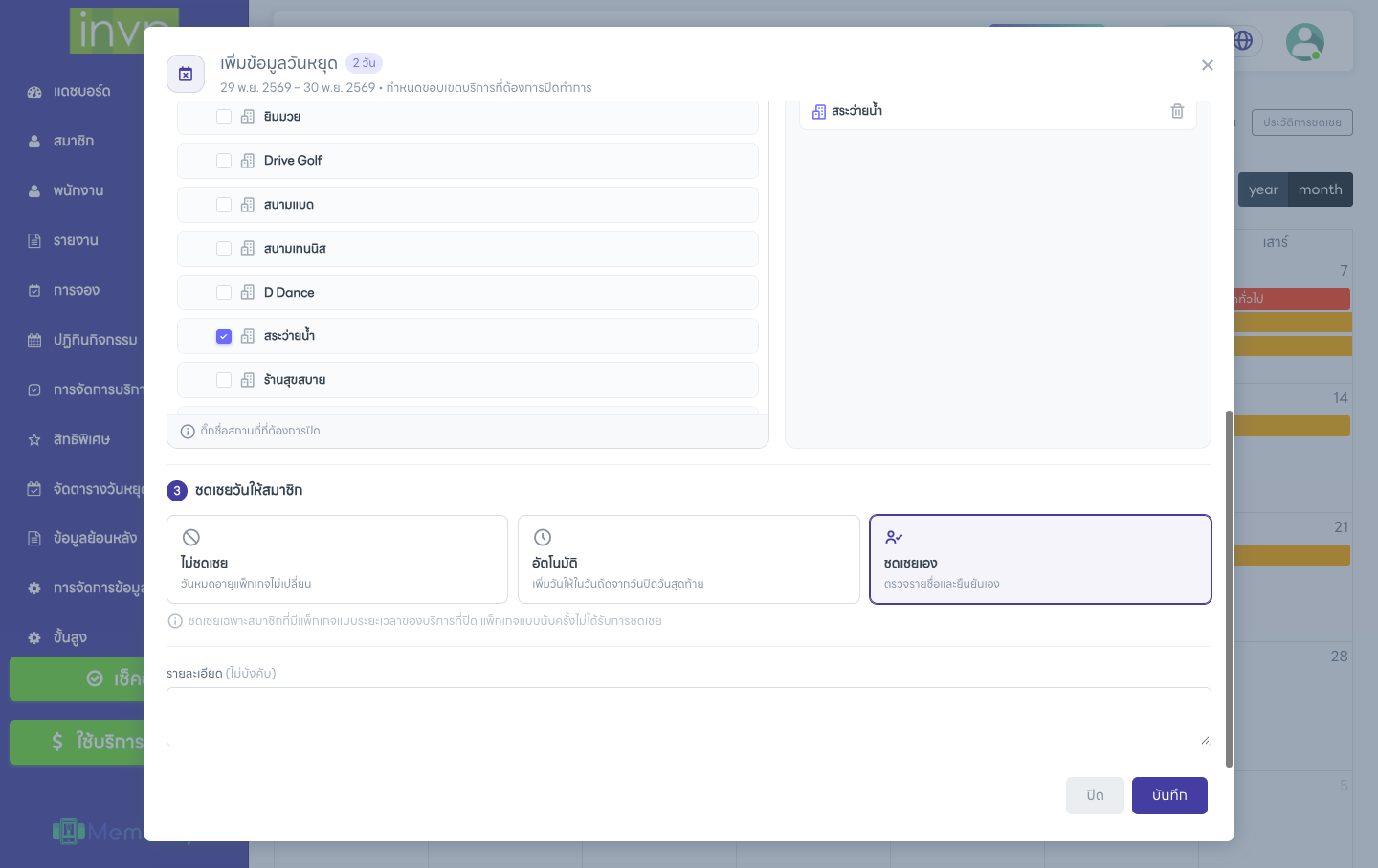
11.3 Choosing how to give make-up days
| Mode | Result |
|---|---|
| No make-up days | Package expiry dates don't change |
| Automatic, after the closure ends | Days are added the day after the last closed day (around 01:00) |
| By hand | An admin reviews the list, picks members and confirms (section 11.4) |
Who gets make-up days
- Only members with a time-based package for the closed service that was active during the closure
- Visit-based packages don't get make-up days
How many days
- Only closed days while the package was valid count. For example, a package bought in the middle of a closure gets only the remaining days.
- Days when the member's package was paused don't count (the pause already moved the expiry)
- When two closures overlap, a shared day counts once
- If the package expired during the closure, the new expiry counts on from the last closed day
Example: closed 20–24 Oct, package expires 22 Oct → 3 make-up days (20–22), new expiry 27 Oct
Once days are given, members who use the MEMBERY app get a notification: "Make-up days for the closure … valid until …"
11.4 Giving make-up days by hand
You can give them from the first closed day on, not in advance
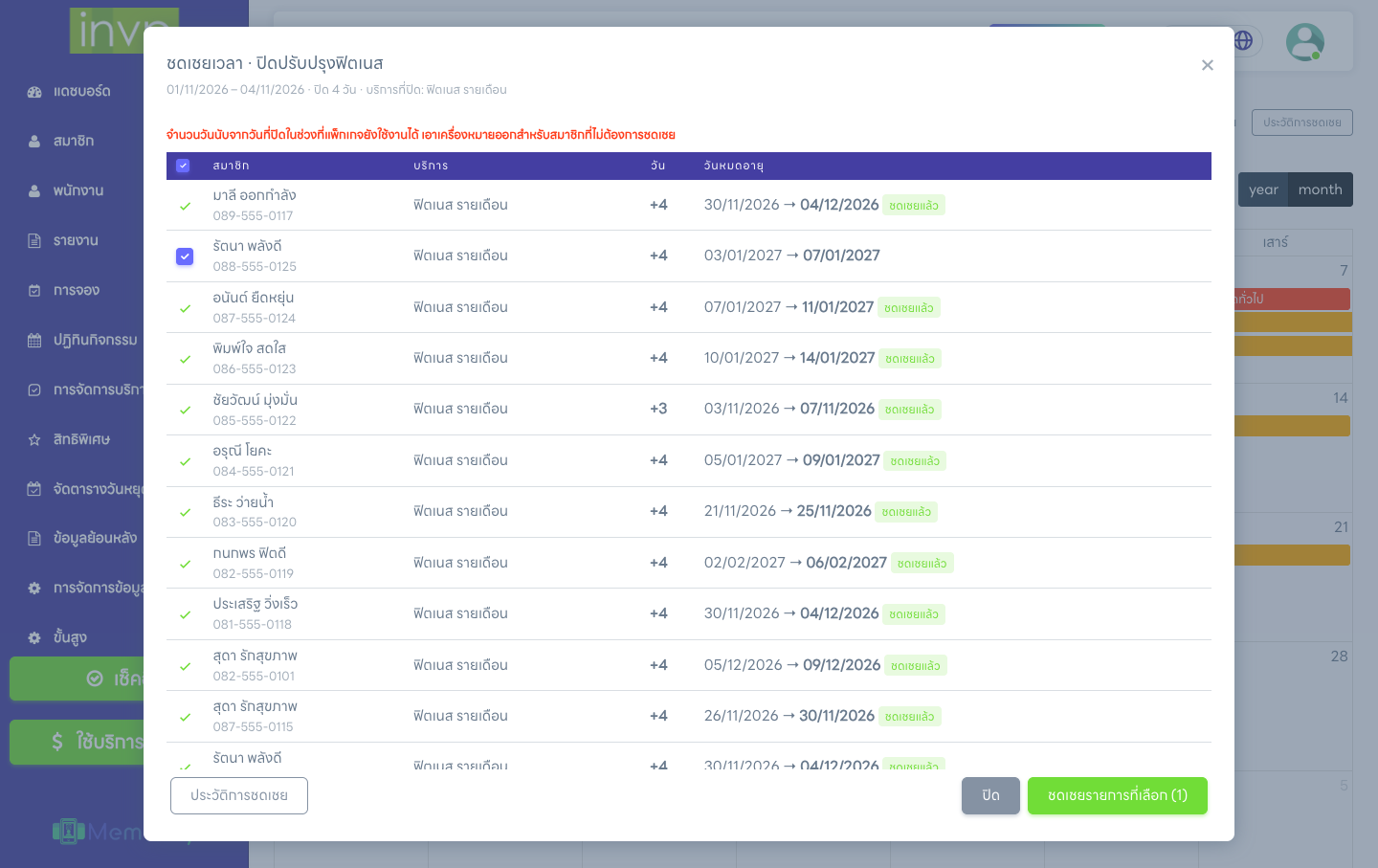
- Click the closure bar on the calendar to open Edit holiday
- Click Make-up days
- The window shows the closed services, the number of closed days and the member list: member, service, days, expiry
- Everyone who qualifies is ticked. Untick anyone who shouldn't get days.
- Members who already got them show Given and can't be picked again
- Click Give to selected (count) and confirm "Give make-up days to X members?"
The Make-up history button in this window opens the Make-up days page
11.5 Calendar colours
| Colour | Meaning |
|---|---|
| Red | No make-up days |
| Orange | Waiting, or given to some members (label "Given 4/14") |
| Green | Given to everyone |
| Grey | Set to give days, but nobody qualifies |
The colour key is always shown at the top right of the calendar
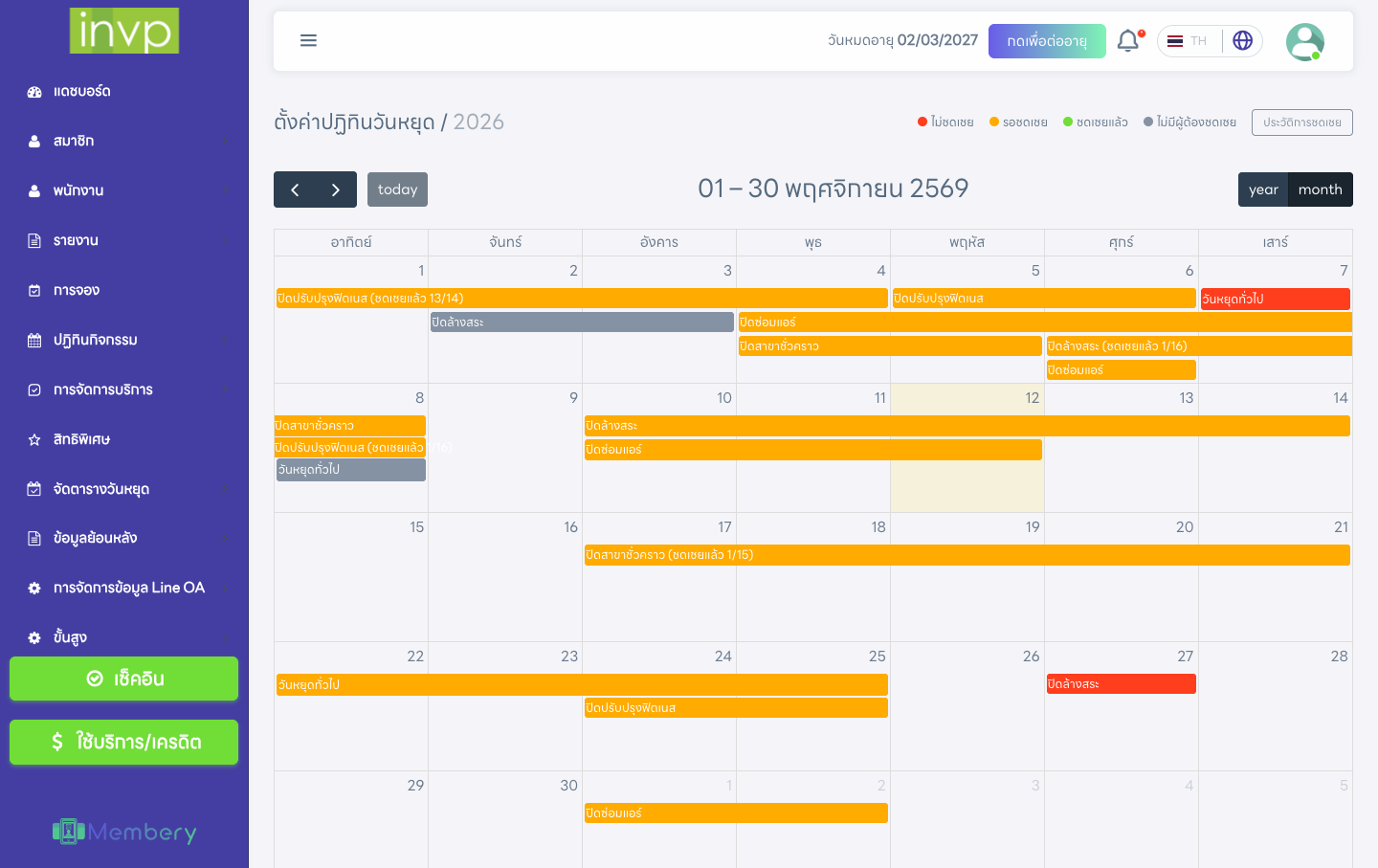
11.6 Make-up history and cancelling
The Make-up days menu (or Make-up history on the calendar page)
- Top: number of entries, number of members, total days given
- Filters: search member, phone or service · closure · method (automatic / by hand) · status · date range
- Columns: date given (and by whom; automatic entries show "System"), member, closure, service, days, expiry (old → new), method, status
- The Holiday calendar button at the top right goes back to the calendar
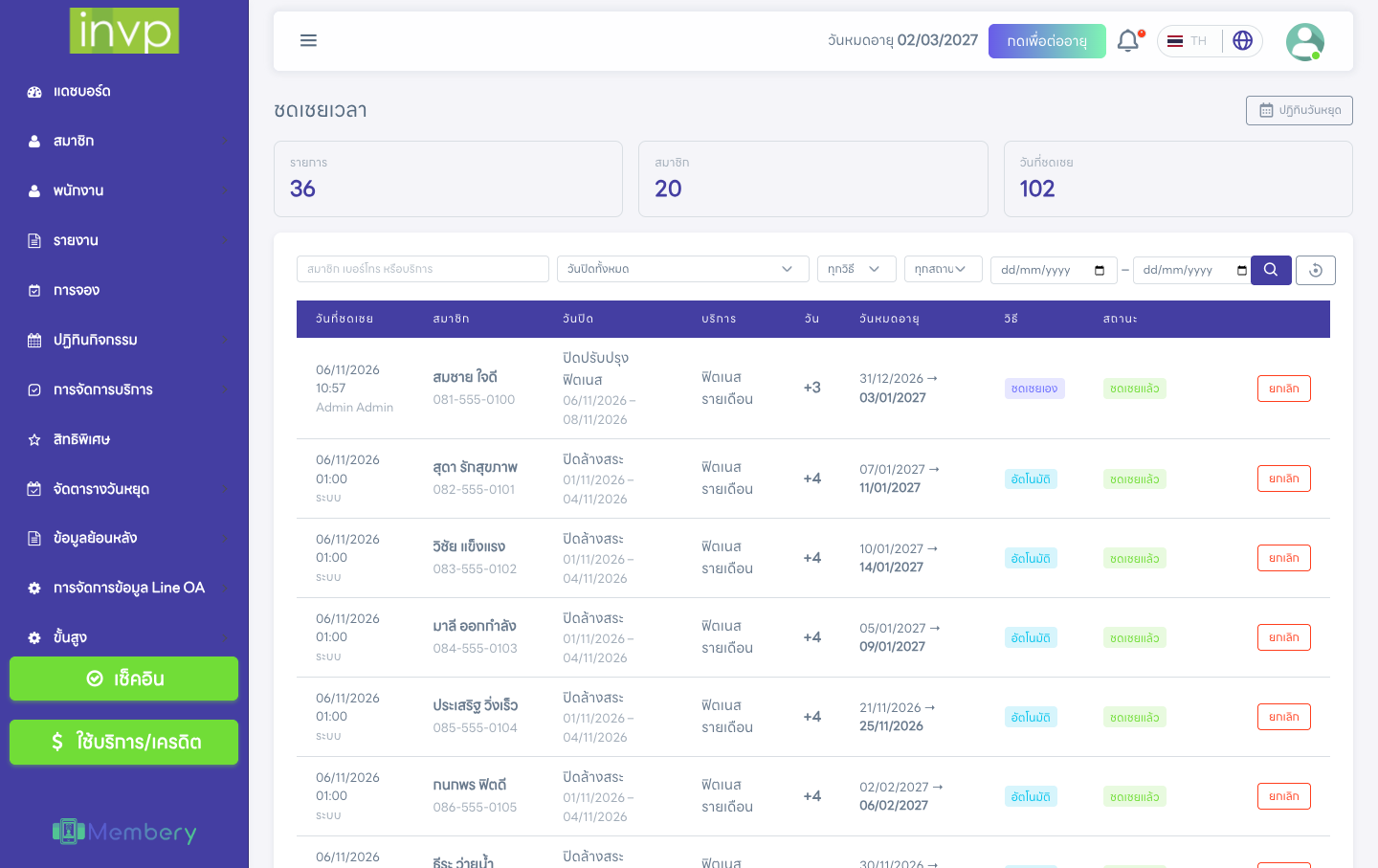
Cancelling make-up days: click Cancel on the entry. The system shows "X days will be taken back from (service) of (member) (expiry old → new)". Then confirm.
- You can give them again after cancelling
- If the member renewed after the old package expired, the days aren't taken from the new period
- If the purchase of a package that got make-up days is cancelled, those make-up days are cancelled automatically
11.7 Editing and deleting closures
- A closure that already gave make-up days can only be renamed. To change the dates, what is closed, switch to no make-up days, or delete it, first cancel the make-up days on the Make-up days page.
- Deleting a closure that has started while members are still waiting for days: the system warns how many days have already been closed and how many entries won't get days back, with options
- Shorten to (date range): end the closure yesterday and treat today as open. Members still get days for the days actually closed. (Good when you reopen early.)
- Delete holiday: delete the whole entry
- Deleting a whole year's holiday calendar: not allowed if any closure in it has given make-up days. Otherwise all its closures are deleted too.
11.8 Effect on bookings
- Close whole branch: the MEMBERY app won't book rooms, courts or classes at that branch on closed days
- Close specific services: bookings aren't closed automatically yet
11.9 Troubleshooting
| Message | Cause / fix |
|---|---|
| This holiday hasn't started. Make-up days can be given from the first closed day. | Wait for the first closed day, or set it to automatic |
| This holiday is set to no make-up days, so none can be given | Change the mode to by hand or automatic first |
| No members have a time-based package active during this closure | Nobody needs make-up days (the bar is grey) |
| Make-up days have been given for this closure. Please cancel them… | Cancel the make-up days on the Make-up days page before editing or deleting |
| Close rooms or courts on the room settings page… | Room closures moved to the room settings page |
| Given X of Y selected packages… | Some members already got days or no longer qualify. Nothing more to do. |
| Members with visit-based packages aren't in the list | Correct: visit-based packages don't get make-up days |
12 Trainer system & class check-in
12.1 Registering a trainer and linking LINE
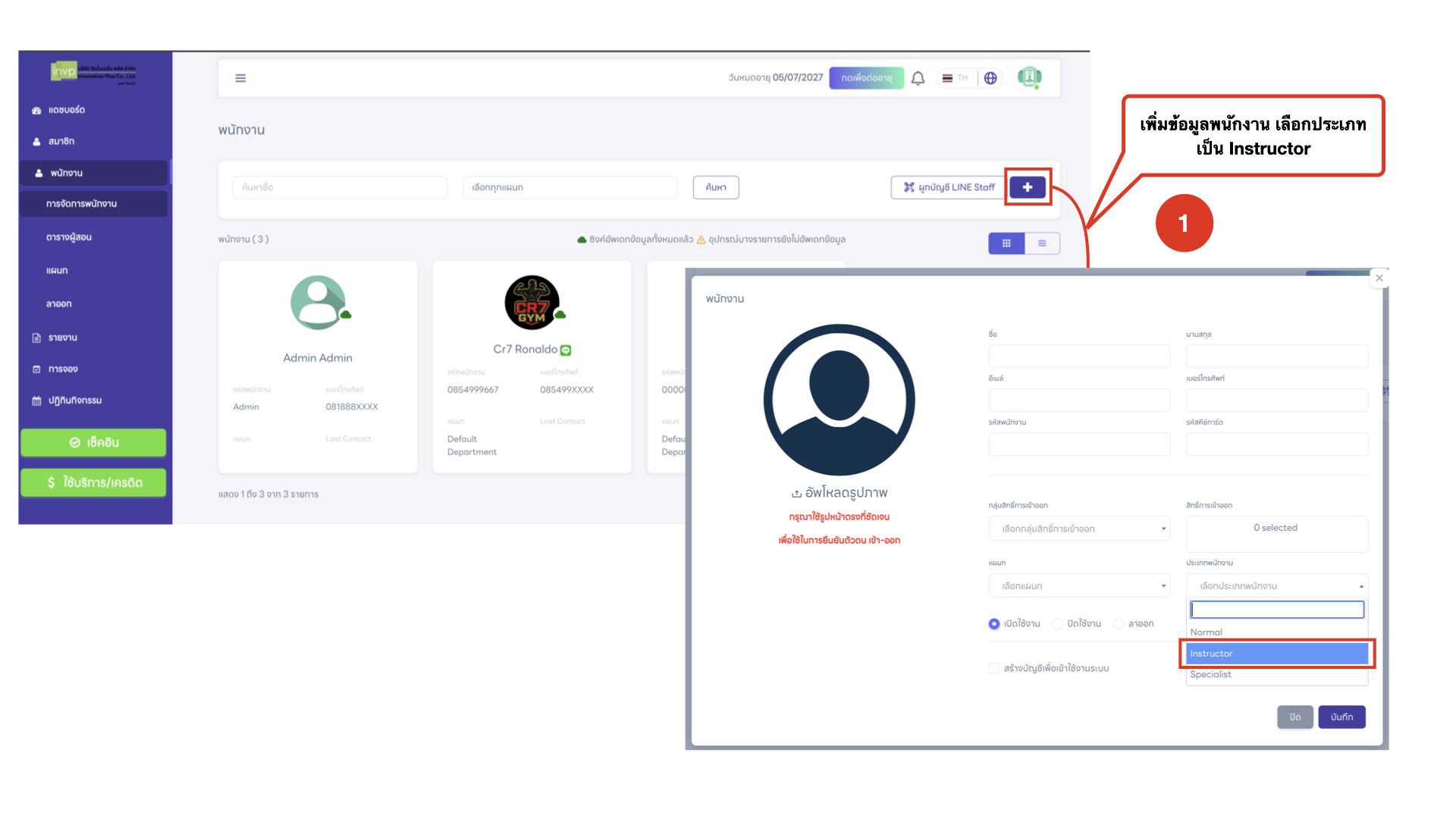
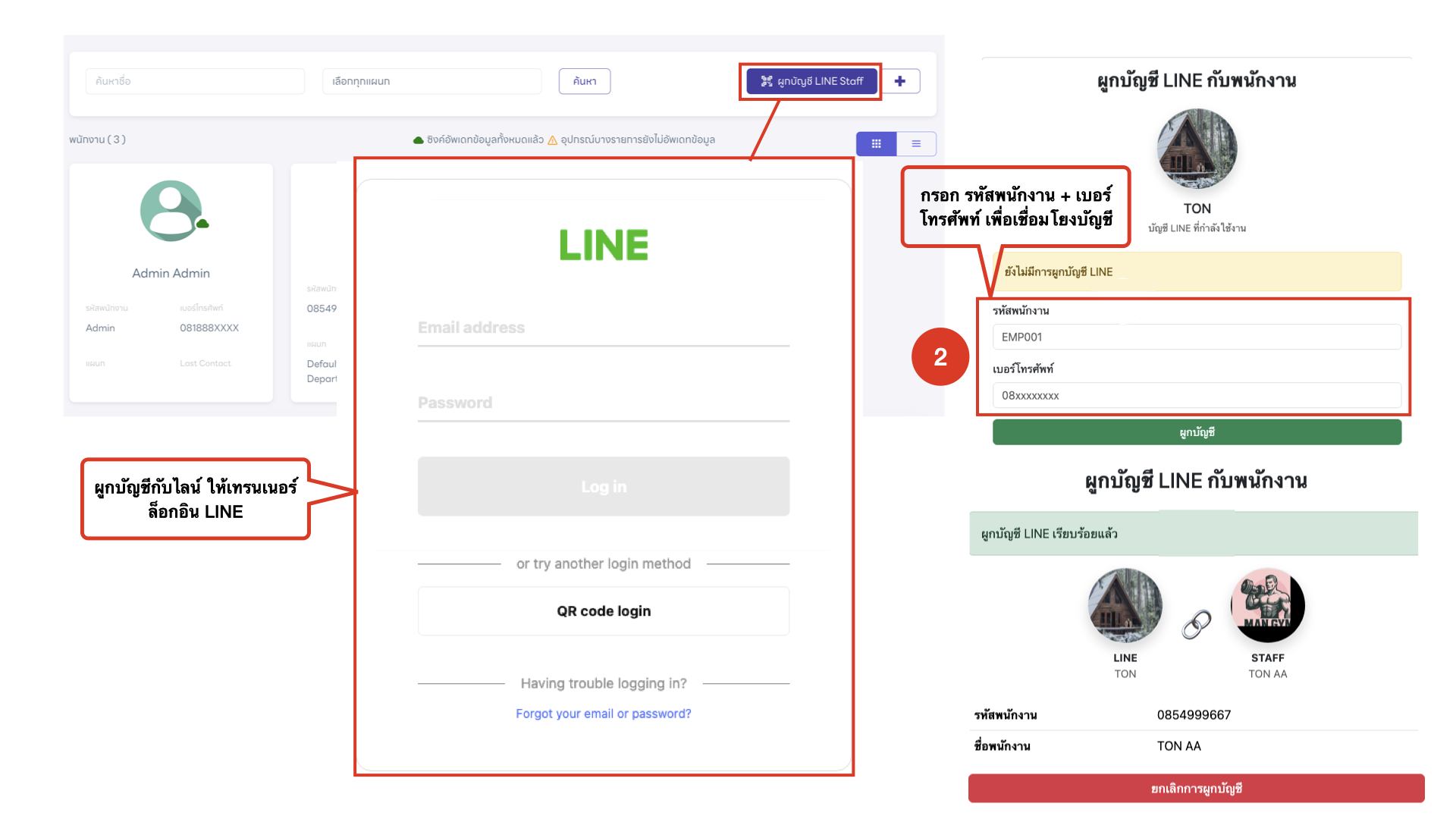
- Create a staff profile with the type Instructor
- Click Link LINE account. The trainer signs in to LINE, then enters their staff code and phone number.
12.2 Checking classes and checking in students
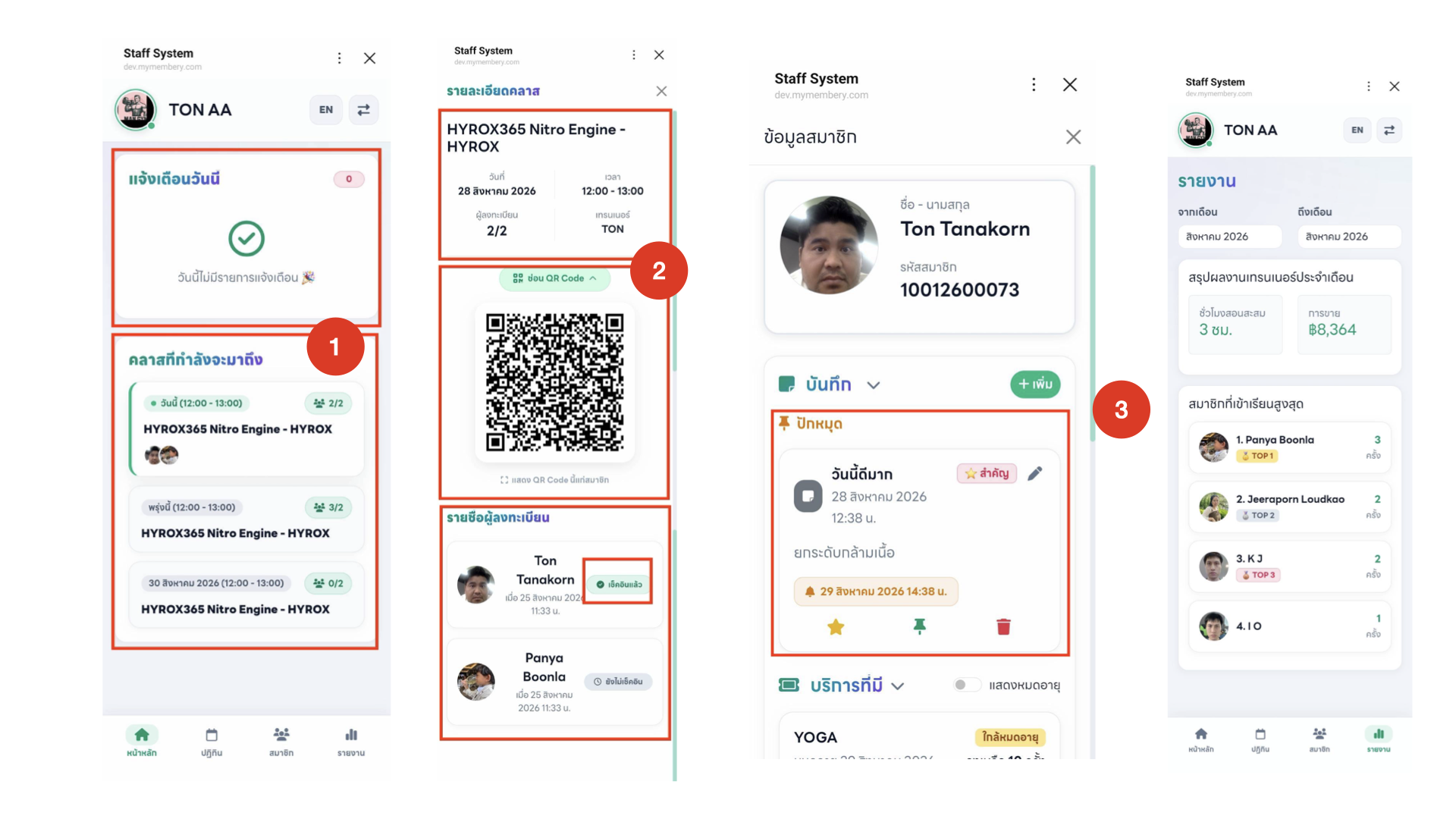
- The trainer opens the Staff System to see upcoming classes and who has signed up (checked in / not yet)
- Class check-in: tap Show QR Code for the class for members to scan, or let members check in from their phone. Check-ins with the trainer's QR count the credit use for that trainer. v2.2
- Training notes: record each student's progress (Trainee Log) and pull the trainer's summary report
13 Privileges & points
Let members spend their points on privileges, then follow redemptions in a report.
13.1 Setting up privileges
Service management › Privileges: click Add, then set
- The location and service types where it can be used
- The privilege name and privilege code
- The unit type (time / unit) and exchange rate (how many points)
- Status and Show on LINE/app so members can see and redeem it themselves
13.2 Points usage report
Reports › Points usage report shows the member name, location, item, privilege code, points used, value (baht), activity type, status, staff and transaction date
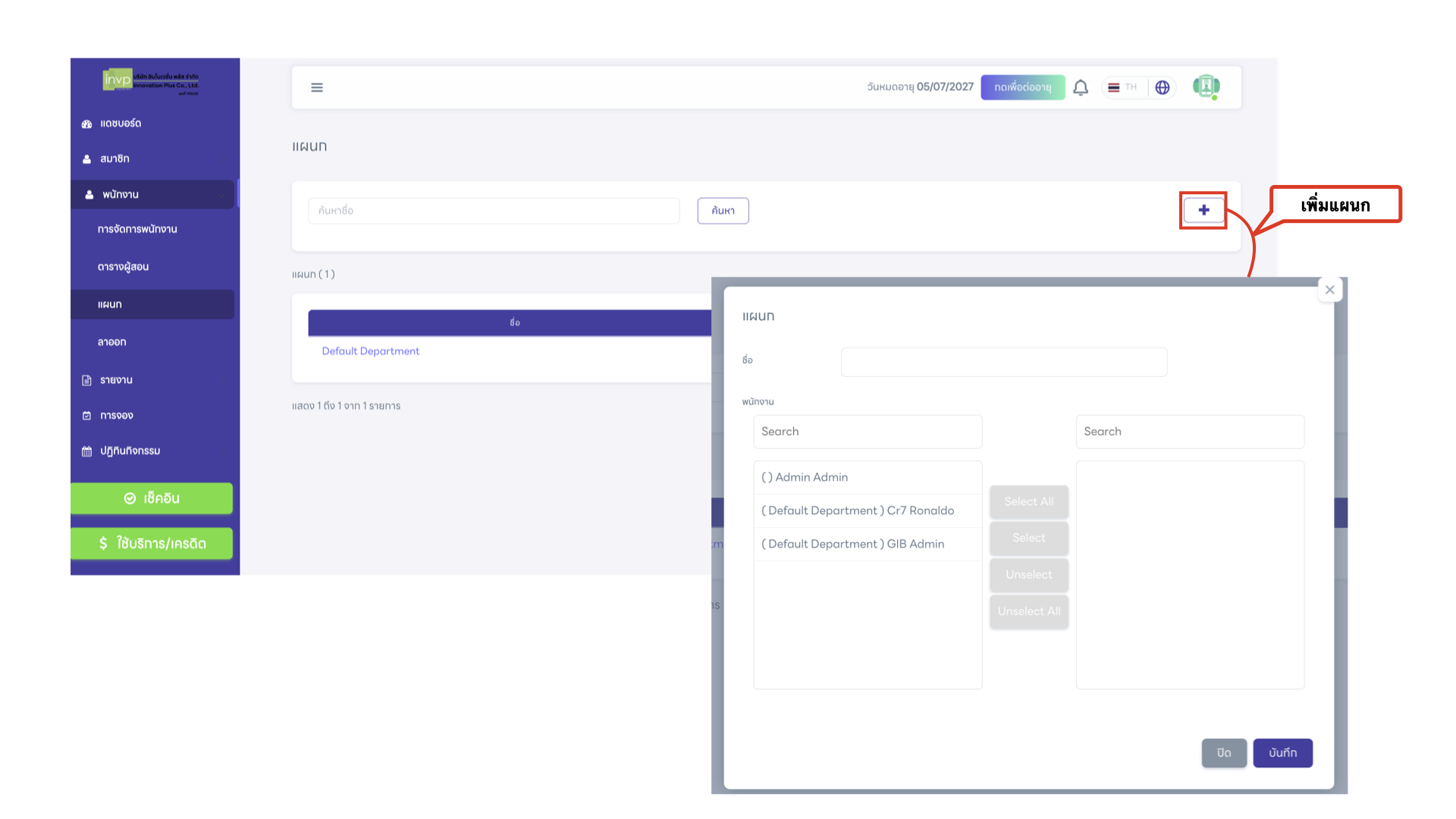
14 Staff & departments
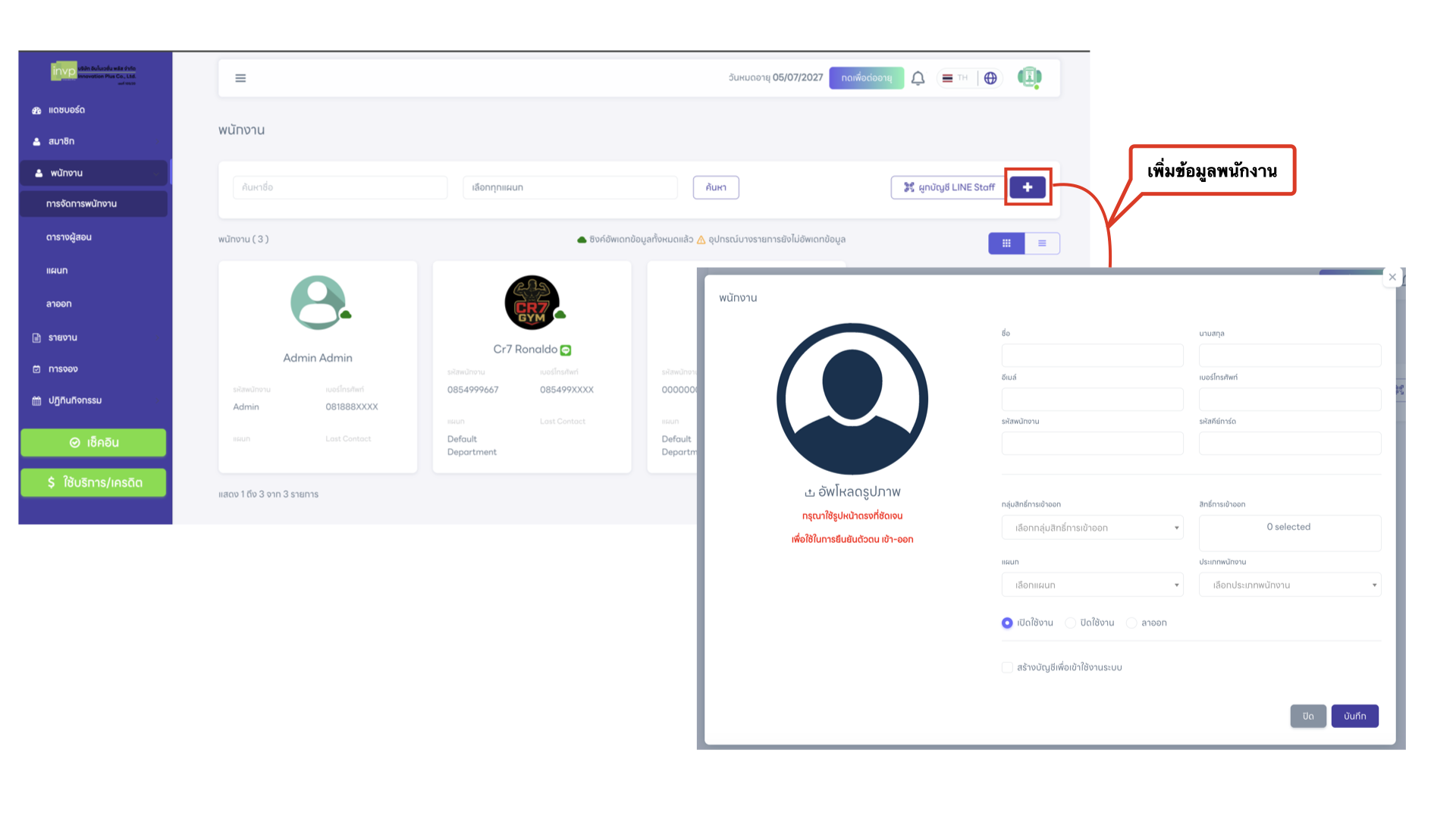
- Add staff: enter name, staff code, phone and department. From v2.2 email is optional. v2.2
- Departments: add or rename departments and assign staff to them
- Instructor schedule / resigned staff: see instructors' teaching schedules and staff who have left
15 Reports Updated v2.2
- Report exports show the seller's name
- Every report uses the same payment channel names (including PromptPay)
- The revenue chart in the service purchase report leaves out refunded items
- New report: PromptPay Payment Transactions (section 7.5)
15.1 Staff sales and credits
Staff › Staff profile
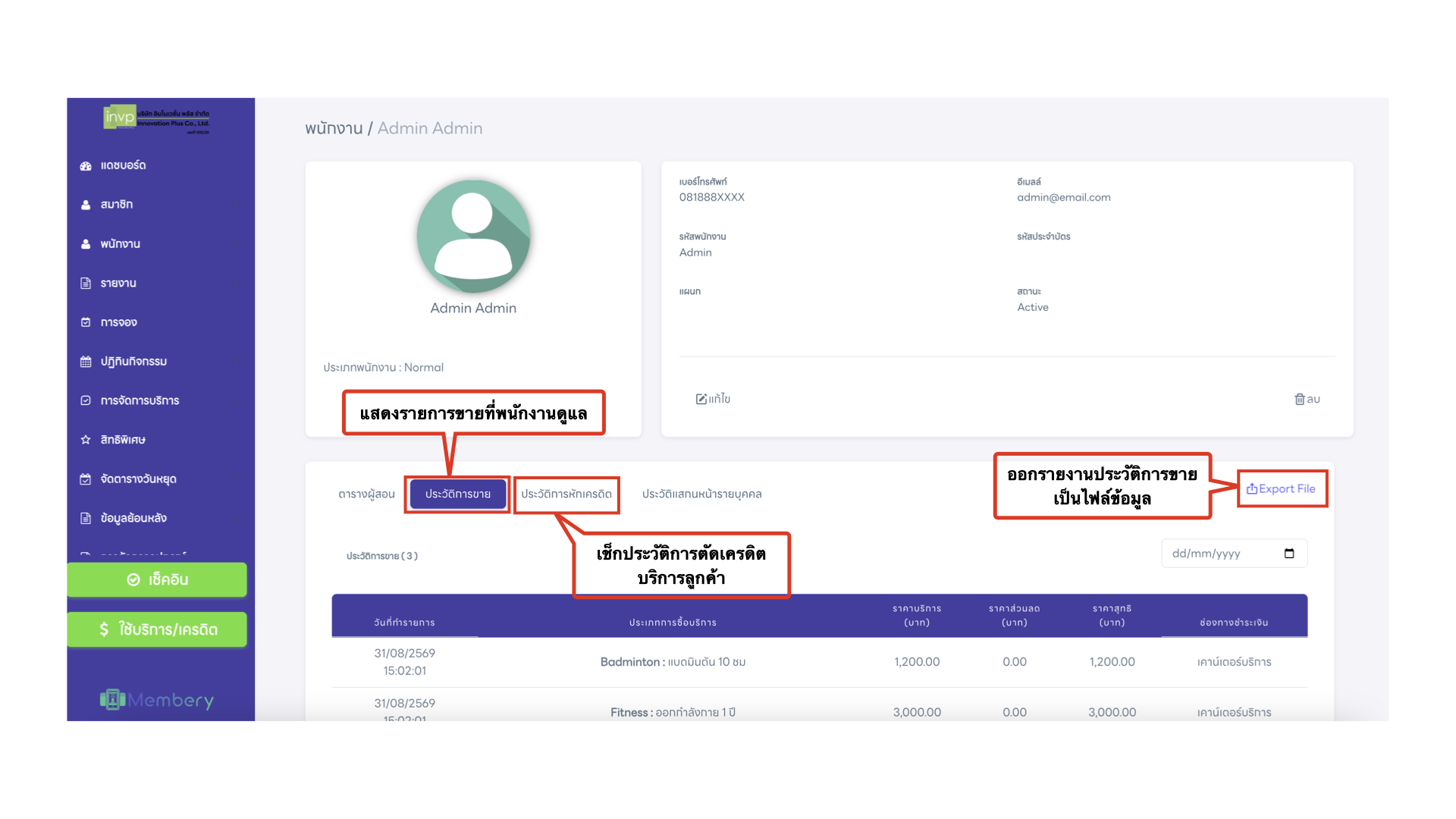
- Sales log: what the staff member sold, with date and time, package, amount, discount and payment channel
- Credit log: member credits deducted by this staff member
- Export: export the sales log to work out commission
15.2 Service purchase report
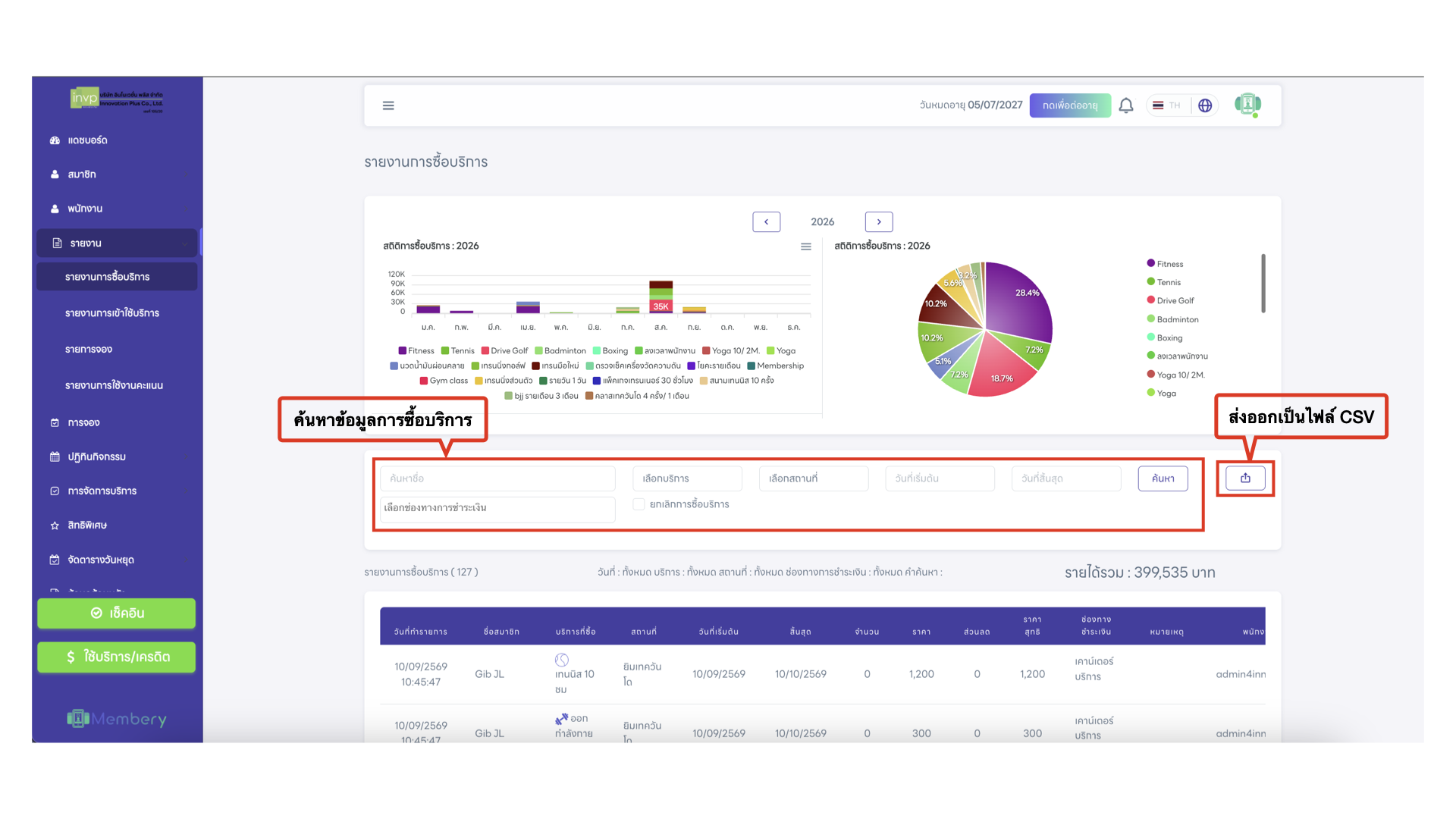
Search package purchases by member name, service type or period. See the amount paid, payment channel, seller and expiry date, with Export CSV.
15.3 Check-in report
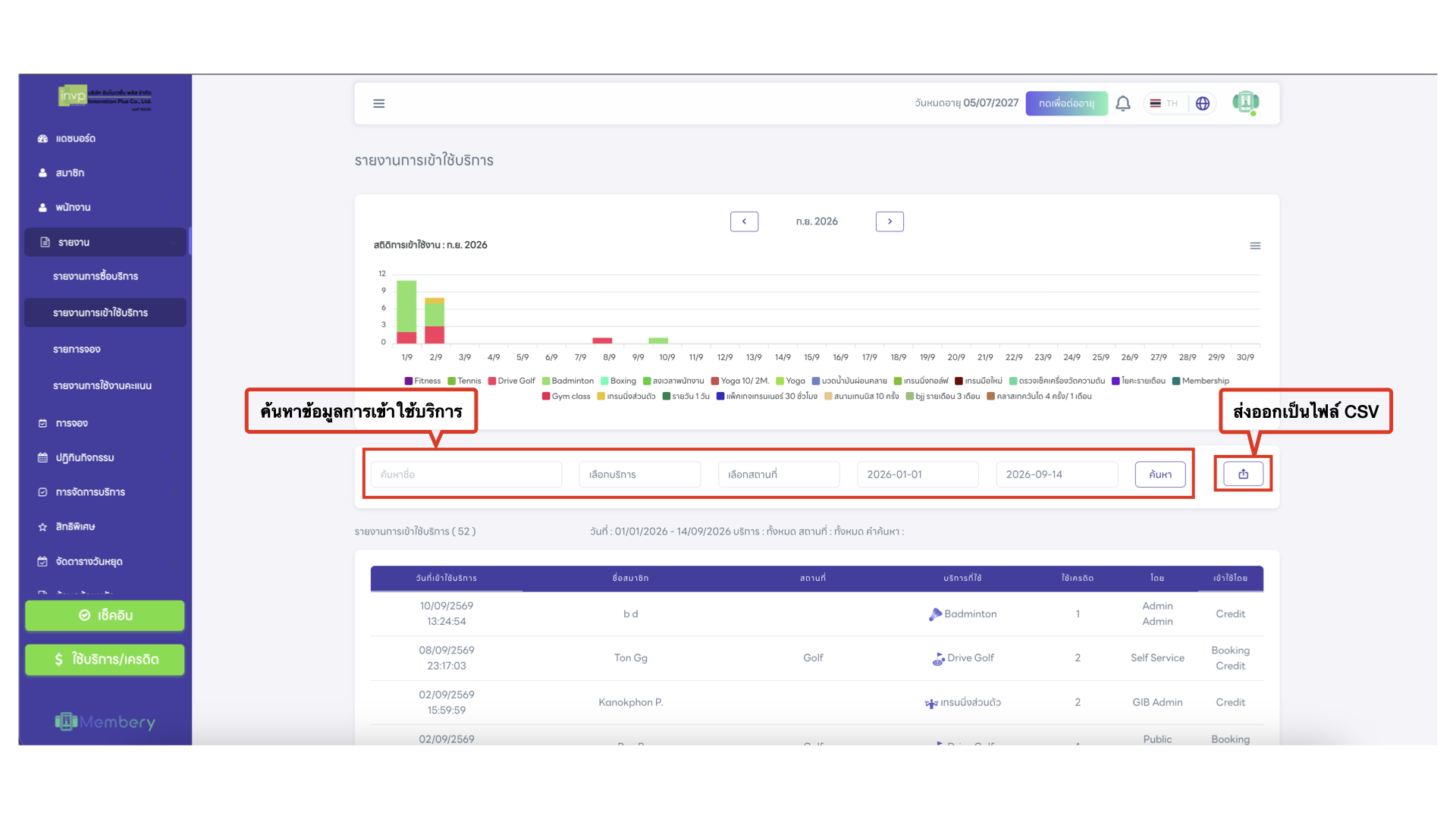
Check-in statistics by location and service type, to see how busy things are, with Export CSV
15.4 Other reports
| Report | What it shows |
|---|---|
| Bookings | All room and court bookings |
| Activity schedule | Summary of activities and classes in the calendar |
| Points usage report | Point and privilege redemptions (chapter 13) |
| PromptPay Payment Transactions | QR payments and slip approval (section 7.5) |
| Package Pause | Package pauses, with Export Excel (section 5.4) |
| Make-up days | History of make-up days for closures (section 11.6) |
16 Services, locations & fees Updated v2.2
- Service Fee: the product display option is renamed "Show on LINE/app" and applies to both LINE OA and the MEMBERY app
- New service icons for volleyball and table tennis
- Services offered for court booking paid by QR need a starting price (section 7.3)
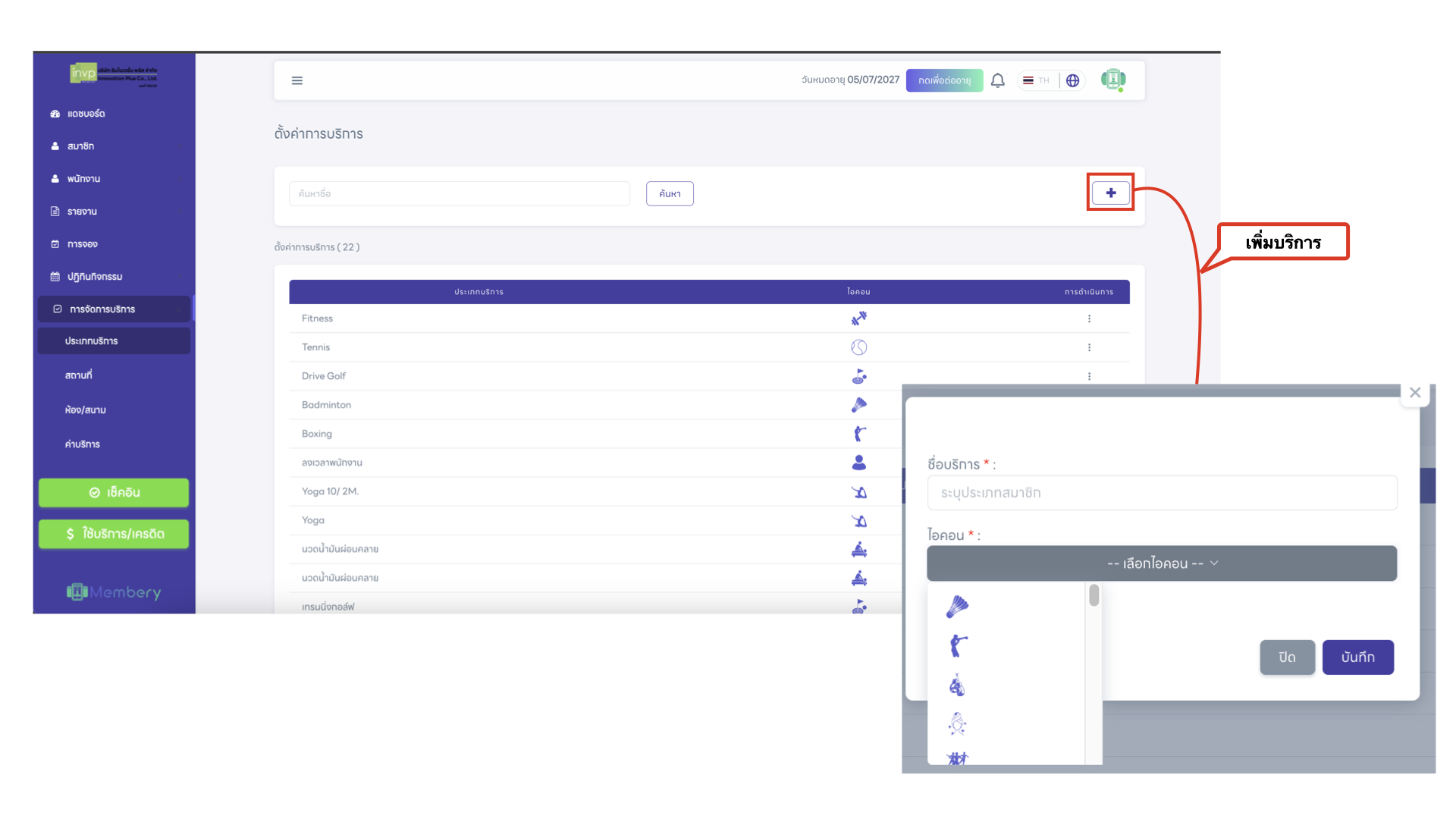
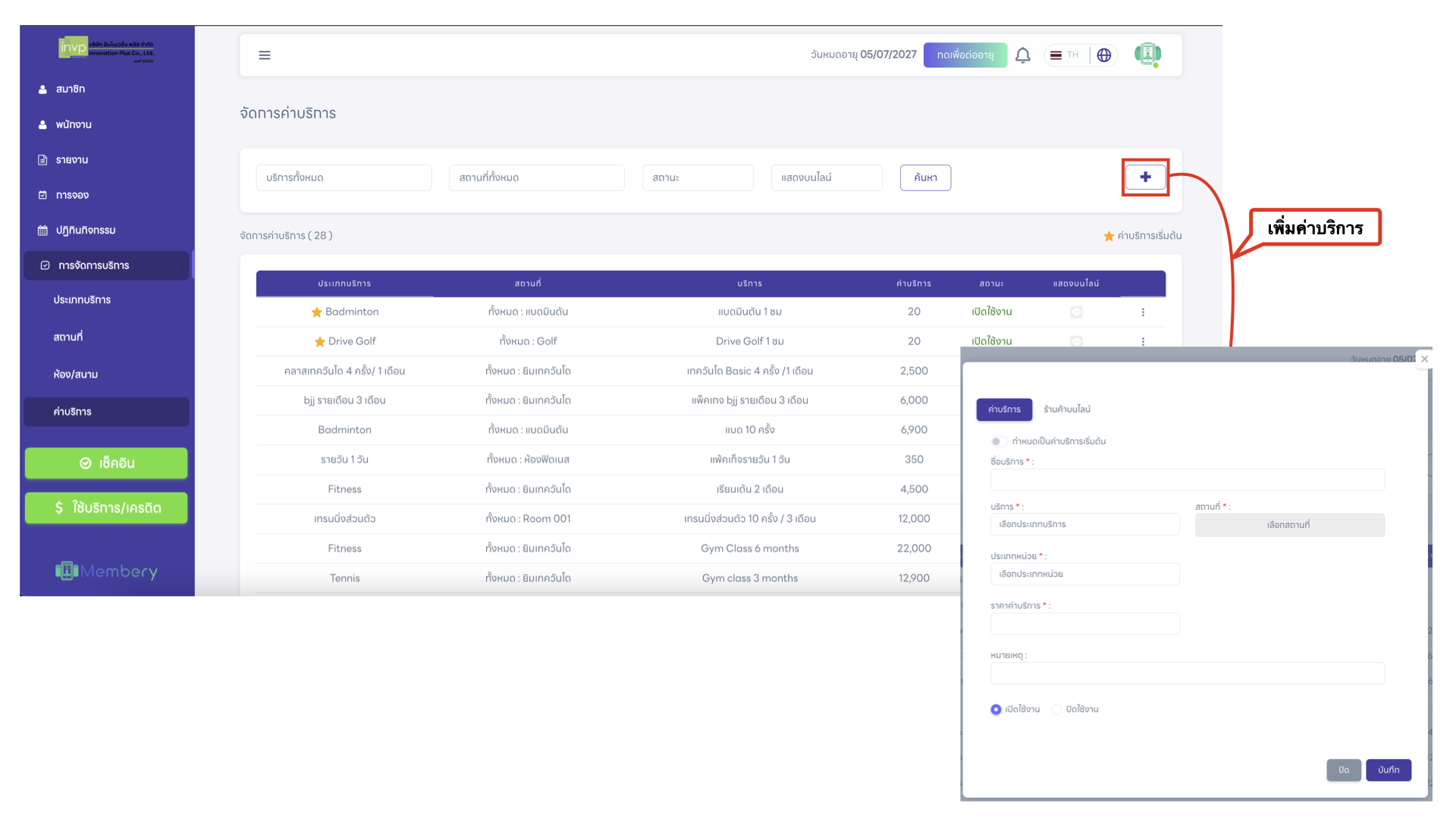
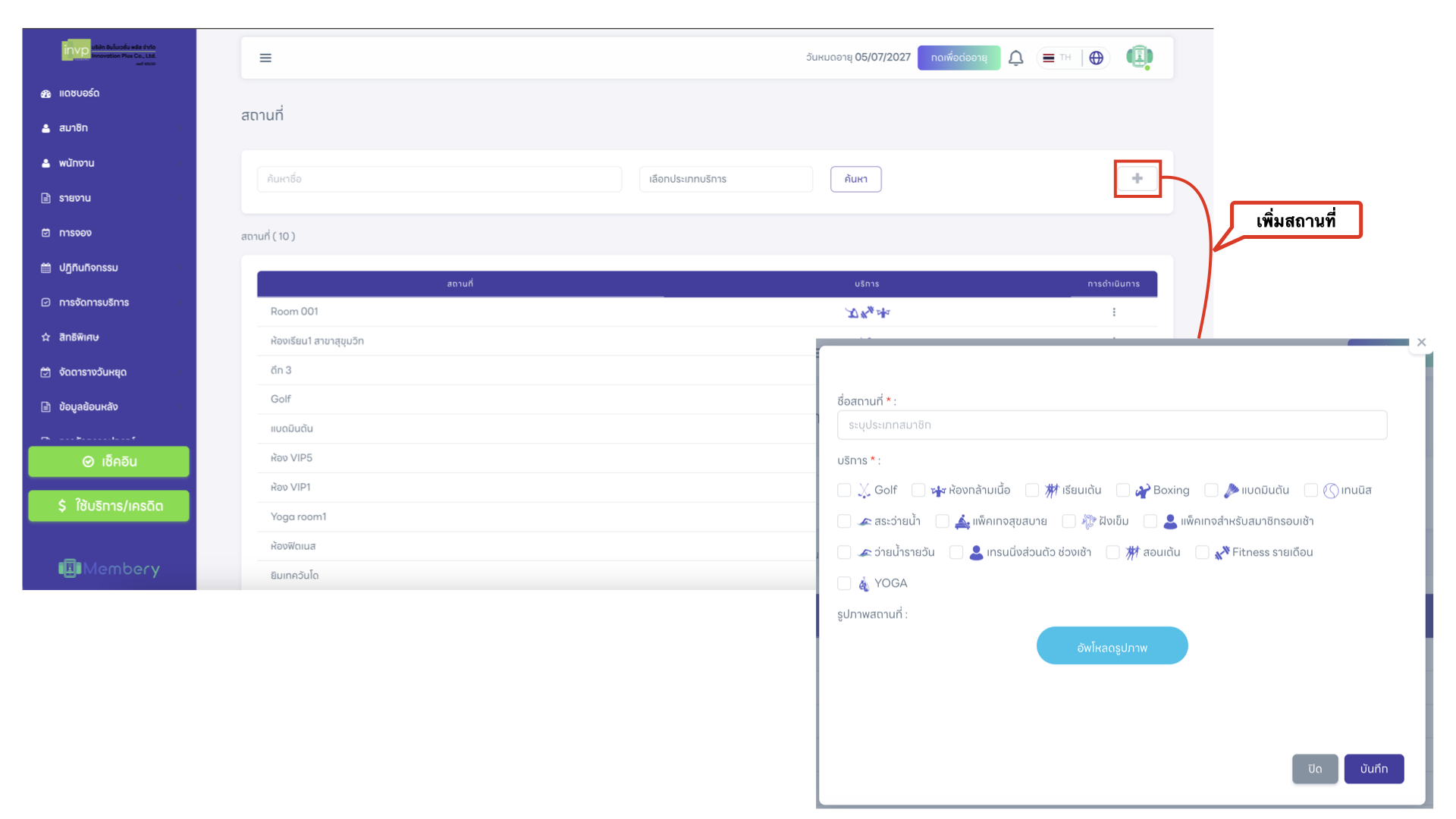
- Service types: create service types (gym, personal trainer, group class and so on) with an icon
- Fees & packages: set the package name (daily / monthly / per visit), location, member types that can use it, price, and tick Show on LINE/app to sell it on LINE OA and in the app
- Locations: add branches or service points with the services they offer
- Rooms/courts: see chapter 10
17 LINE OA, devices & user permissions
17.1 LINE OA settings
- Shop layout: manage how packages appear in the LINE OA shop
- Virtual card: upload the front and back backgrounds of the member card (1000×630 px recommended, up to 2 MB) and preview them
- Messaging API: connect the club's LINE OA to send notifications to members
17.2 Devices
- Devices: add scanners or gates with a name, type, IP and location. Click Sync to send data to the device, and see the last and next sync times.
- Access permissions: group who can use which device
17.3 Users and permissions
The Advanced menu
- User management: create back-office accounts for staff
- User levels: set read / edit permission for each menu. The permission form is easier to use in v2.2, and every level now sees the holiday menus (adjust here). v2.2
- Menu and System management: general settings such as the points exchange rate
- History: transaction history and user activity history
For members
Clubs can share chapters 18–21 with their members. Dashed boxes are notes for club staff.
18 MEMBERY app: install, sign up & sign in New v2.2
The MEMBERY app lets members see their packages, check in, book classes and courts, buy packages with QR PromptPay, and get notifications. One account (the same phone number) works across several clubs. It comes in 3 languages: ไทย, English and 中文 (change it at Profile › Language).
18.1 Installing the app
On an iPhone, download MEMBERY from the App Store
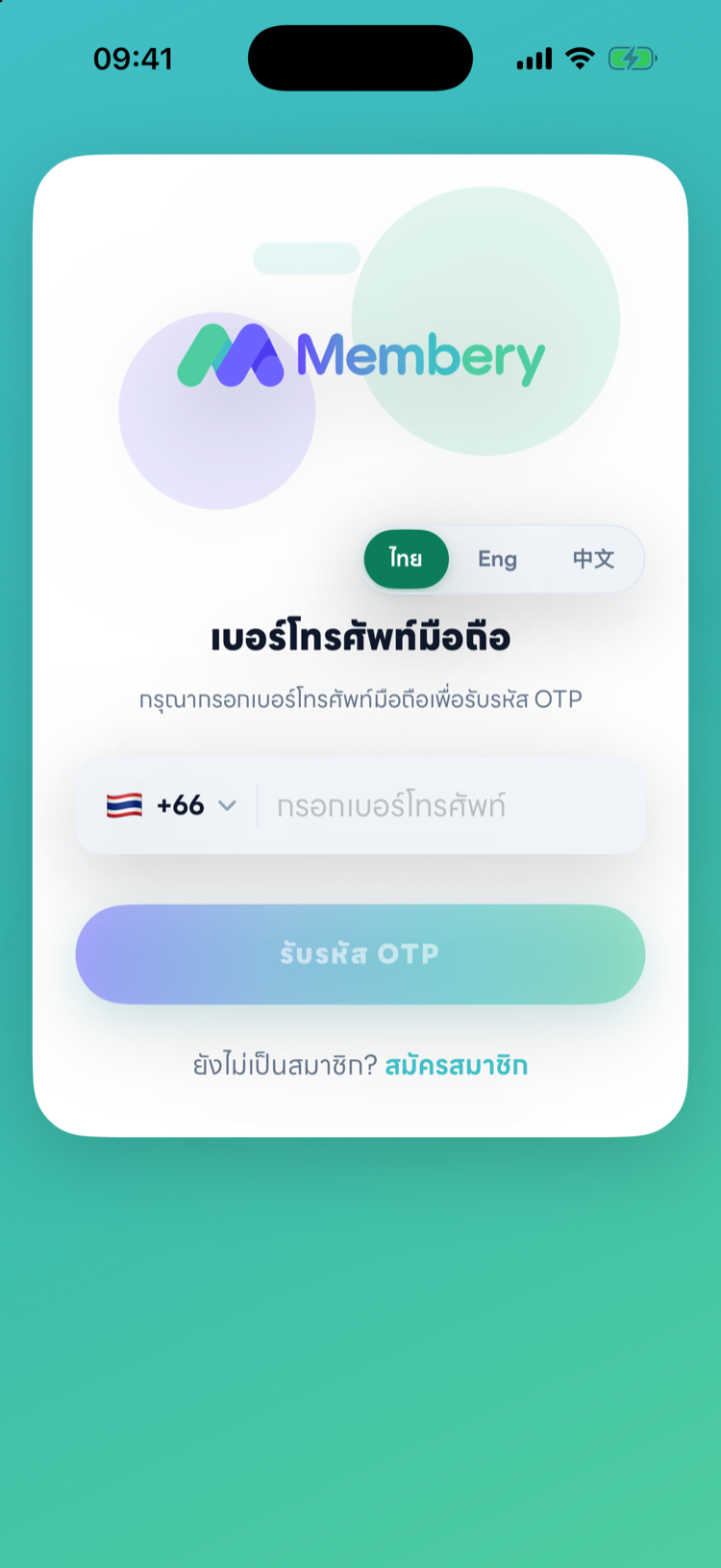
18.2 Signing in (you already have an account with the club)
- Open the app and enter the mobile number registered with the club (10 digits)
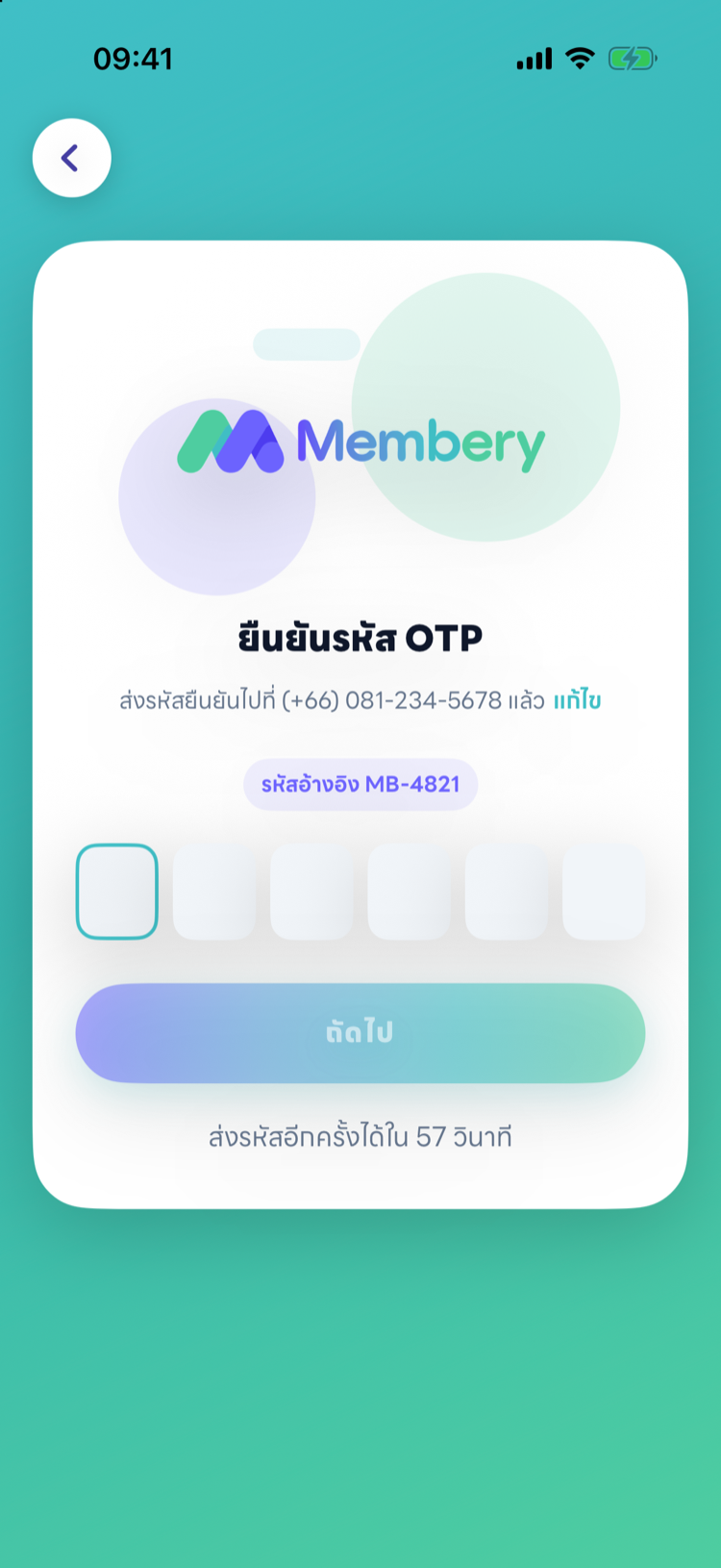
- Enter the OTP code sent by SMS (check that the Ref. matches the one in the SMS)
- If you belong to several clubs, choose the club you want
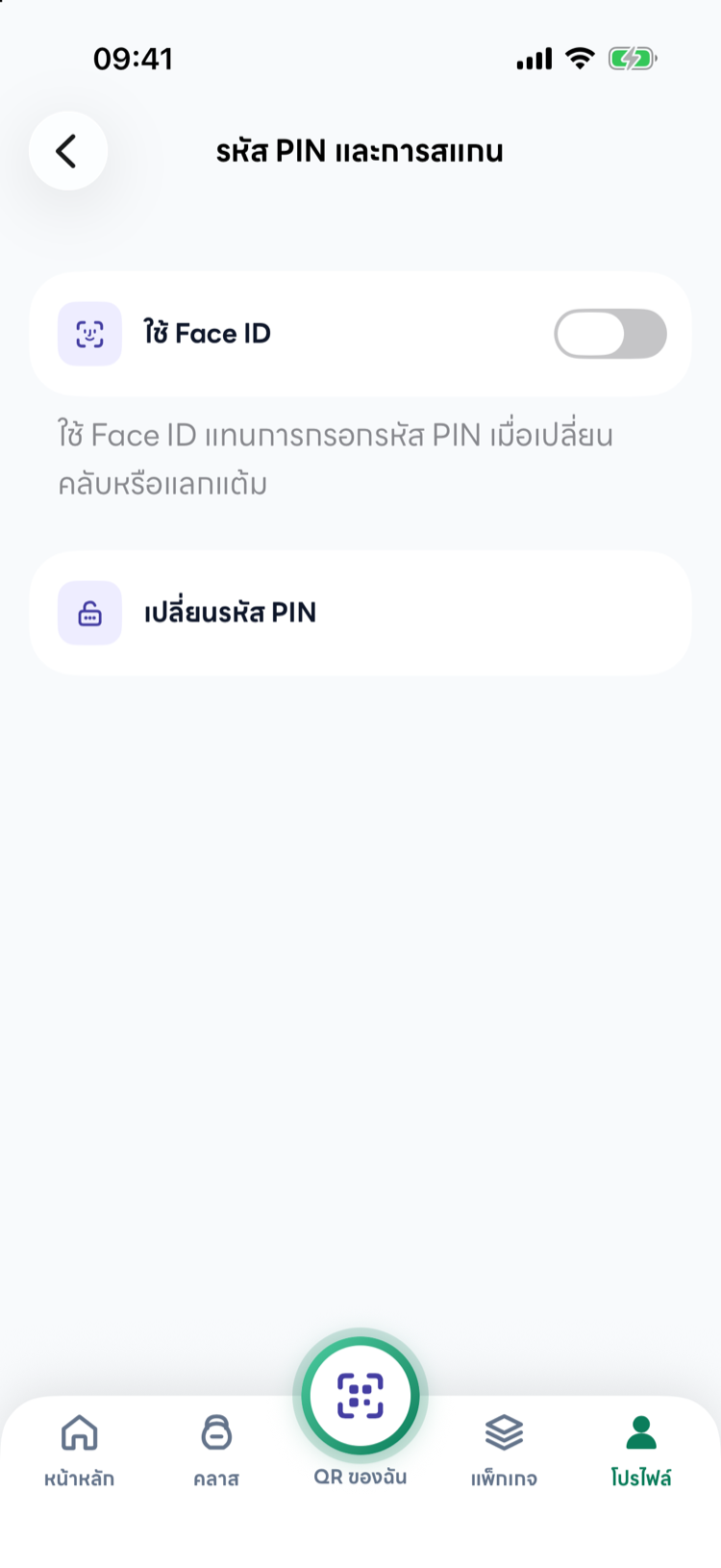
- Create your PIN and enter it again to confirm. The PIN confirms it's you when you switch club or redeem points.
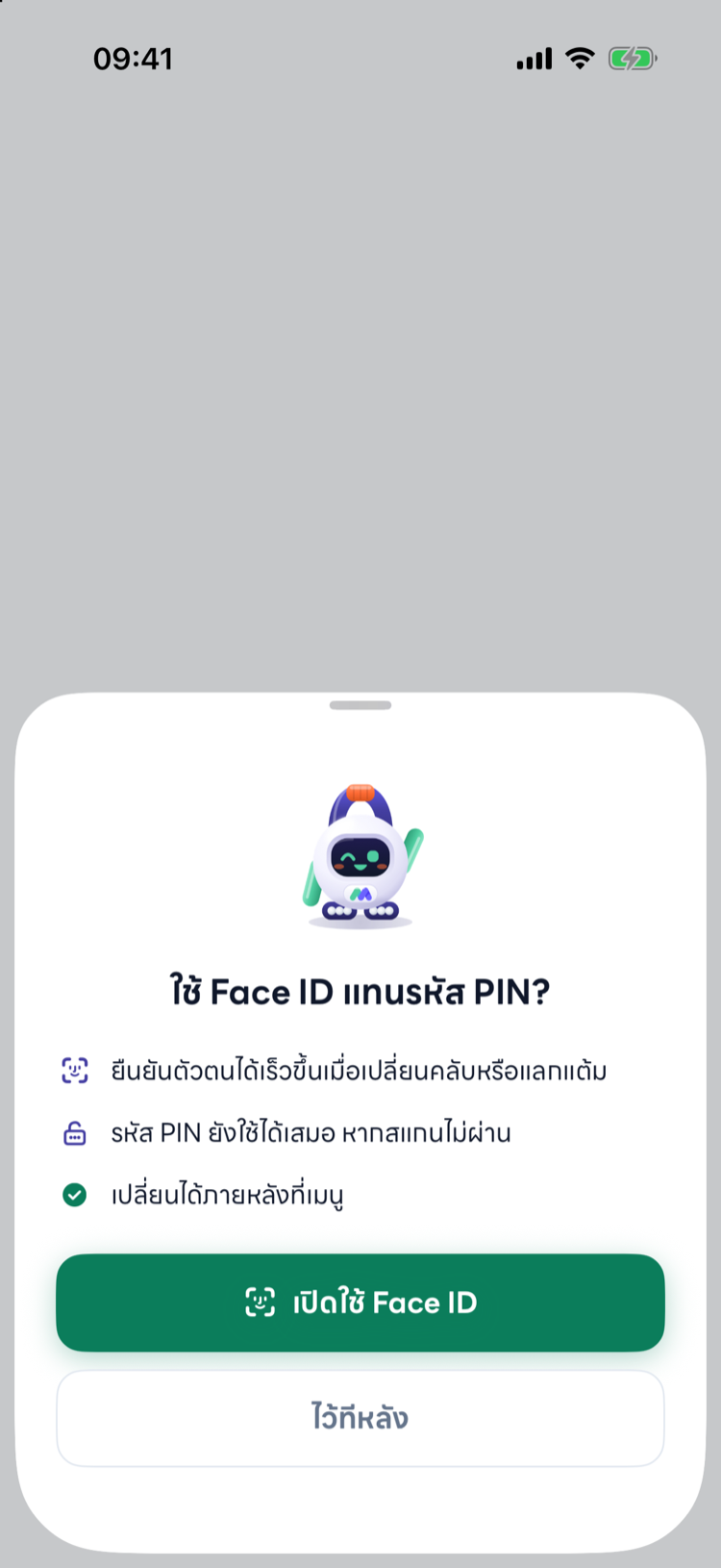
- You can turn on Face ID / Touch ID instead of the PIN (tap Not now if you don't want it yet)
One device at a time
An account can be signed in on one device at a time. If you sign in on a new device, the app asks "Your account is open on another device. Want to switch to this one?"
- Tap Use this device: the other device is signed out right away
- You can switch devices up to 2 times a day
18.3 Signing up as a new member in the app
Available once the club accepts sign-ups through the app
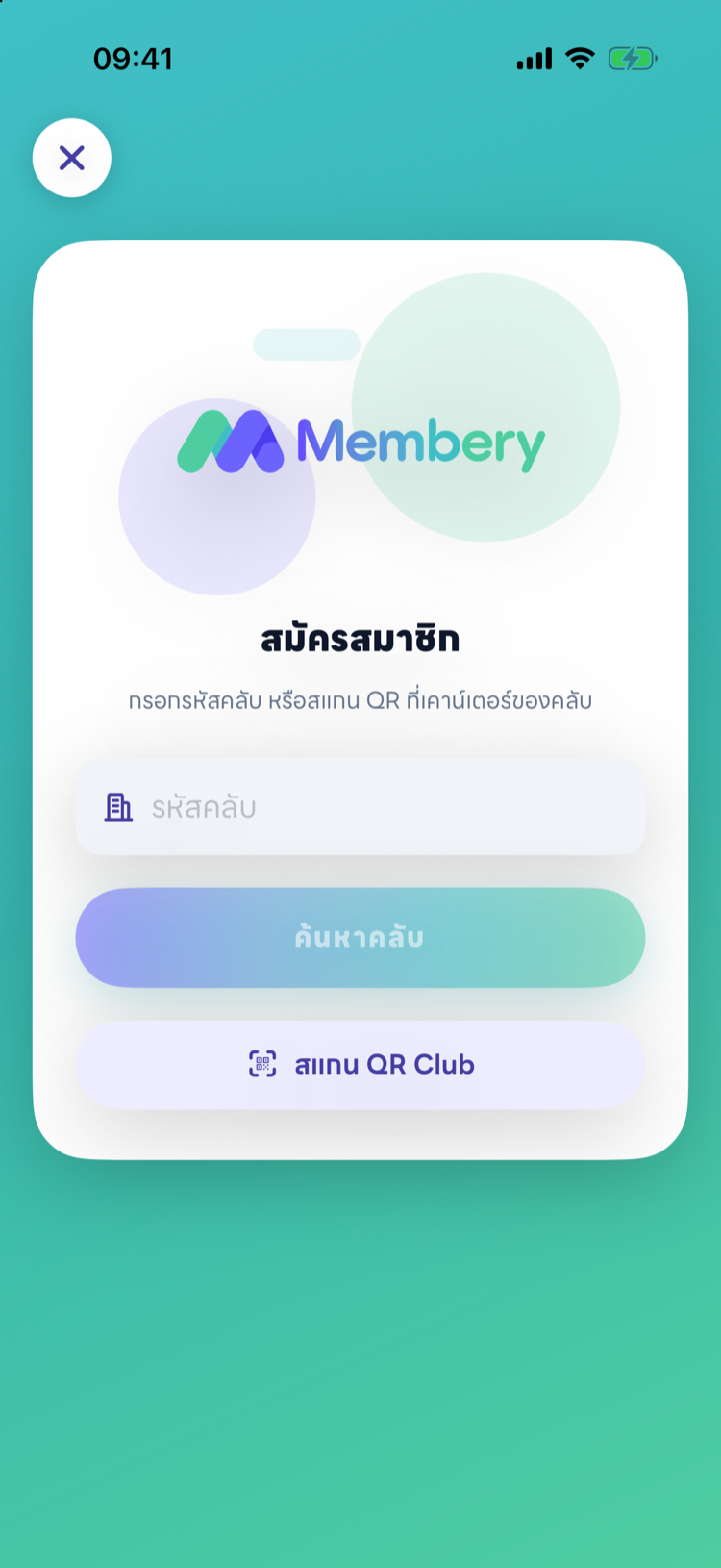
- On the sign-in screen, tap Not a member yet? Sign up (if you already have an account and want to join another club, use Add a club)
- Enter the club code and tap Find club, or tap Scan club QR at the counter
- Check the club name, then tap Join this club
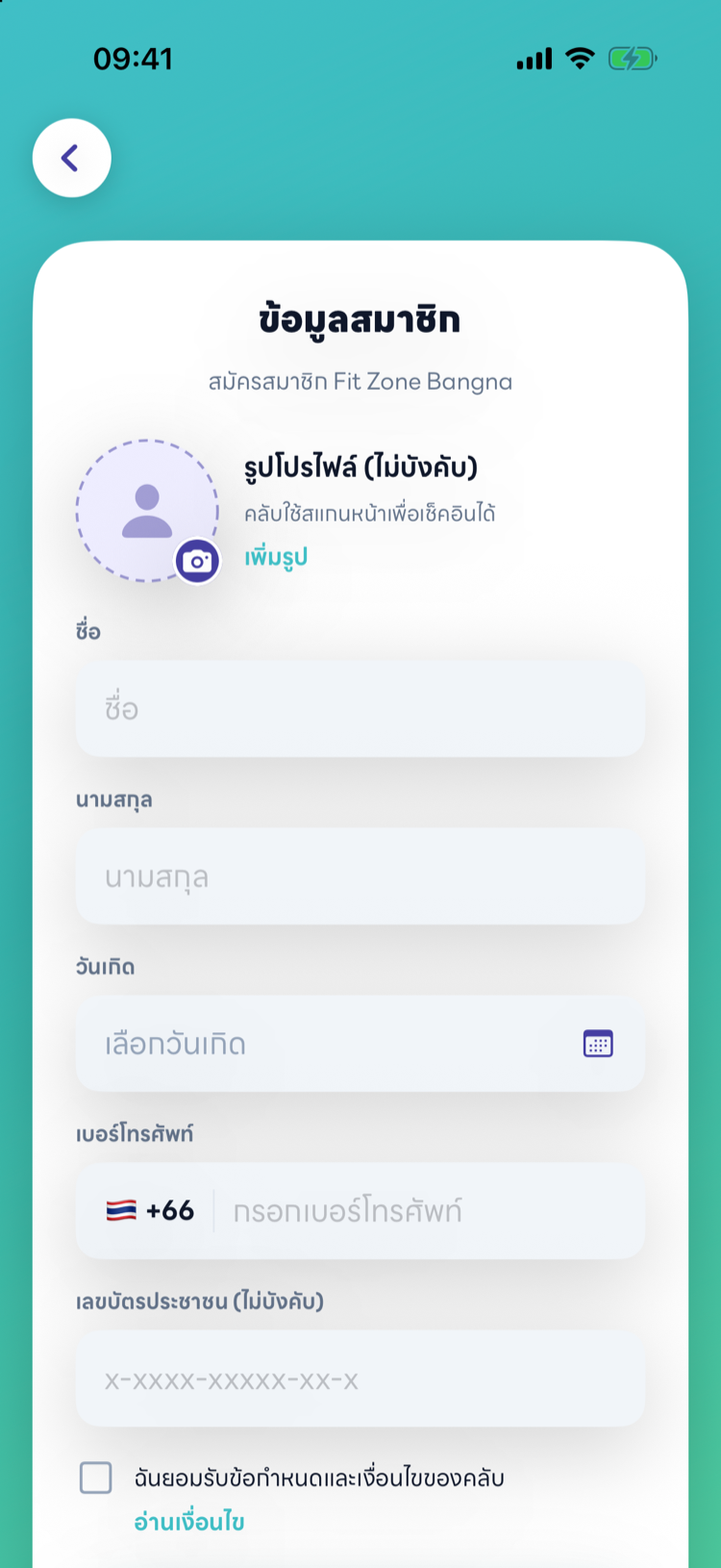
- Fill in Your details: name, birthdate, national ID number (optional), profile photo (optional; the club can use it for face check-in)
- Tick I accept the club's terms and conditions (tap Read the terms to read them)
- Tap Verify by OTP and enter the code. Your membership is created straight away.
| Message | Meaning |
|---|---|
| No club has this code | Check the code with the club again |
| This club doesn't accept sign-ups in the app yet | Contact the club, or sign up at the counter |
| This club can't take new members right now | The club has reached its member limit. Contact the club. |
| You're already a member of this club | Nothing new was created. Tap Go in. |
- Go to System settings and turn on Accept sign-ups through the MEMBERY app
- Find the club code and sign-up QR at Member › Member Management › Sign-up channels › Sign up through the app. You can print the QR for the counter.
- Members who join in the app appear in the member list straight away
18.4 The app's main screens
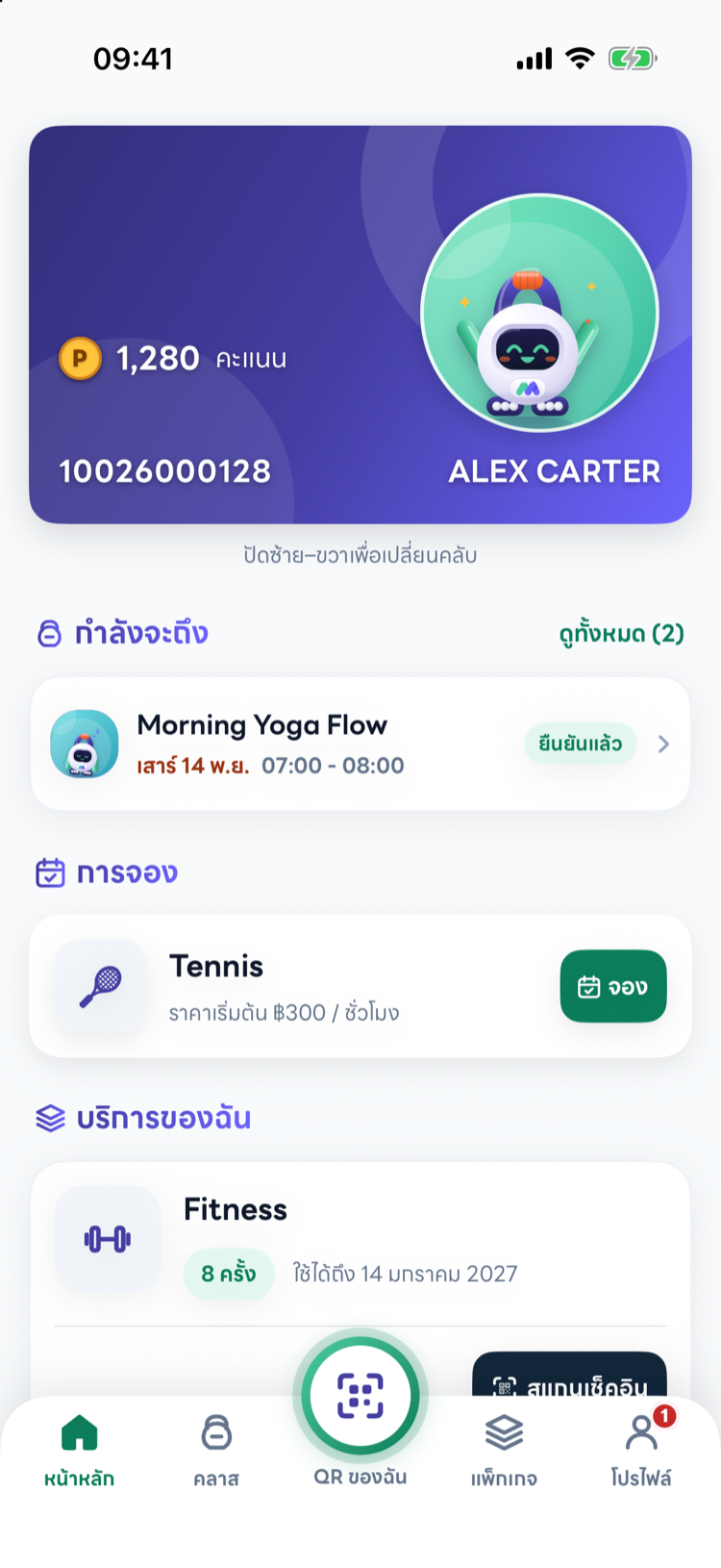
The bar along the bottom has 5 tabs
| Tab | What it's for |
|---|---|
| Home | Member card, upcoming bookings and points |
| Classes | Class schedule, booking classes, My Classes |
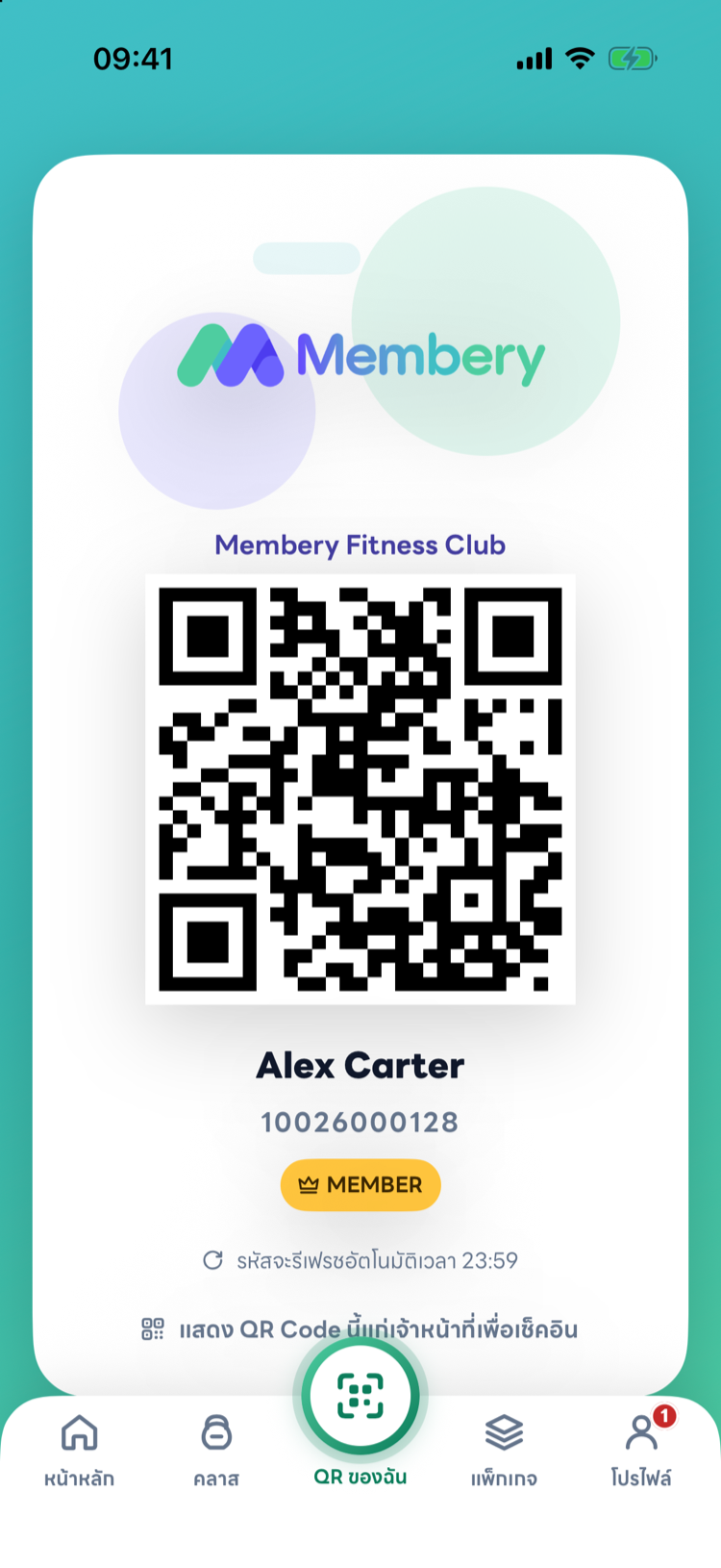
| My QR | Your QR for staff to scan at check-in |
| Packages | The package shop: see packages on sale and Buy a package (packages you already have are on Home and in Profile › My Services) |
| Profile | My bookings, usage history, e-receipts, points, PIN & biometrics, language, contact us, switch club |
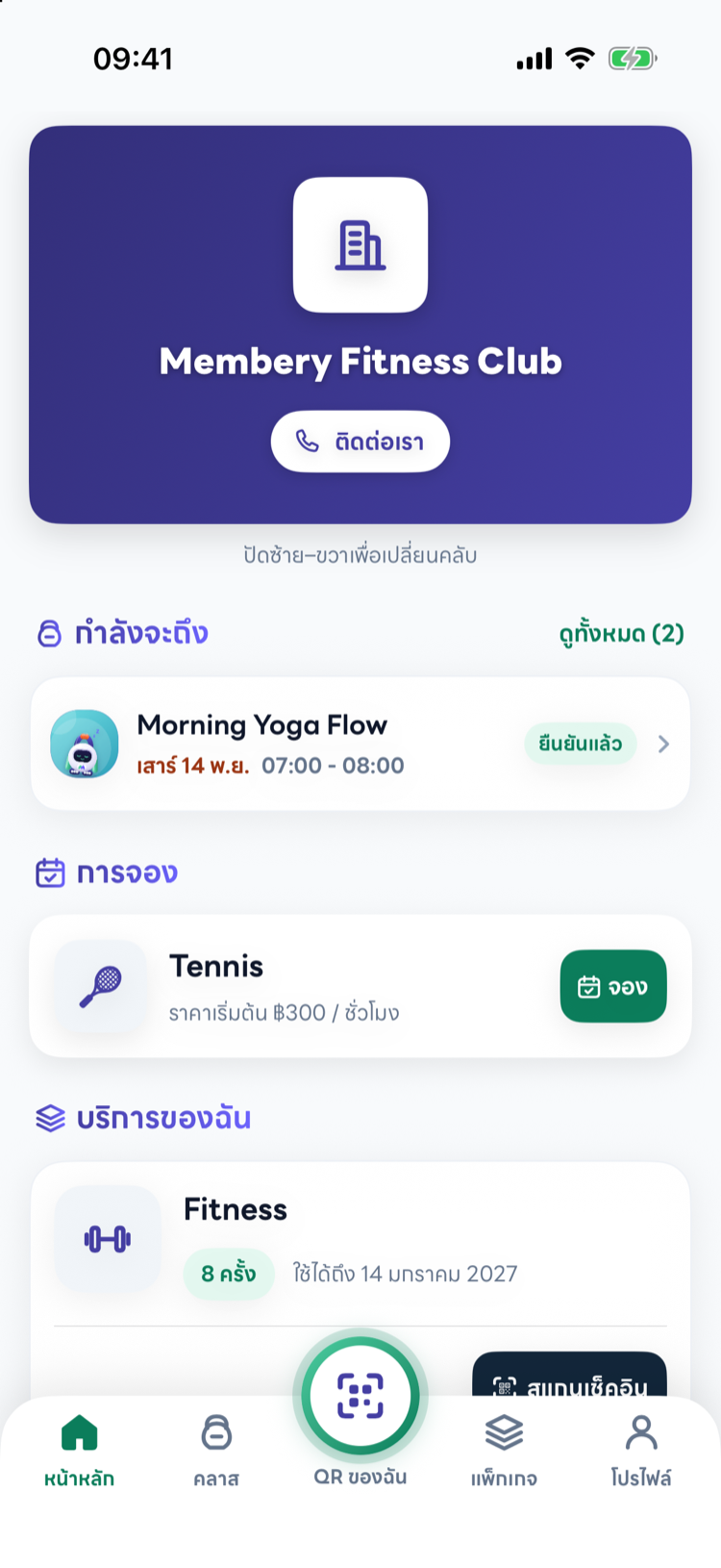
Tap the member card to flip it and see the club name and a Contact Us button. Tap again to go back to the card. If you belong to several clubs, swipe the card left or right to switch club.
18.5 Checking in
- Staff scan: open My QR and show it to staff. The code refreshes automatically.
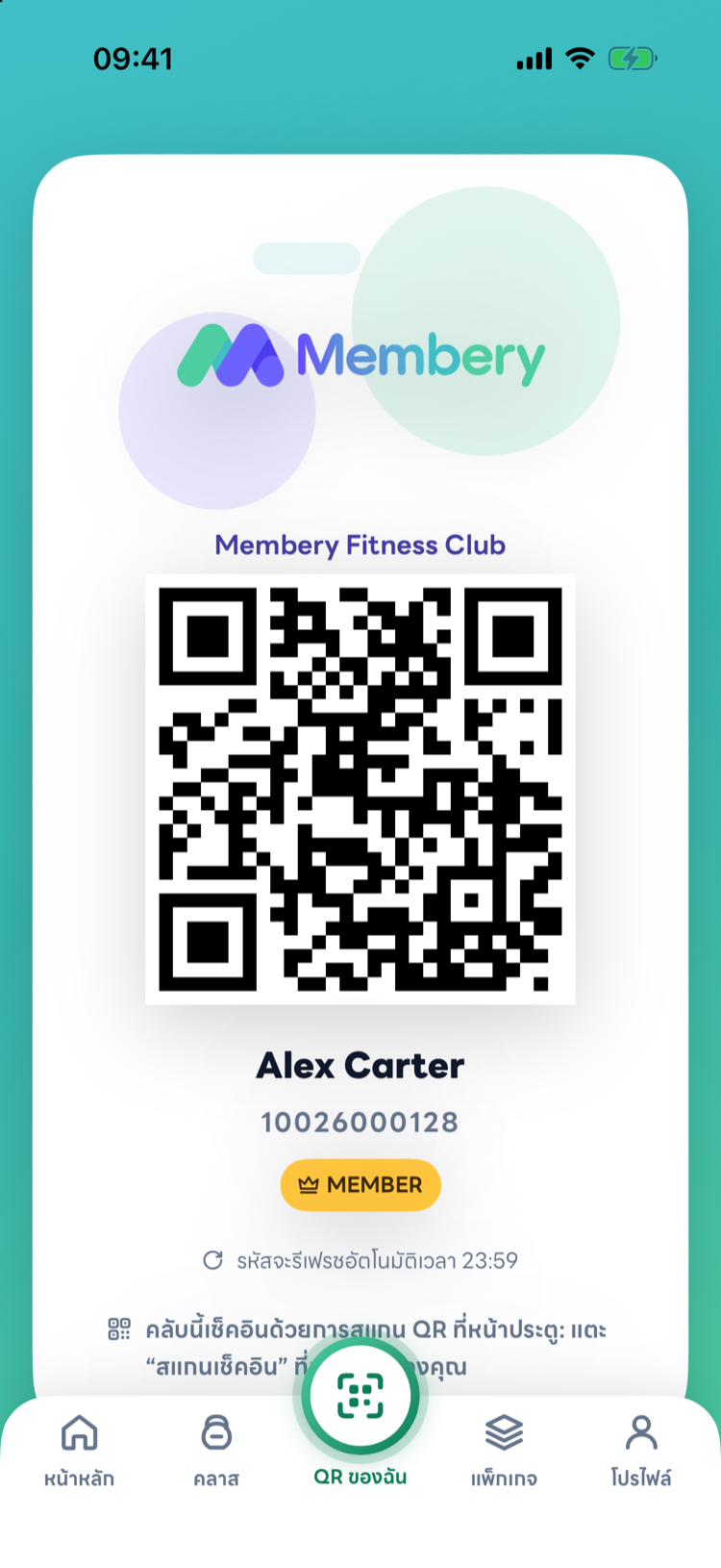
- Scan it yourself: if the club has a QR posted at the check-in point, go to Home, find the package under My Services, tap Scan to check in, then scan the venue's QR
- The message "That QR code is for a different service" means the package you chose doesn't match the service at that check-in point
The club chooses how members check in. The text under the QR on My QR tells you which way your club uses. If the club has you scan at the door, it suggests tapping Scan to check in on your package card.
19 MEMBERY app: booking classes, courts & paying New v2.2
19.1 Booking a class
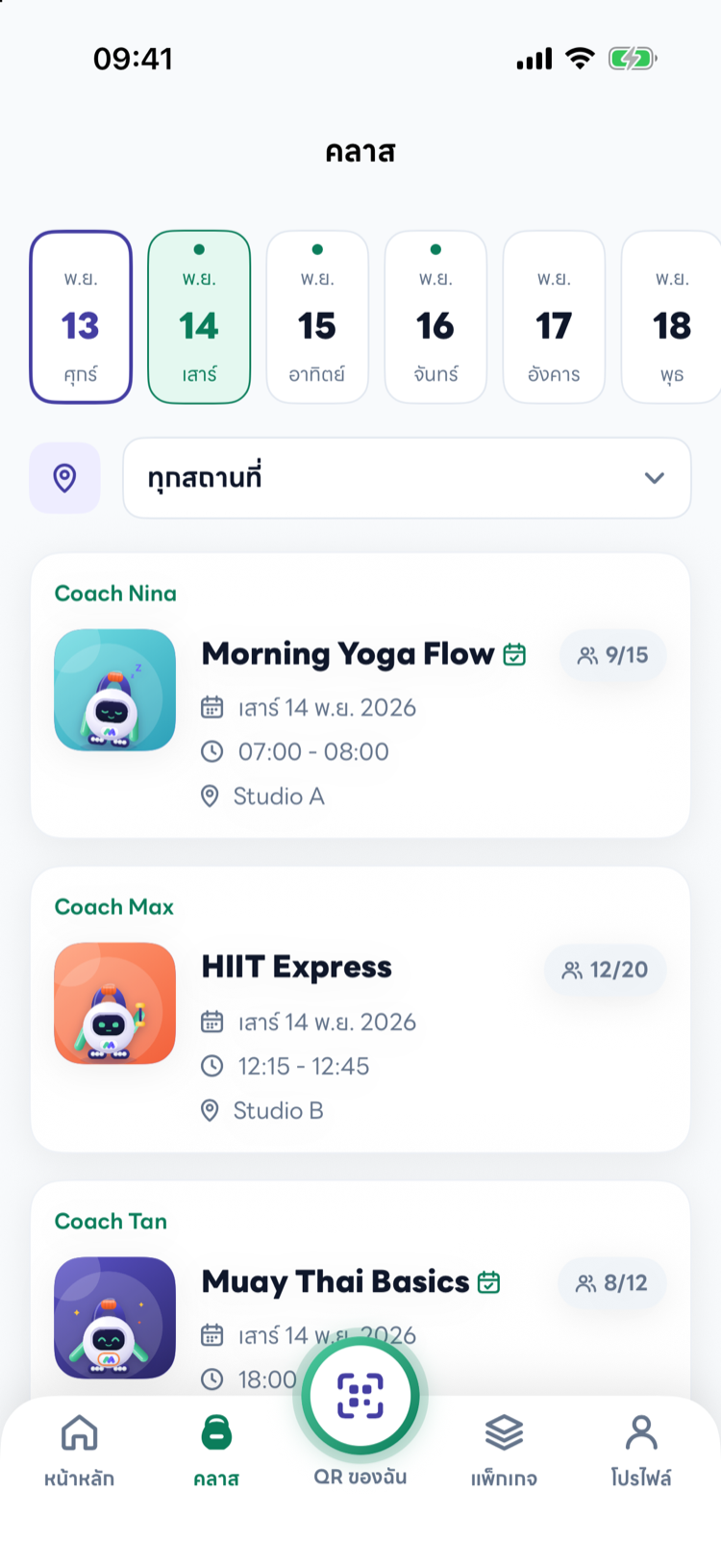
- Go to Classes and choose a date and location (or All locations)
- Tap the class to see its details, then tap Book
- You'll see "Booked!" and the class appears in My Classes
| Message | Meaning |
|---|---|
| Requires a … package to book this class | You need a package for a service this class accepts |
| Not open yet · Booking opens on … | It's not yet within the club's advance booking window |
| This branch is closed on this date | The club has closed the branch that day |
| Cancellation closed | Past the time the club allows cancelling |
| Package … is paused until … | The package is paused (section 20.2) |
19.2 Booking a court / room
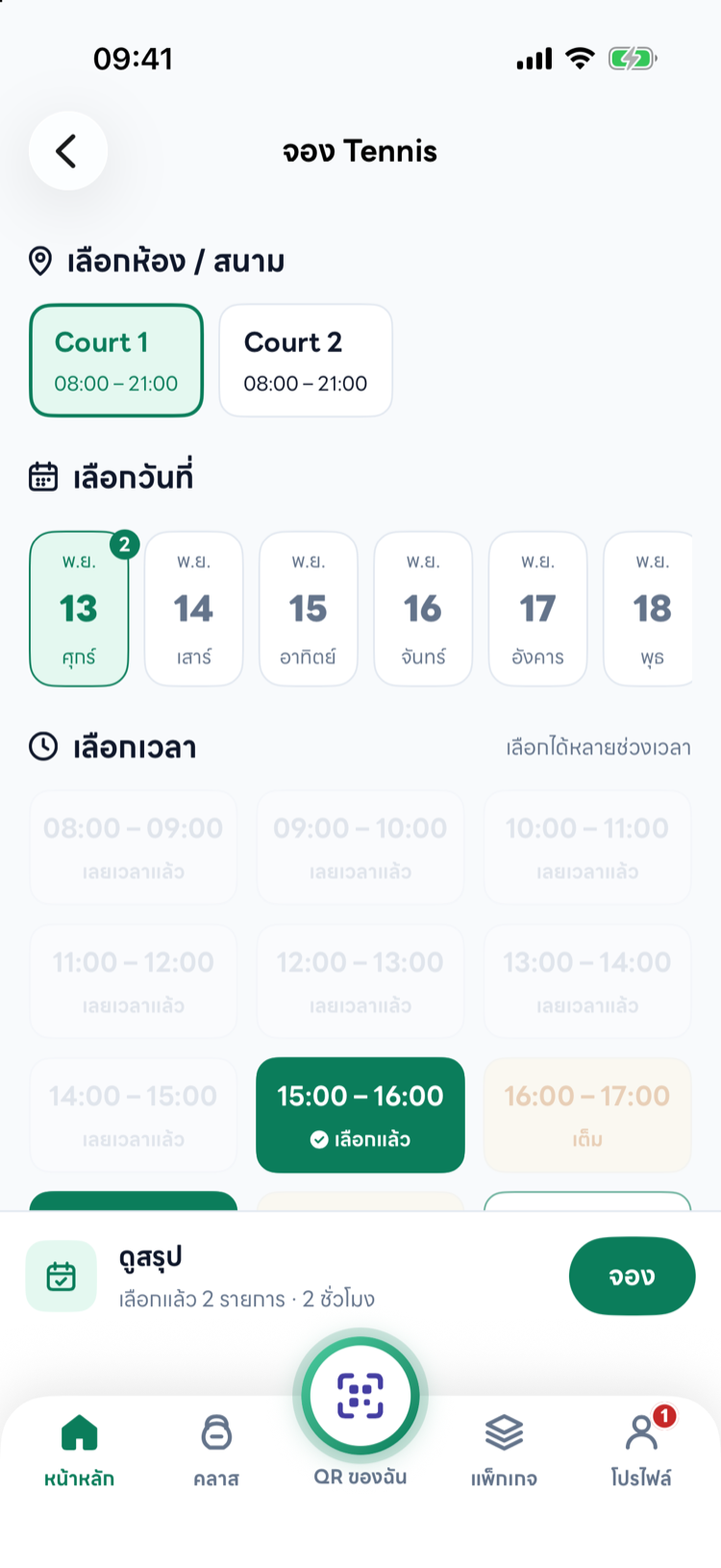
- Go to Home › Booking or Profile › My bookings and choose the court
- Choose a date (dates with a lock icon aren't open for booking yet), then choose time slots. Each slot shows X places left, Full, Closed or Time passed.
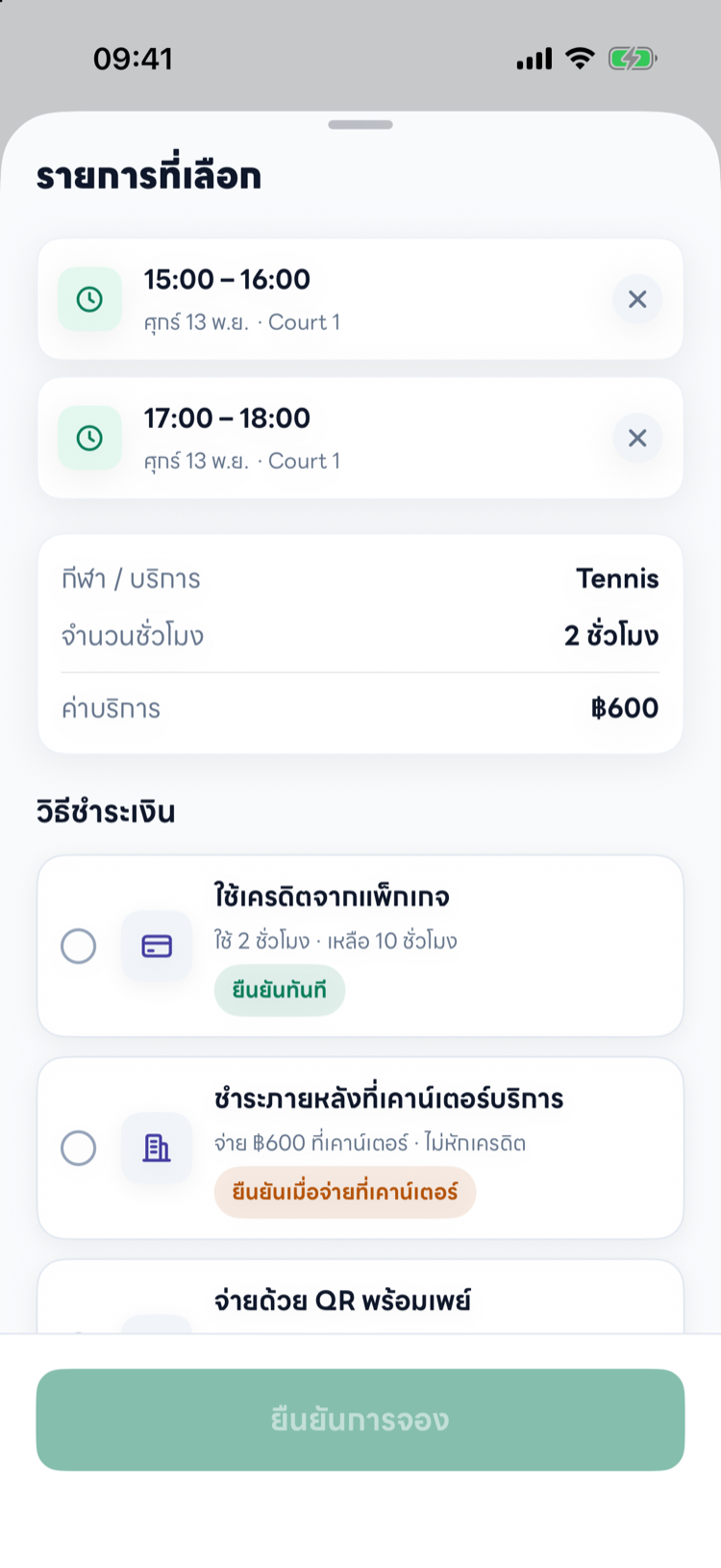
- Check the price, then choose a Payment method (the options depend on what the club allows)
Method Result Use credits Confirmed now QR PromptPay Confirmed once the transfer clears. The slot is held while you pay. If you don't pay in time, the booking is cancelled. Pay later at the counter Confirmed once paid at the counter. No credits are used. - Tap Book. You get a booking ticket with a booking code.
- "You can't book this yet": the club only accepts credits and you don't have enough. Buy a package first.
- "Some items were booked": some slots were taken first. Check which ones are on your ticket.
- Cancelling a booking: open the ticket and tap Cancel booking (once cancelled, you can't use that booking)
19.3 Buying a package
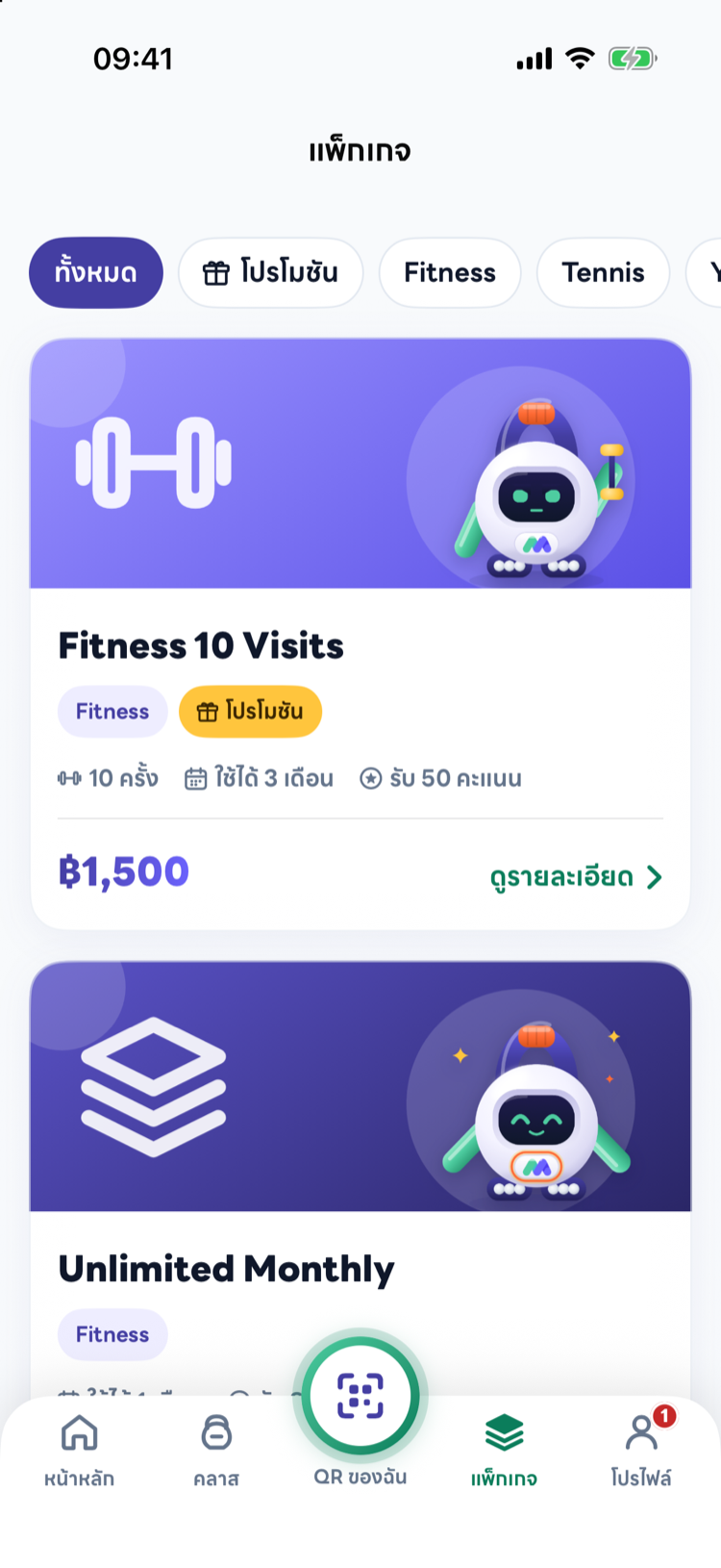
- Go to Packages and tap Buy a package (or Renew / Top up on a package you have)
- Tap a package to see What you get, how long it's valid, points earned, and After this purchase (your total afterwards)
- Tap Make Payment → Pay with PromptPay (section 19.4)
Packages marked "Buy this package at the club's counter" can't be bought in the app
19.4 Paying by QR PromptPay
- The PromptPay payment screen shows the QR, what it's for, the amount, the Receiver and the time left
- Pay in one of 2 ways
- Scan the QR with a banking app on another device, or
- Tap Save QR to Photos, then choose "scan from photo" in your banking app
- Check that the receiver name in the banking app matches the club, then transfer the exact amount
- Back in MEMBERY, tap Send transfer slip and pick the slip image from Photos
- Result
- Paid: you get the package or booking at once. See the receipt at Profile › E-receipt.
- Checking your slip: waiting for staff to confirm. The app updates by itself.
- That slip did not match — please send another: read the reason and send the right slip
| Reason shown | What to do |
|---|---|
| The slip amount … but … is due | Pay the full amount and send a new slip. If you paid too much, contact the club. |
| The slip was not sent to this club's account | Check you sent the right slip |
| That slip has already been used | Send the slip for this payment |
| The slip's time does not match this payment | Use a slip from a transfer made after this payment was created |
| We could not check that slip | Try again, or ask staff |
- The QR timed out but you already transferred: you can still send the slip
- You closed the payment screen: open the booking ticket, or tap Pay now in Notifications, to come back and pay or send the slip
- To drop it, tap Cancel this payment (a court slot is freed at once)
20 MEMBERY app: notifications, paused packages & account New v2.2
20.1 Notifications
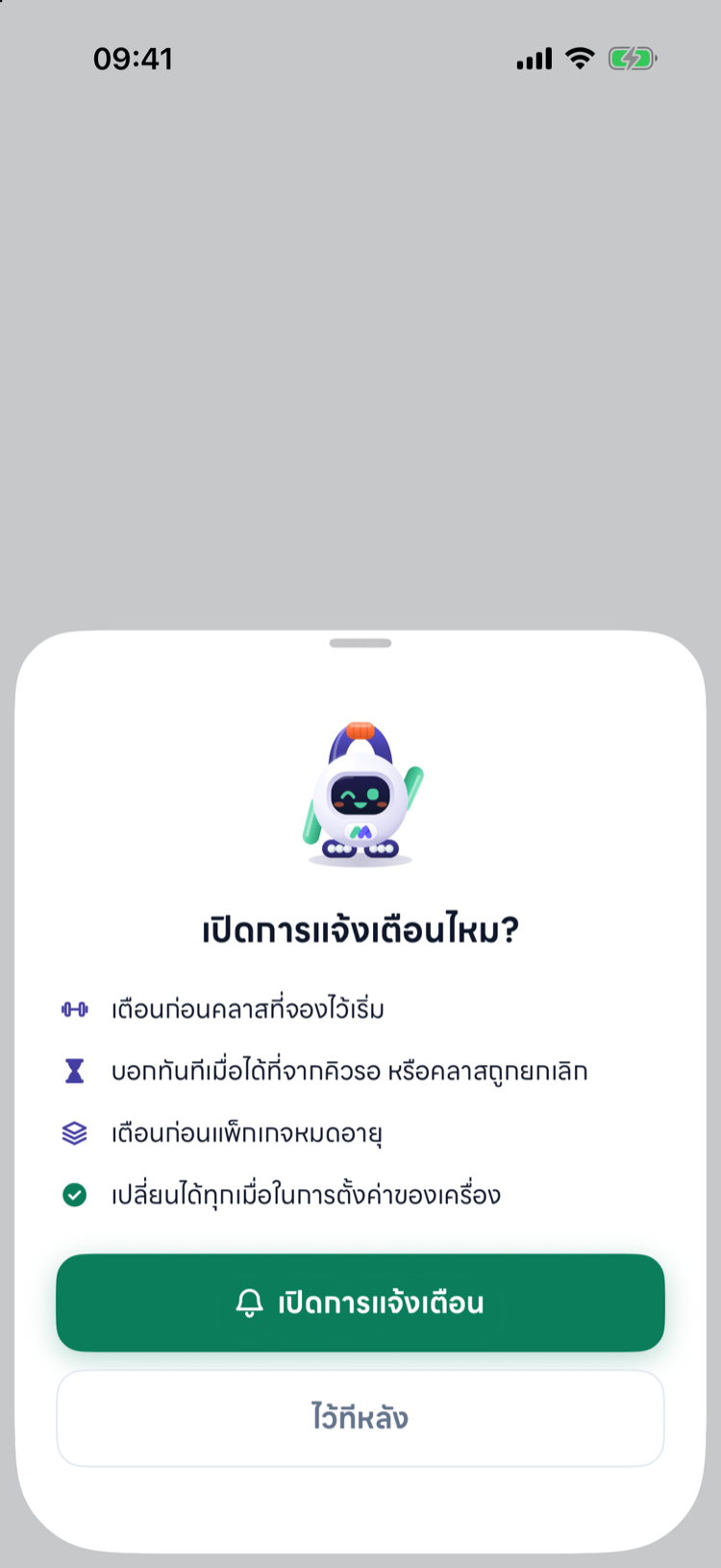
The first time you use the app, it asks "Turn on notifications?" Tap Turn on notifications to get
- A reminder before a class or court you booked
- An alert as soon as you get a place from the waiting list, or a class is cancelled
- A reminder before your package expires
- A message when a court booking is confirmed, and when the club gives make-up days for a closure
Change this any time in iPhone Settings › Notifications › MEMBERY
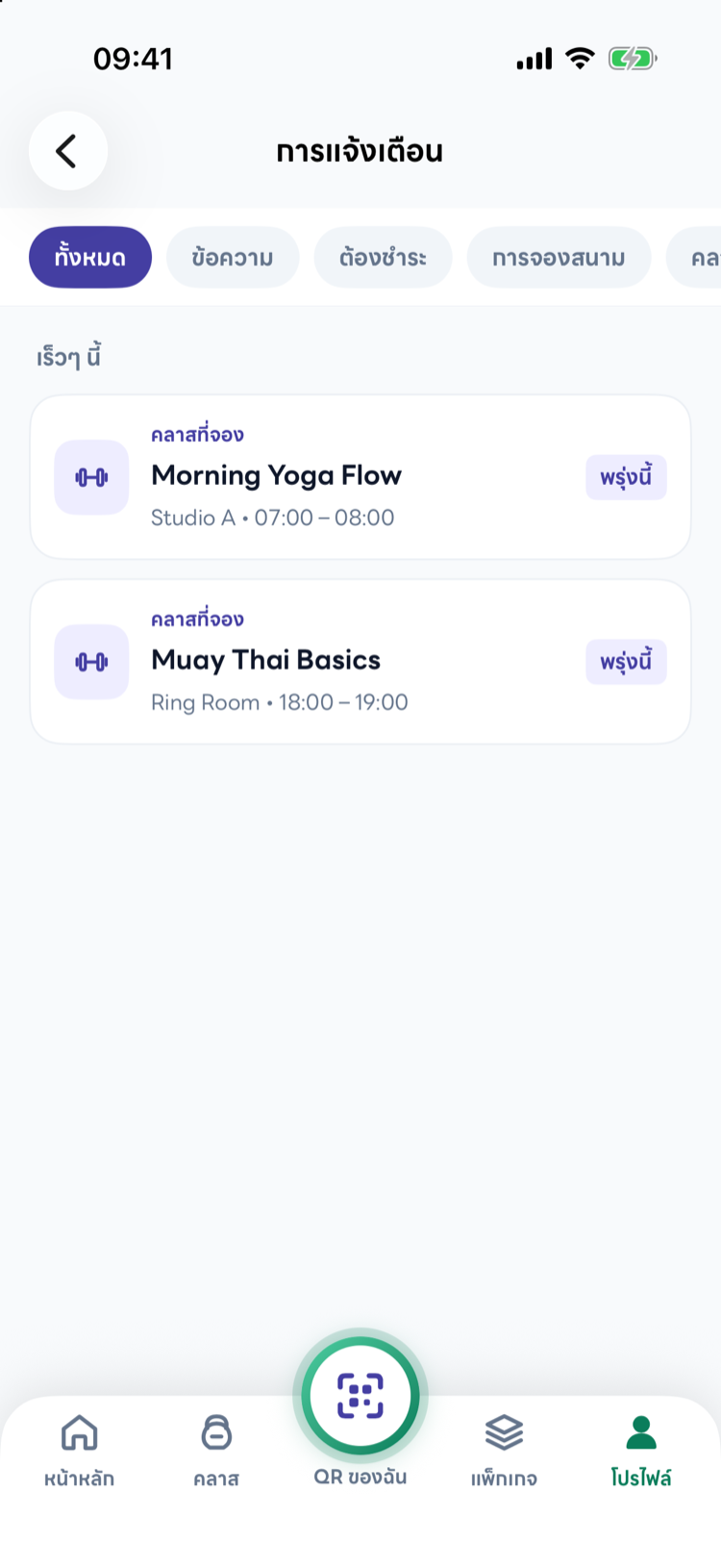
The Notifications inbox (bell icon) has tabs: All · Messages · To pay · Courts · Classes · History
- Needs your action lists unpaid bookings, with a Pay now button and the time left
- Tap a notification to go to that ticket or class
20.2 Paused packages
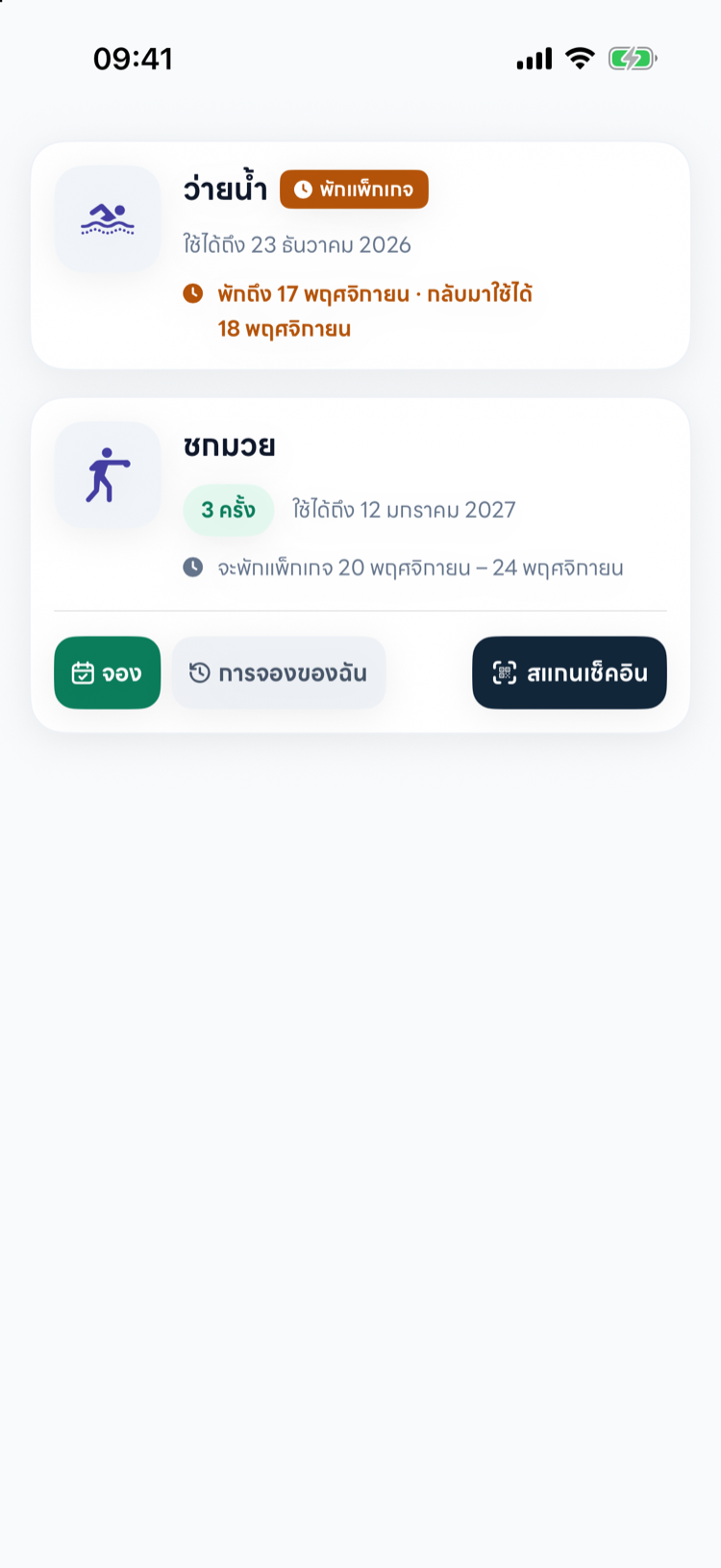
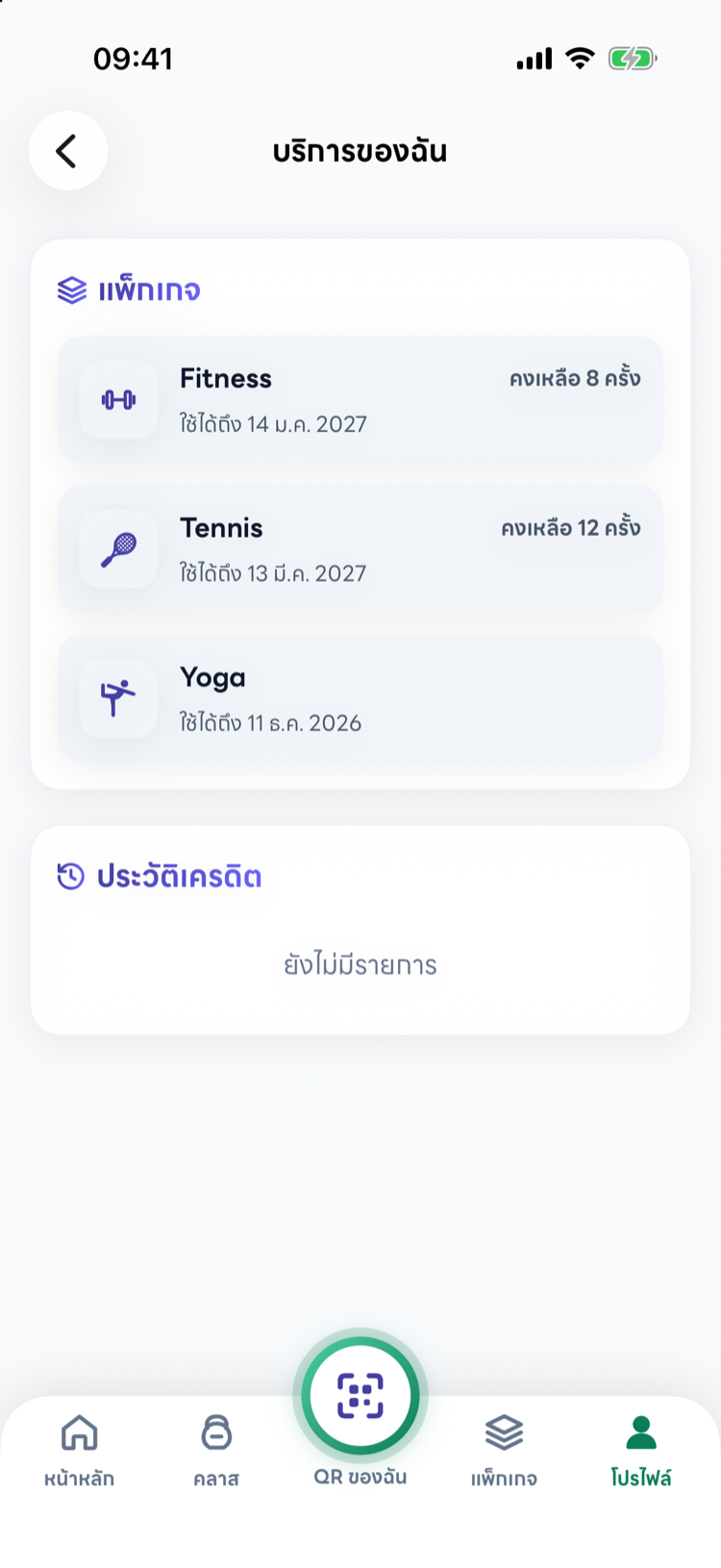
If the club pauses a package for you (for example while you travel), its card under My Services on Home shows
- Will pause (start) – (end) before the pause begins
- Paused until (date) · usable again (date) during the pause
During the pause you can't check in or book with that package. The expiry date moves out by the number of days paused. To come back early, contact the club.
20.3 Profile and security
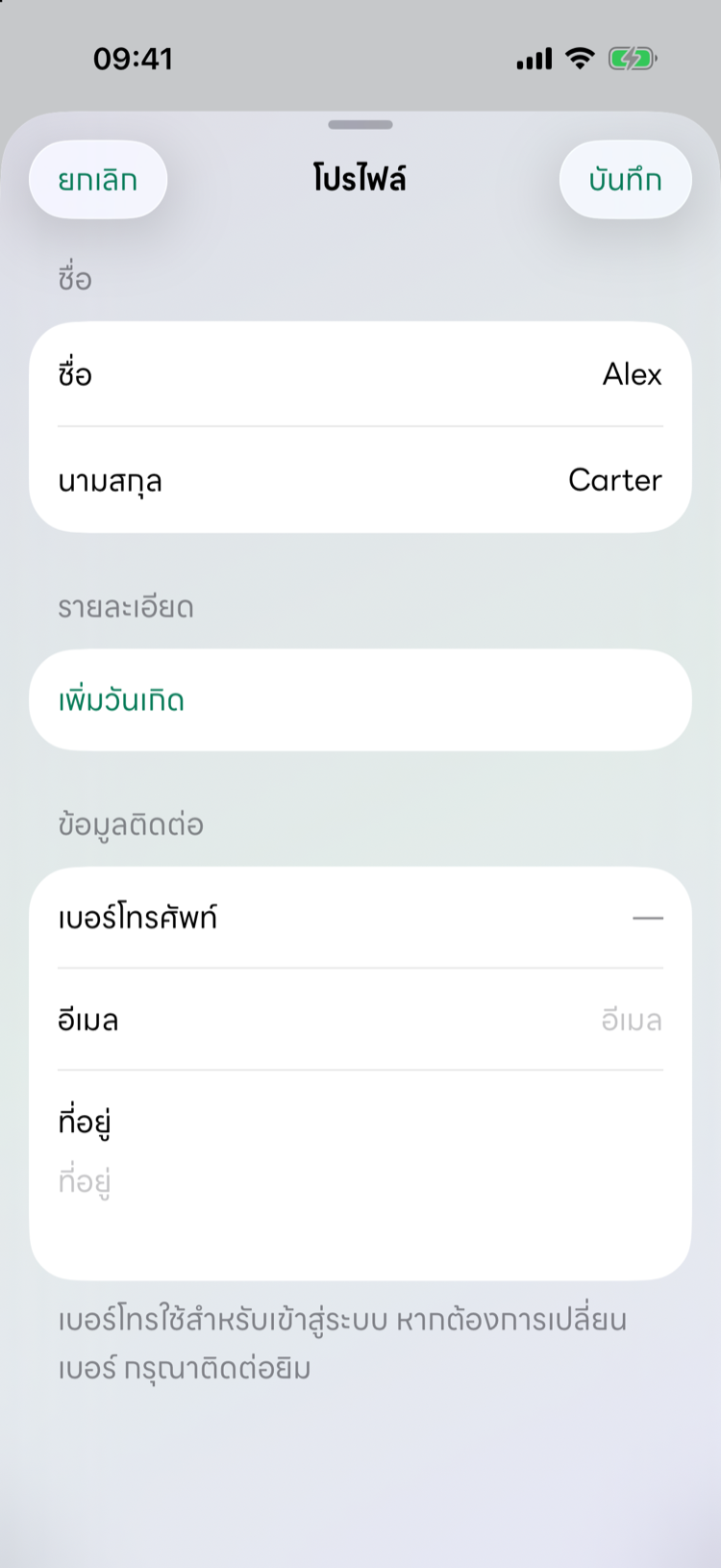
- Edit profile: change your name, photo and other details. Your phone number is used to sign in, so to change it, contact the club.
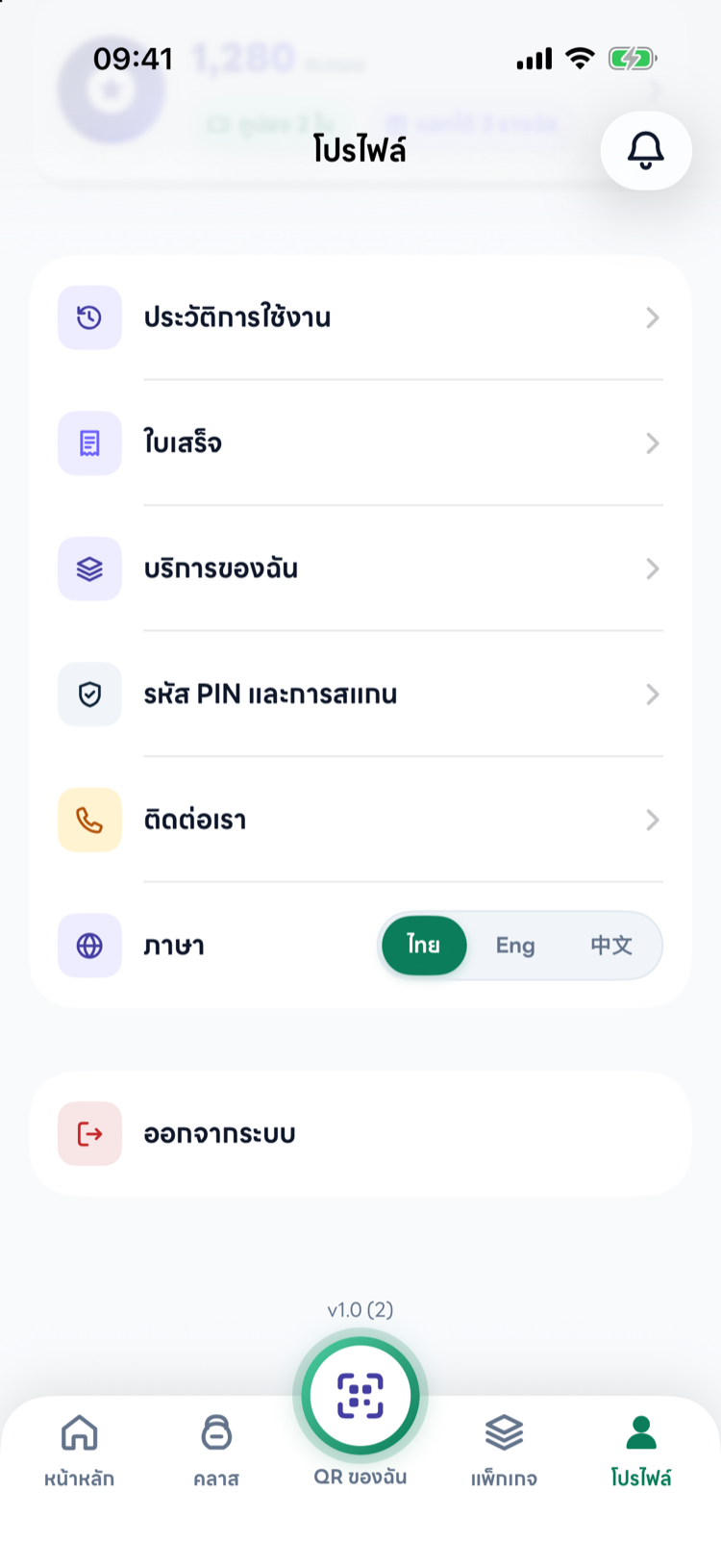
- PIN & biometrics: change your PIN and turn Face ID / Touch ID on or off
- Forgot your PIN: on the PIN screen tap Forgot PIN? Sign out, then sign in again with an OTP
- Switch club: for members of several clubs; you confirm with your PIN or Face ID
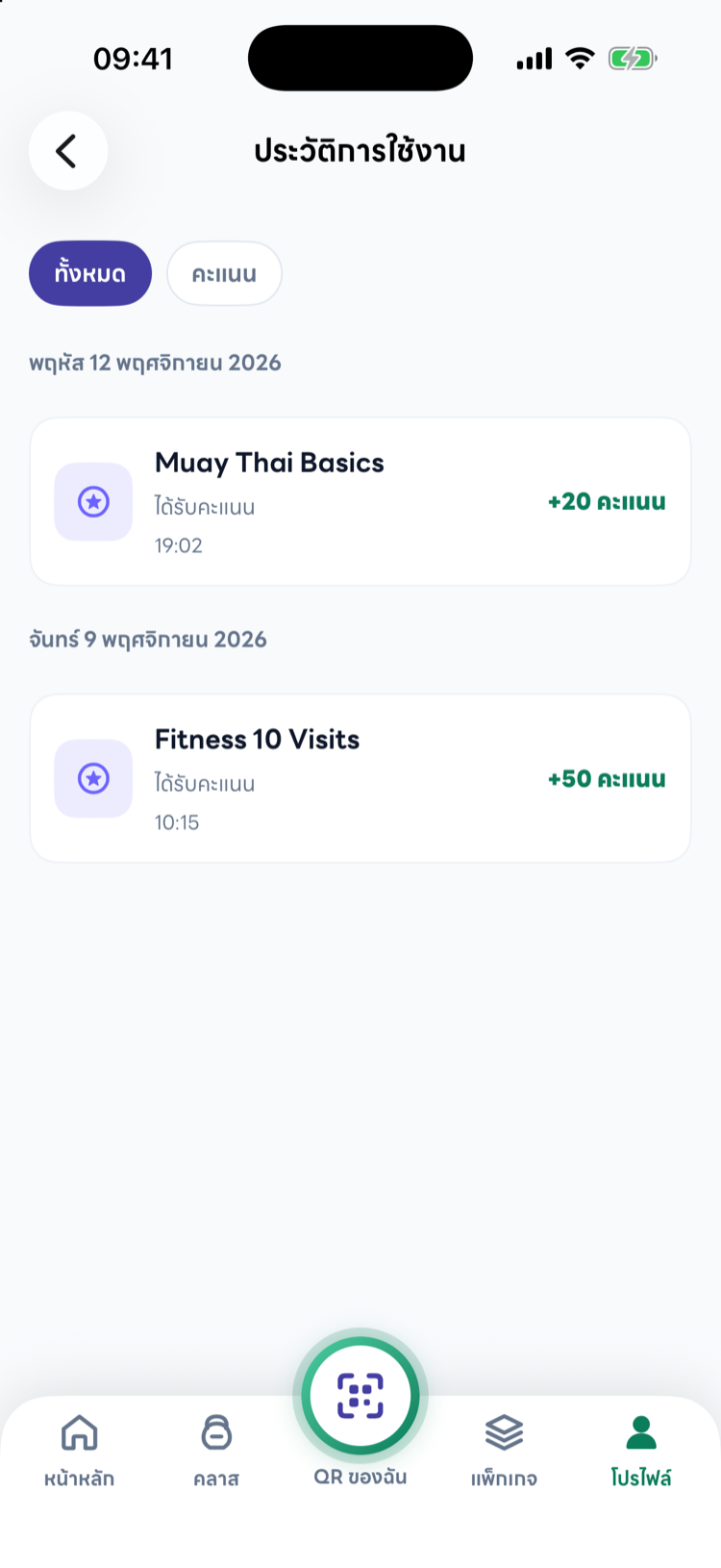
- E-receipts / usage history / points: in the Profile menu
- My Services: your packages, credits left, expiry dates and credit history
- Language: choose ไทย / Eng / 中文 on the Language row in the Profile menu. The app switches at once.
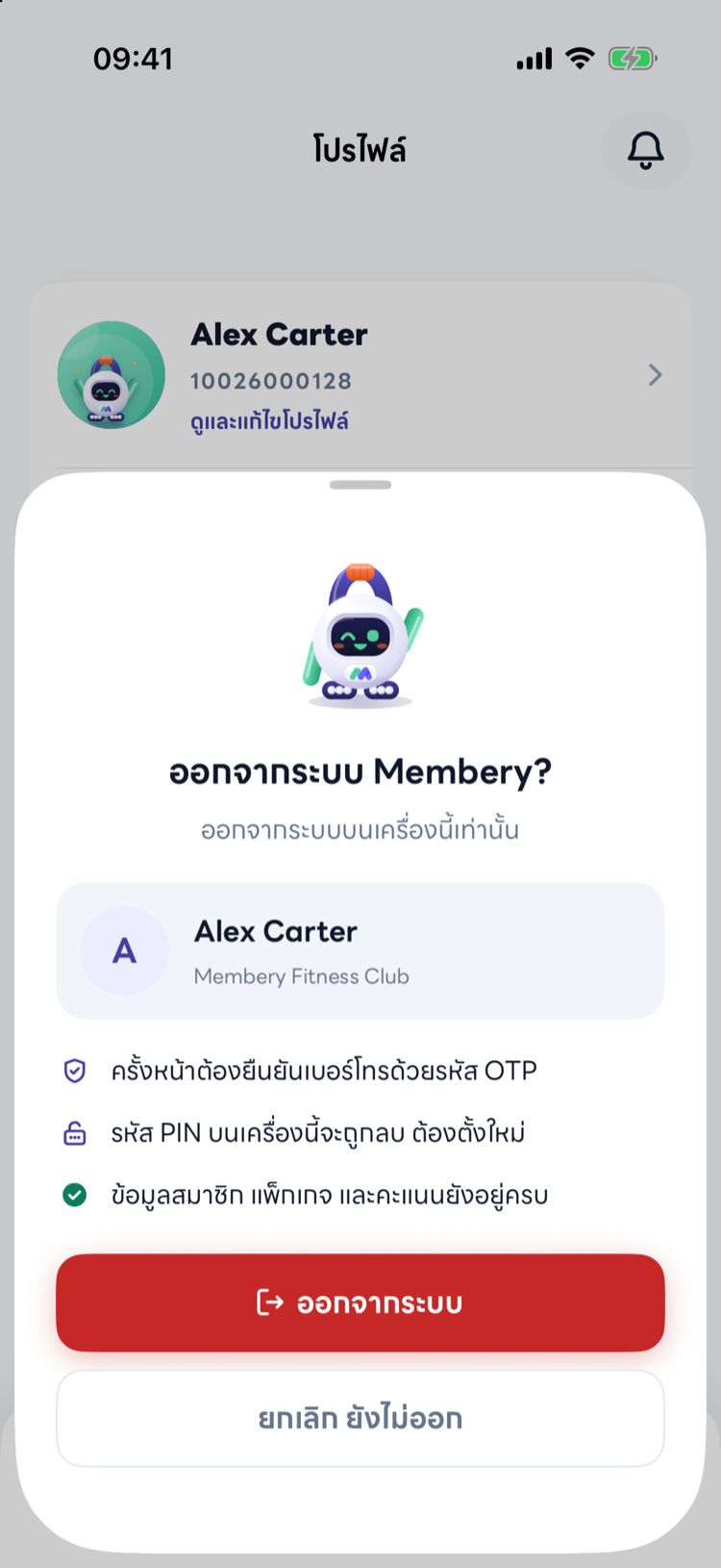
- Sign out: signs out this device only. Your membership, packages and points stay safe. Next time you confirm your phone with an OTP and set a new PIN.
20.4 Points and rewards
Only at clubs that use points
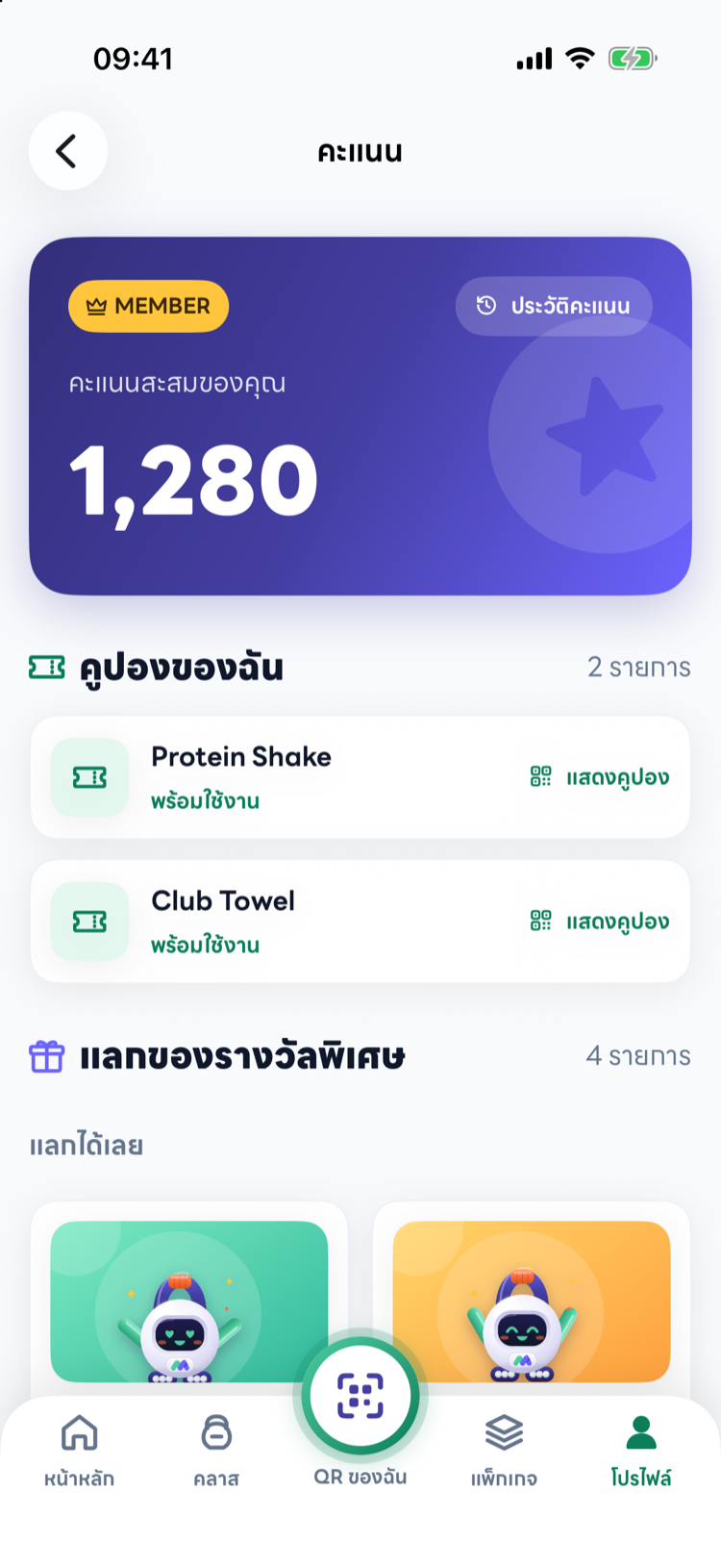
- Go to Profile and tap the points card to see your points balance, your coupons and the rewards you can redeem
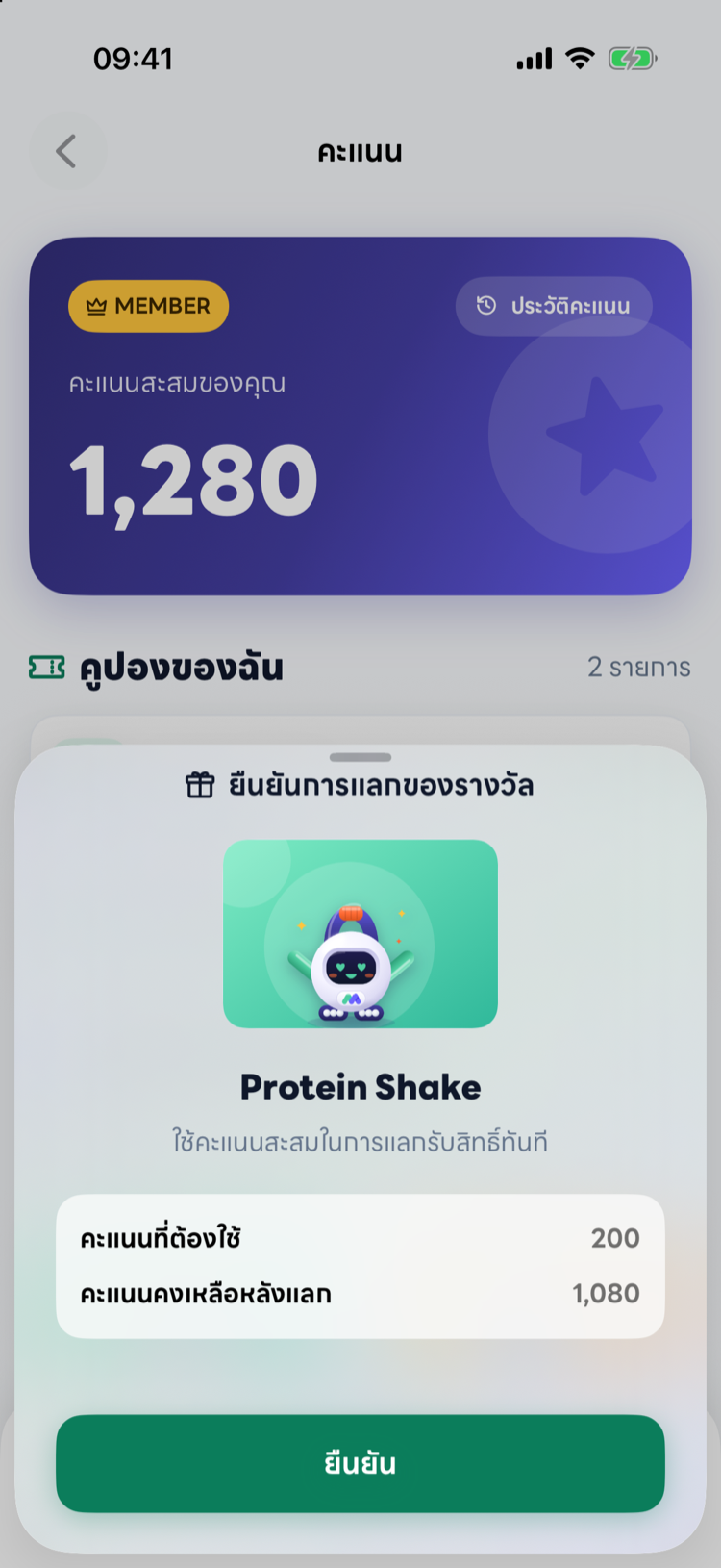
- Tap a reward, check Points required and the balance after redeeming, then tap Confirm
- Confirm it's you with your PIN or Face ID
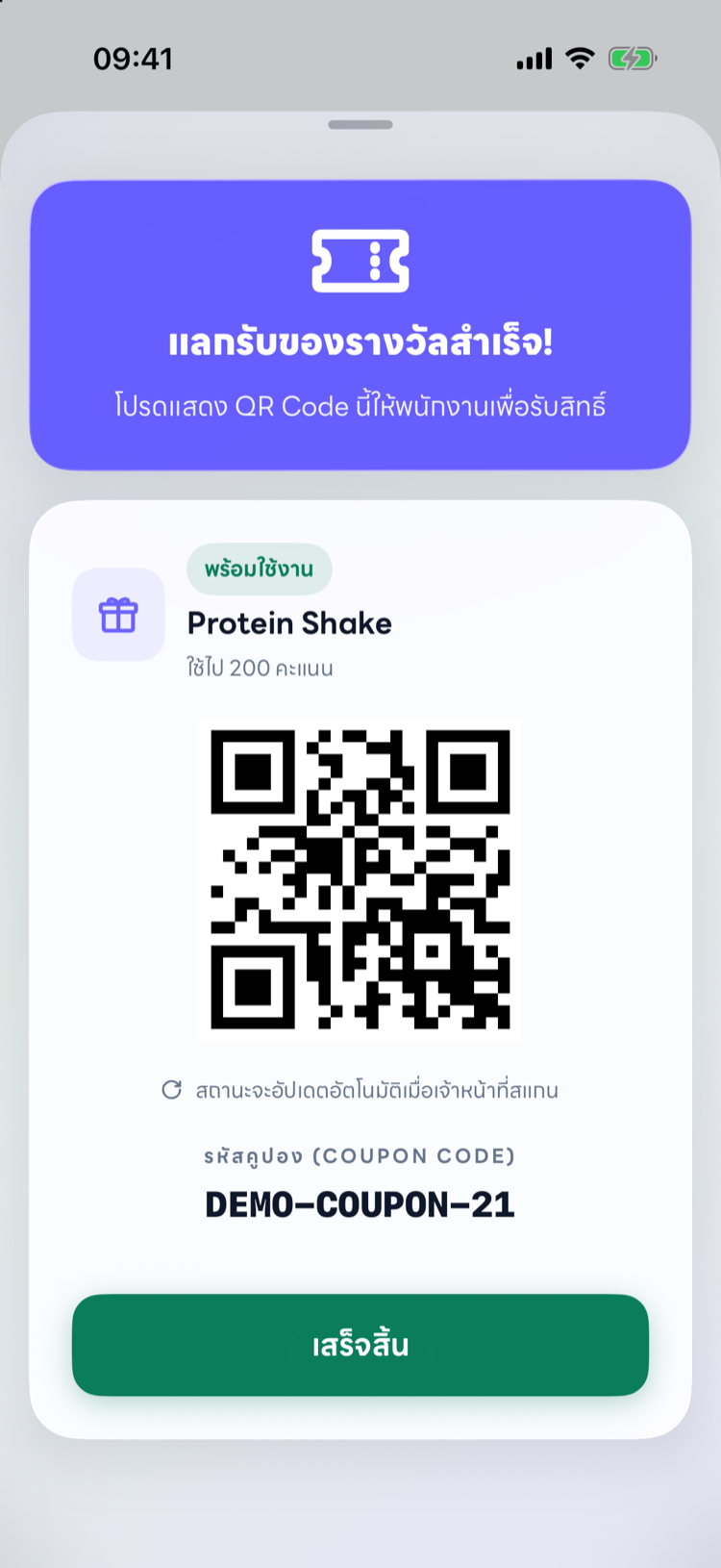
- Show the coupon's QR code to staff to claim it. Unused coupons stay in My coupons; tap Show to open one again.
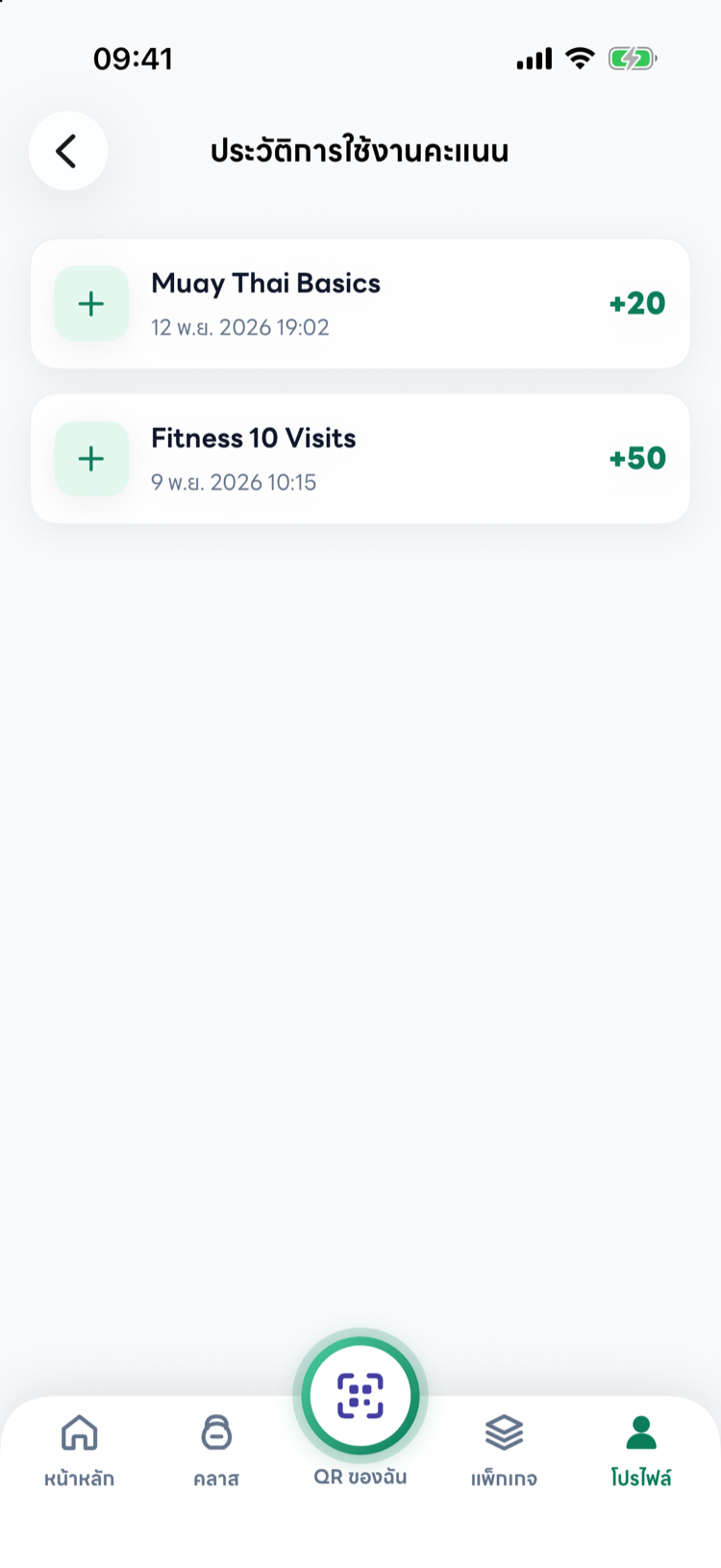
Tap Points history to see points earned and used
20.5 Deleting your account
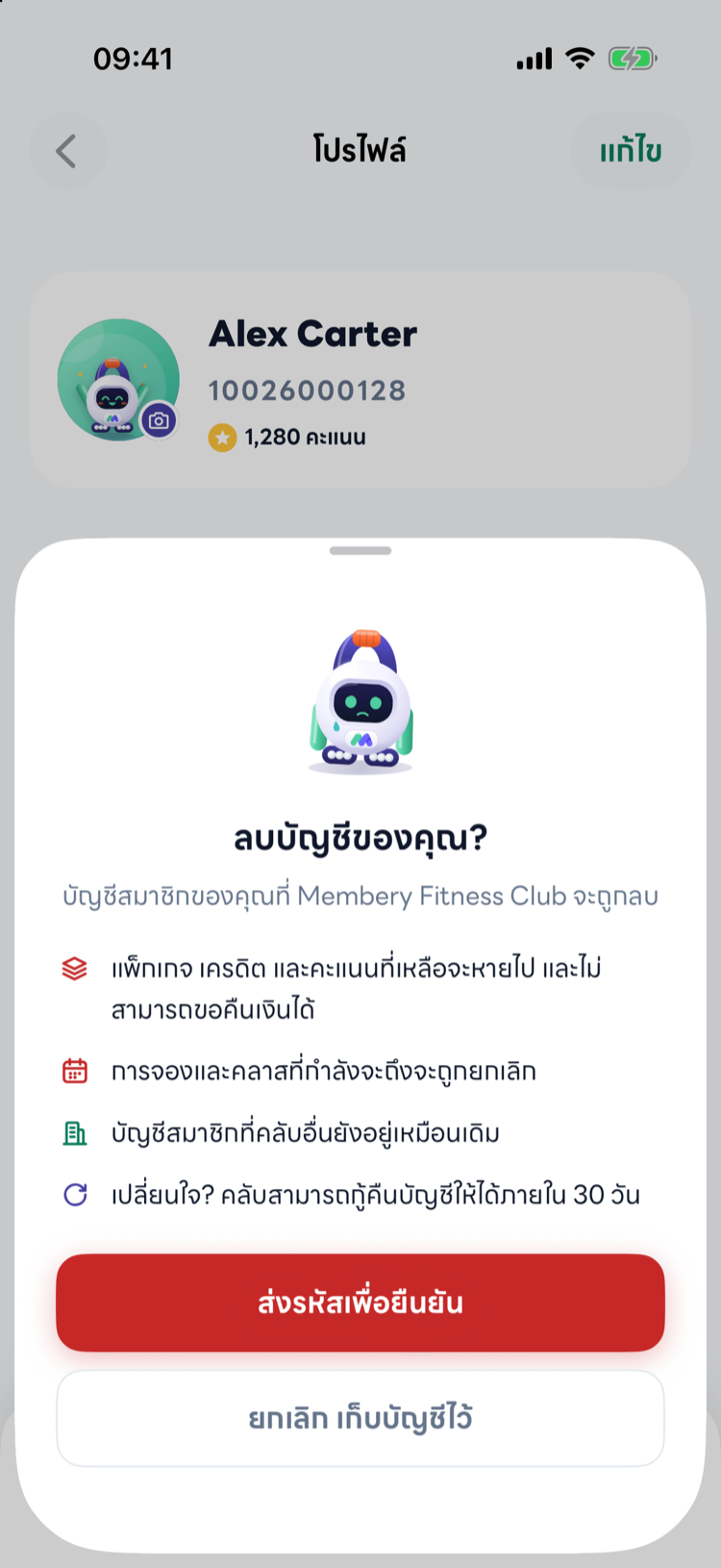
- Go to Profile and tap Delete my account
- Read what deleting means
- Unused packages, credits and points are lost and not refunded
- Your upcoming bookings and classes are cancelled
- Your memberships at other clubs stay as they are
- Tap Send code to confirm, enter the OTP, then tap Delete my account
20.6 Troubleshooting
| Problem | Fix |
|---|---|
| No OTP | Check the number matches the one the club has. If not, contact the club. |
| Signed out by itself | Someone signed in to this account on another device (one device at a time) |
| No notifications | Turn on notifications for MEMBERY in iPhone Settings |
| A package you bought doesn't show | If the slip says "Checking your slip", wait for staff to confirm, then pull down to refresh |
21 Members on LINE OA Updated v2.2
- New look for Home, Classes, My Services and Points/Rewards. Points history has its own tab.
- A new Packages tab and a Book button on Home. Members can buy packages and book courts, paying by QR PromptPay (section 7.4).
- Profile photo upload on the sign-up page
- Several languages
21.1 Connecting your LINE OA account
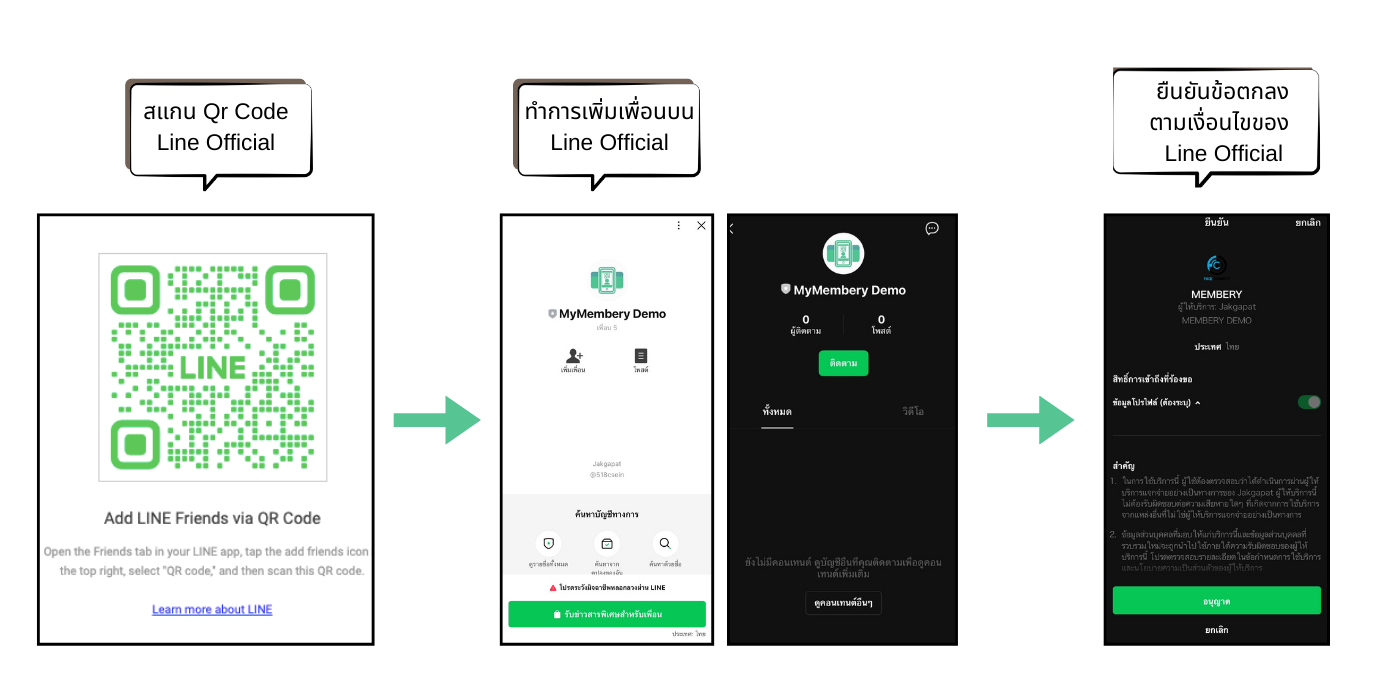
- Scan the QR code to add the club's LINE Official Account as a friend
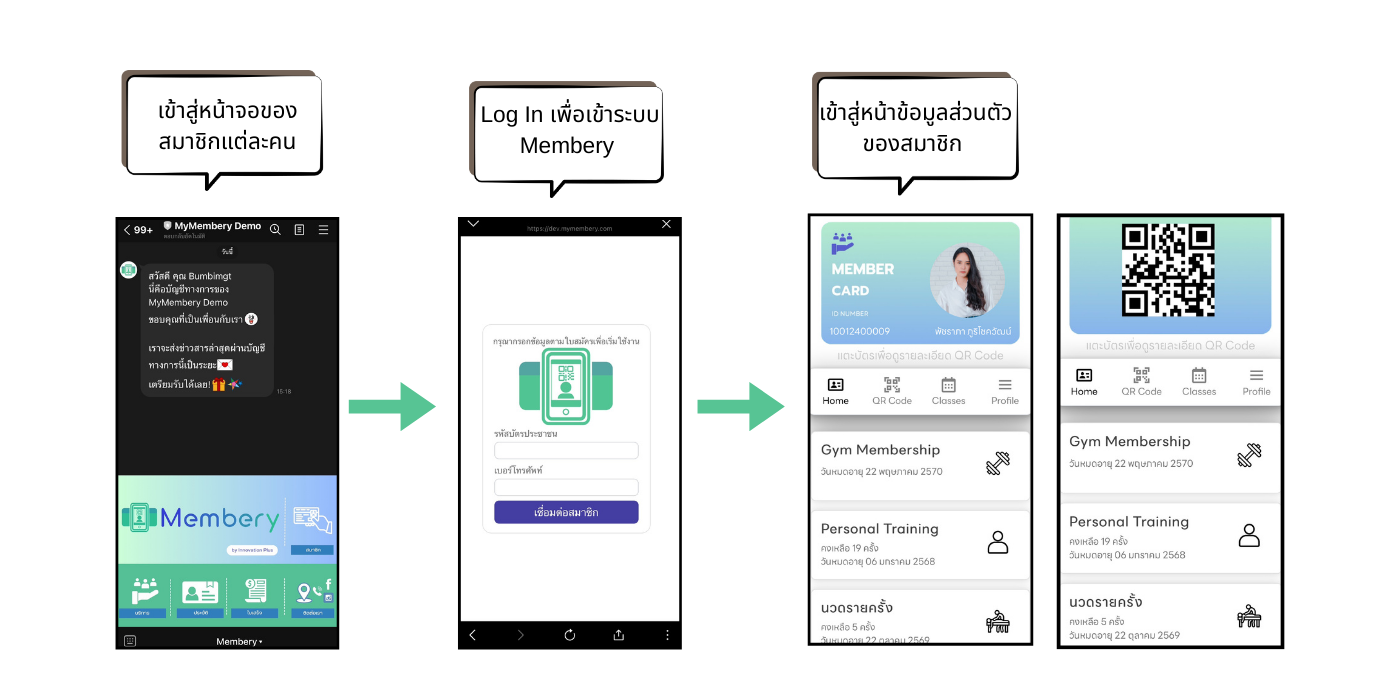
- Tap the sign-in link in the welcome message and sign in with your phone number + password
- Once connected you'll see your digital member card with your name, profile photo, member code, expiry date and check-in QR code
21.2 Packages, classes and court booking
- My Services: packages bought, sign-up date, amount and time remaining
- Classes: see open classes and places left, and book straight away
- Court booking & buying packages: see the steps in section 7.4
- Points/Rewards: see your points, redeem privileges, and points history in its own tab
+ Appendix: what's new in Membery v2.2
A summary for clubs already using Membery. Details are in the chapters linked.
New features
MEMBERY app for members → chapters 18–20
- Sign in with phone number and OTP; confirm it's you with a PIN or Face ID
- Join a club in the app with the club code or the QR at the counter (the club must turn on app sign-up in System settings)
- See packages, check in, book classes and courts, see receipts and redeem points
- Notifications before booked classes and courts, when a waiting-list place opens, when a class is cancelled, and before a package expires
- One device at a time per account · members can delete their own account; the club can restore it within 30 days
QR PromptPay payments → chapter 7
- Buy packages and pay for court bookings by PromptPay QR, on LINE OA and in the app. Money goes straight to the club's account, no KYC needed.
- Automatic slip checks (Slip2Go) or staff approval. Slips with the wrong amount or paid to another account are rejected at once, with the reason shown to the member.
- New report Report › PromptPay Payment Transactions, filterable by day, month, year or range, with Export CSV
Pausing packages → chapter 5
- Pause a package from the member's page. The expiry moves out by the days paused. Members can resume early.
- New menu Member › Package Pause lists all pauses, with Export Excel
Holidays and make-up days → chapter 11
- Close a whole branch or only some services, choosing several branches or services at once
- Give make-up days to members with time-based packages, automatically or by picking members
- New menu Holiday schedule › Make-up days · every user level now sees the holiday menus
What changed
| Area | Change |
|---|---|
| Members | Sign-up channels menu · show inactive members · status no longer changes when details are edited · Notify turns off once sent · check-in credits can be returned |
| Check-in | Static location/class QR codes · no deducting beyond the balance · trainer QR counts credits for the trainer |
| Classes | A class can accept several services · leave the waiting list at any time |
| Court / room booking | Close rooms for a period · turn off paying at the counter · automatic cancellation if unpaid · advance booking for non-members · price per slot shown |
| LINE OA | New look · Packages tab · photo upload at sign-up · several languages |
| Reports & dashboard | Exports show the seller · one set of payment channel names · dashboard counts "Other" revenue · revenue chart leaves out refunds |
| Other | "Show on LINE/app" in Service Fee · email optional on the staff form · easier User Level permission form · volleyball and table tennis icons |